Keep your name and mobile number up to date, and choose the time zone you want to see times in. Everyone can change these for themselves.
Open your profile
Select your name at the bottom of the sidebar. LiftSync opens Your profile.
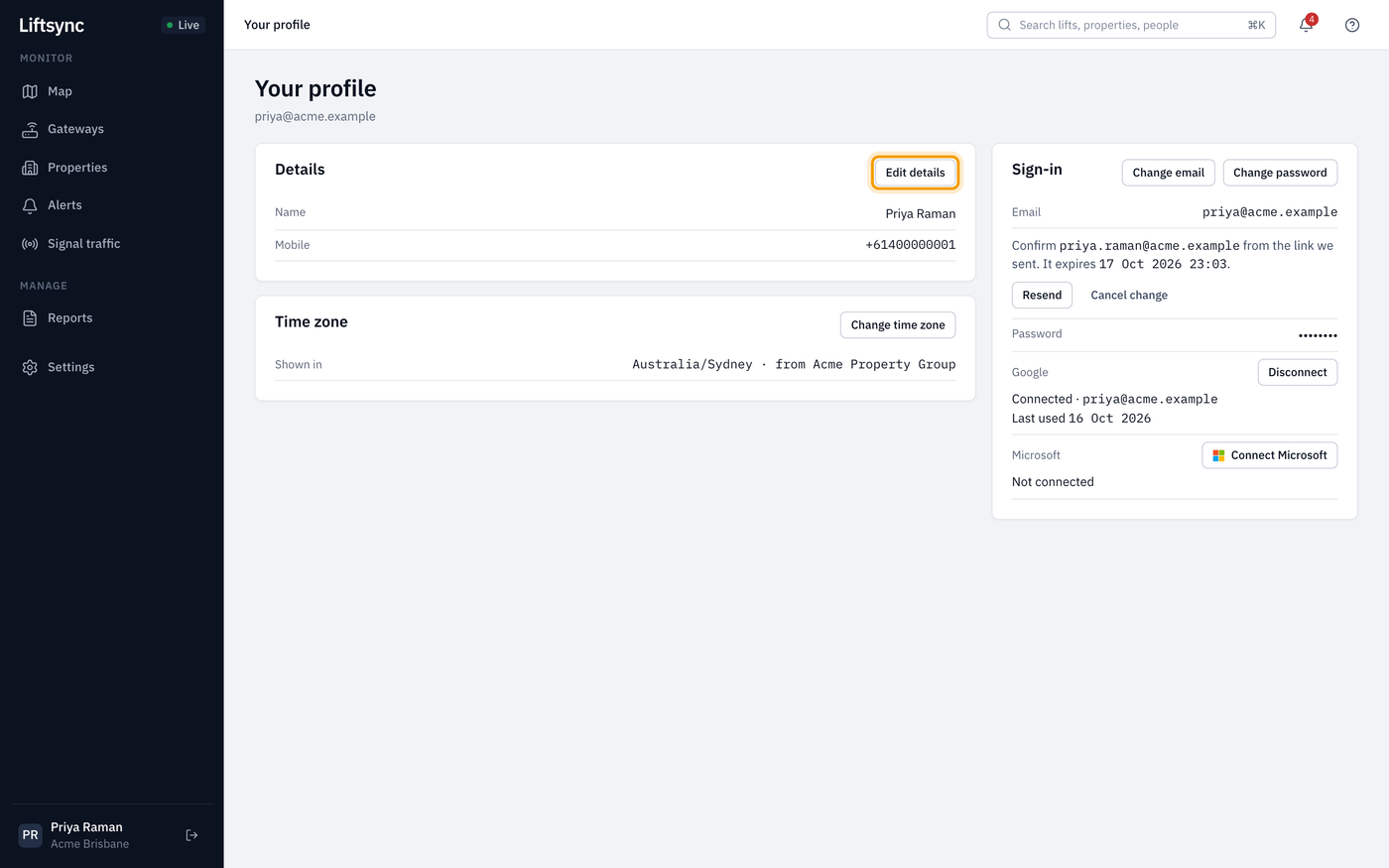
To change your email address, password, or Google or Microsoft sign-in, see Change how you sign in.
Change your name or mobile number
- On Your profile, select Edit details in the Details card.
- Change your Name or Mobile.
- Select Save changes.
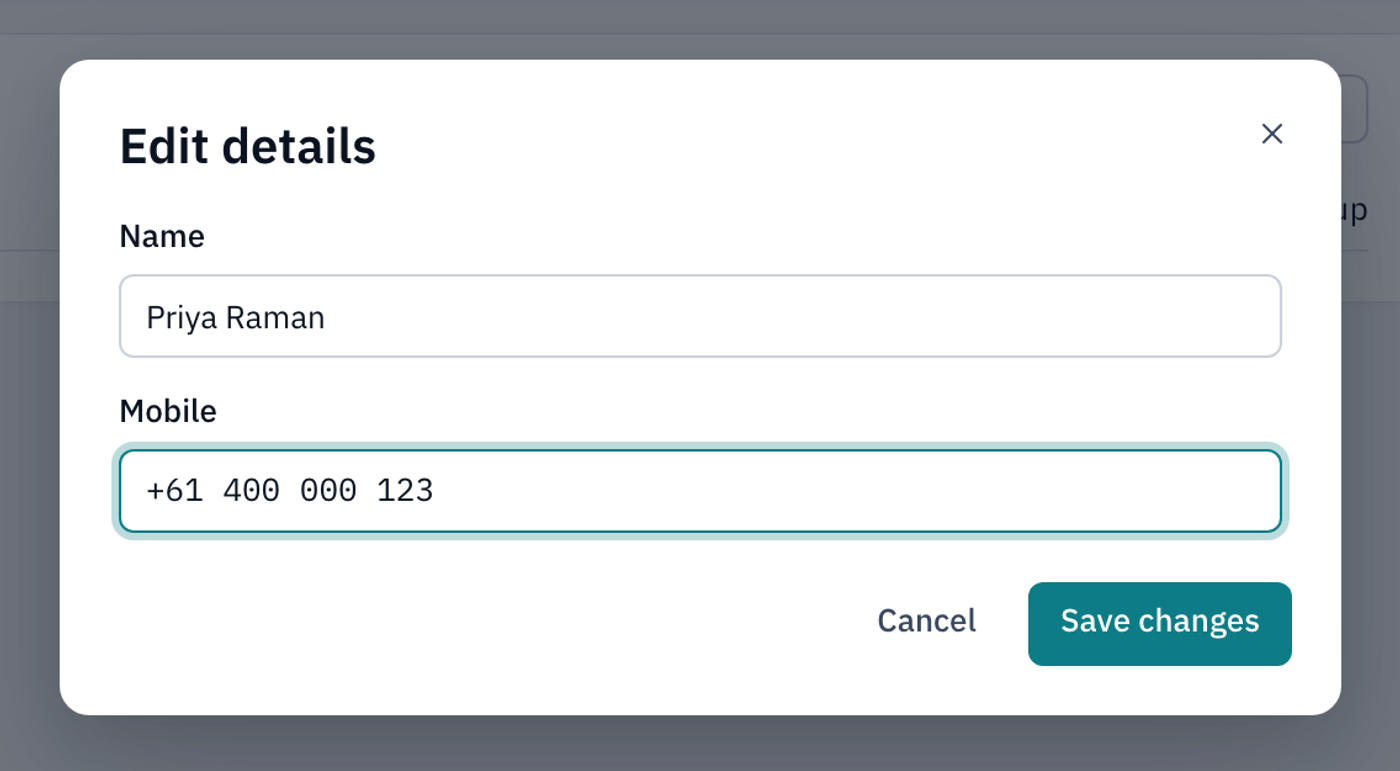
Type your mobile number with the country code, like +61 400 000 000. If LiftSync can't read it, you see Enter a mobile number like +61 400 000 000 under the box.
Keep your mobile number up to date if you're one of the people LiftSync contacts when something goes wrong, because that's where text messages go. See Choose who gets told when something goes wrong.
Your name can't be empty. To remove your mobile number, clear the box and save.
Change your time zone
Times and dates across LiftSync, such as when an alert started, are shown in a time zone. Unless you choose your own, LiftSync uses your organisation's time zone. The Time zone card shows which one you're using now, for example Australia/Sydney · from your organisation.
- On Your profile, select Change time zone.
- Choose a Time zone. Australian time zones are at the top of the list.
- Select Save time zone.
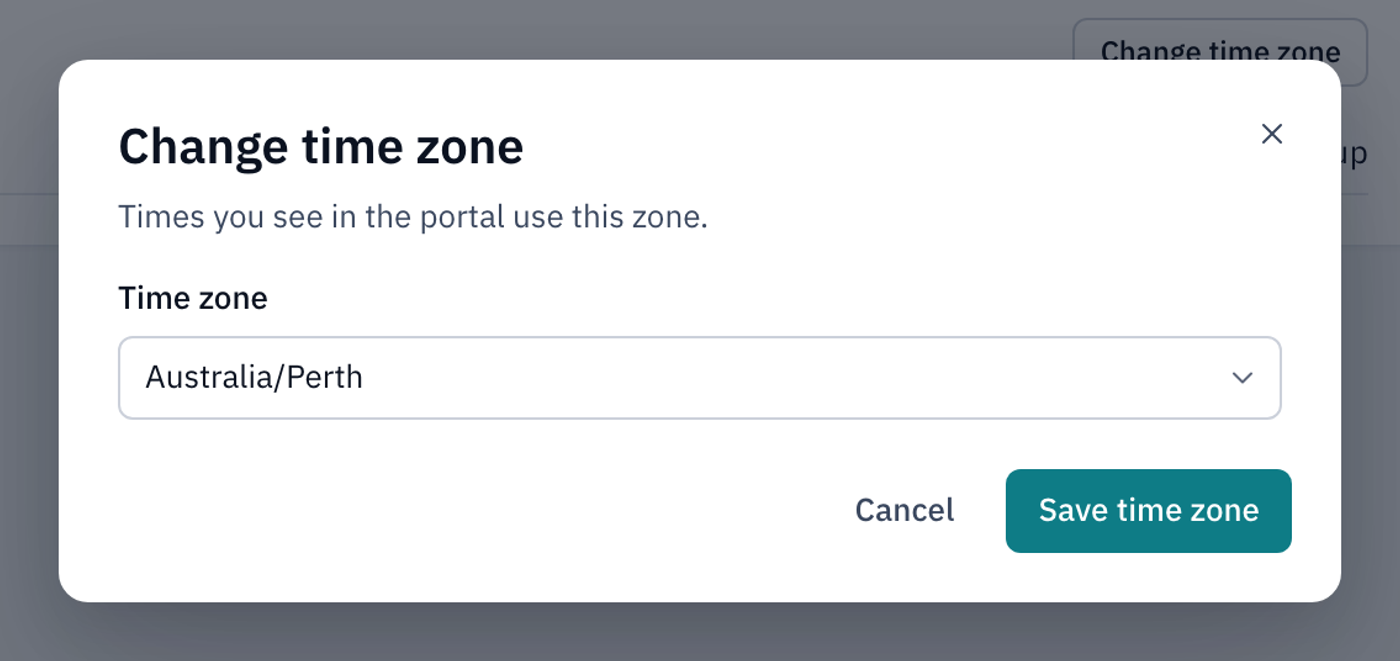
LiftSync now shows times you see in that time zone. The card shows it as your own.
To go back to your organisation's time zone, choose the first option, Use my organisation's, and save.