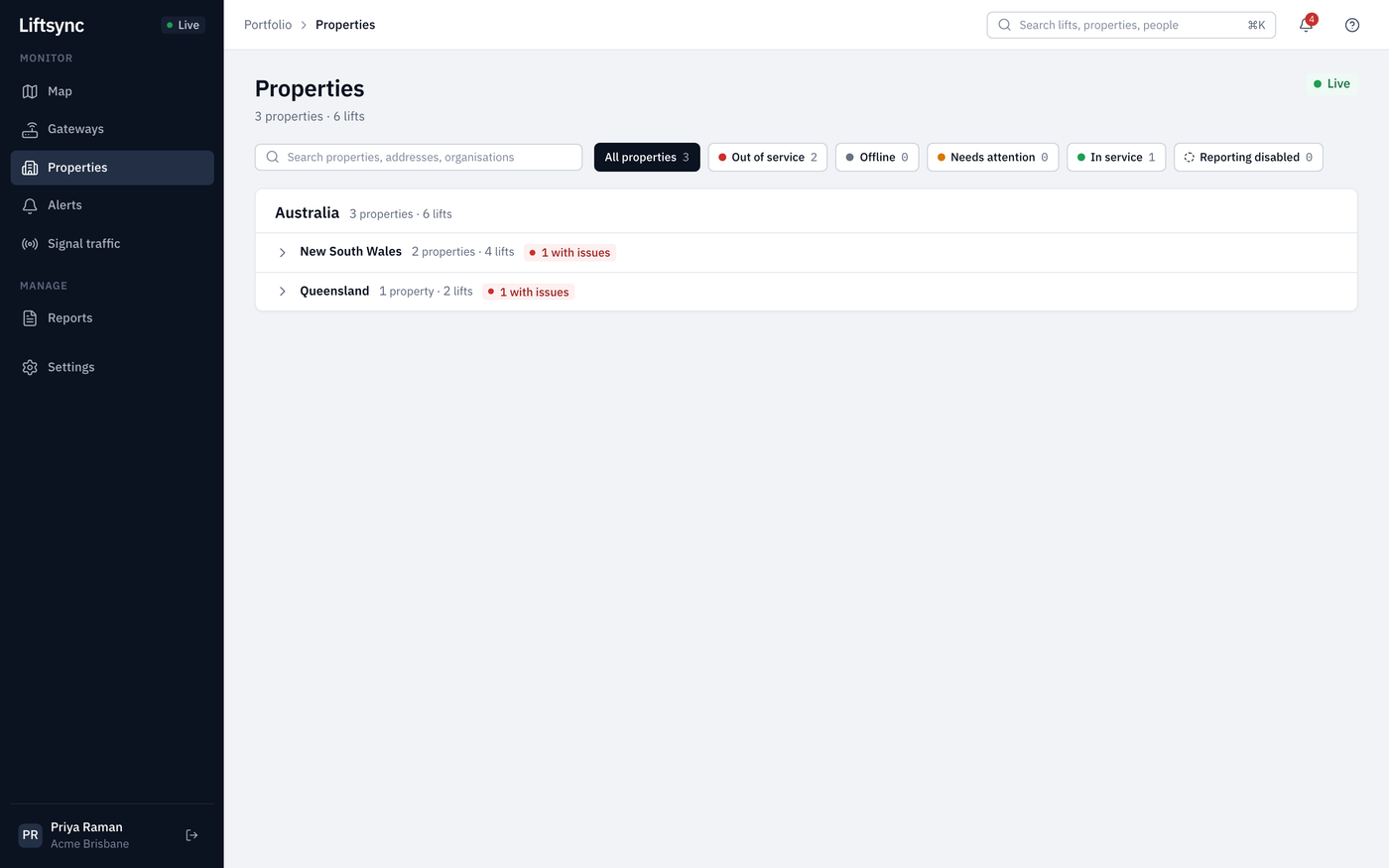
Every page in LiftSync has the same layout: a dark sidebar on the left to move between pages, and a bar along the top with the page's location, a search box and the alerts bell.
The sidebar
Select an item in the sidebar to go to that page. The page you're on is highlighted.
| Item | What it's for |
|---|---|
| Map | Your properties on a map, coloured by the state of the emergency call equipment in their lifts. This is where you land when you sign in. |
| Gateways | The devices in your lifts that connect the emergency call button to the call centre, and whether each one is reporting. |
| Properties | A list of your buildings and the lifts in each one. |
| Alerts | Problems with your lifts' emergency call equipment, such as a phone line fault, and a record of emergency calls. |
| Signal traffic | Recent reports from all your lifts' gateways in one place. |
| Reports | Reports on your gateways and their signals, which you can download as a PDF or a spreadsheet. |
| Billing | Lift companies only: invoicing your customers. Shows for lift company owners and admins once LiftSync has switched billing on for your lift company. |
| Settings | Your organisations and the people who have access. If you work at a lift company, there's also a Reseller tab for your lift company's own page and staff. |
The Live indicator
The Live label at the top of the sidebar means LiftSync is connected and the page updates by itself. You don't need to refresh the page to see new alerts.
If your connection drops, it changes to Reconnecting until LiftSync is back in touch. If it says Signed out, sign in again.
Your name, profile and signing out
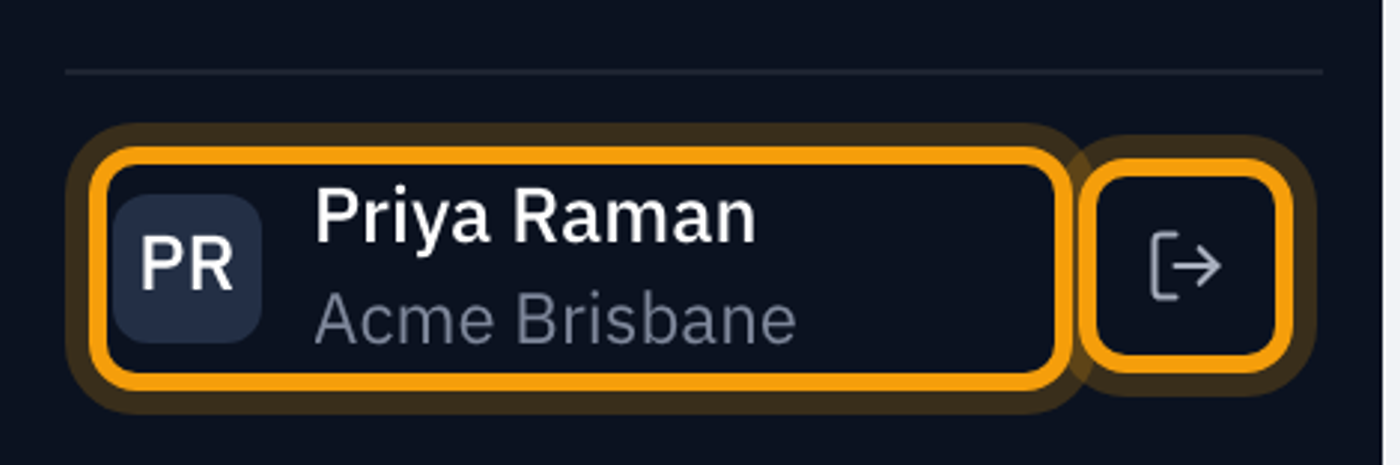
Your name is at the bottom of the sidebar. Under it is your organisation, or your lift company's name if you work at a lift company.
- Select your name to open your profile, where you can update your details and how you sign in.
- Select the sign-out button next to your name to sign out.
The top bar
Breadcrumbs: where you are
The left of the top bar shows where you are, for example Portfolio › Properties › Harbour Towers. Select an earlier part to go back up a level. Portfolio takes you to the map.
Search
Use search to jump straight to a lift, property, organisation, person or alert.
- Select the search box at the top of the page, or press ⌘K on a Mac (Ctrl K on Windows).
- Start typing, for example part of a property name.
- Select a result to open it, or use the arrow keys and press Enter.
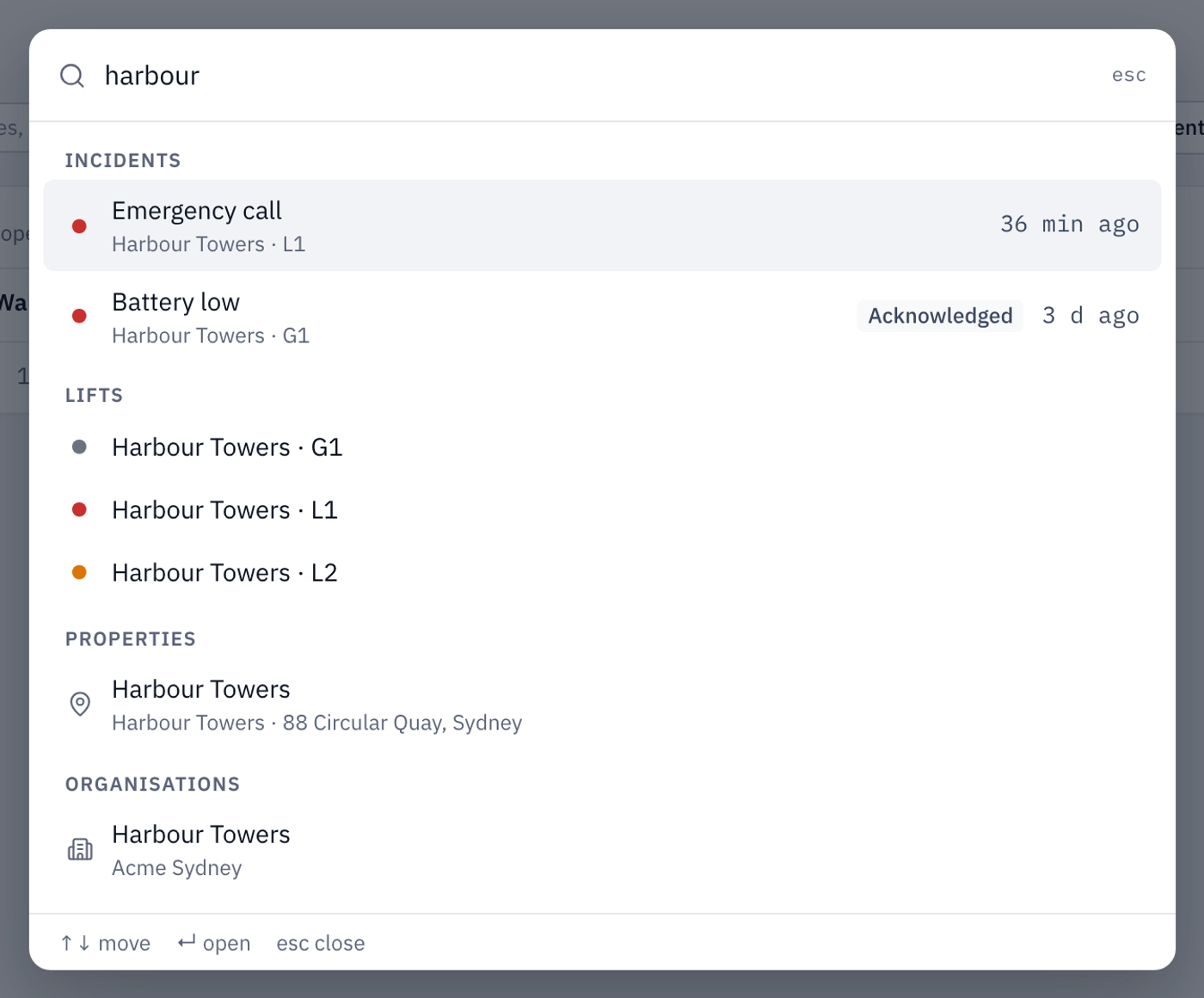
Before you type anything, the search window lists open alerts. Results are grouped by type. Press Esc to close search.
The alerts bell
The bell shows how many alerts nobody has acknowledged yet. Point to it to see the number in words, for example "4 unacknowledged alerts". Select the bell to open the Alerts page.
When there are no unacknowledged alerts, the bell has no number.