Signal traffic shows what the gateways in all your lifts have been reporting to LiftSync. The gateway is the device in a lift that connects the emergency call button to the call centre. A signal is one report from a gateway, such as an emergency call, a power cut or its regular check-in. Most people use this page for three things: seeing what needs attention now, spotting gateways that have gone quiet, and looking up a particular report.
Open Signal traffic
Select Signal traffic in the sidebar.
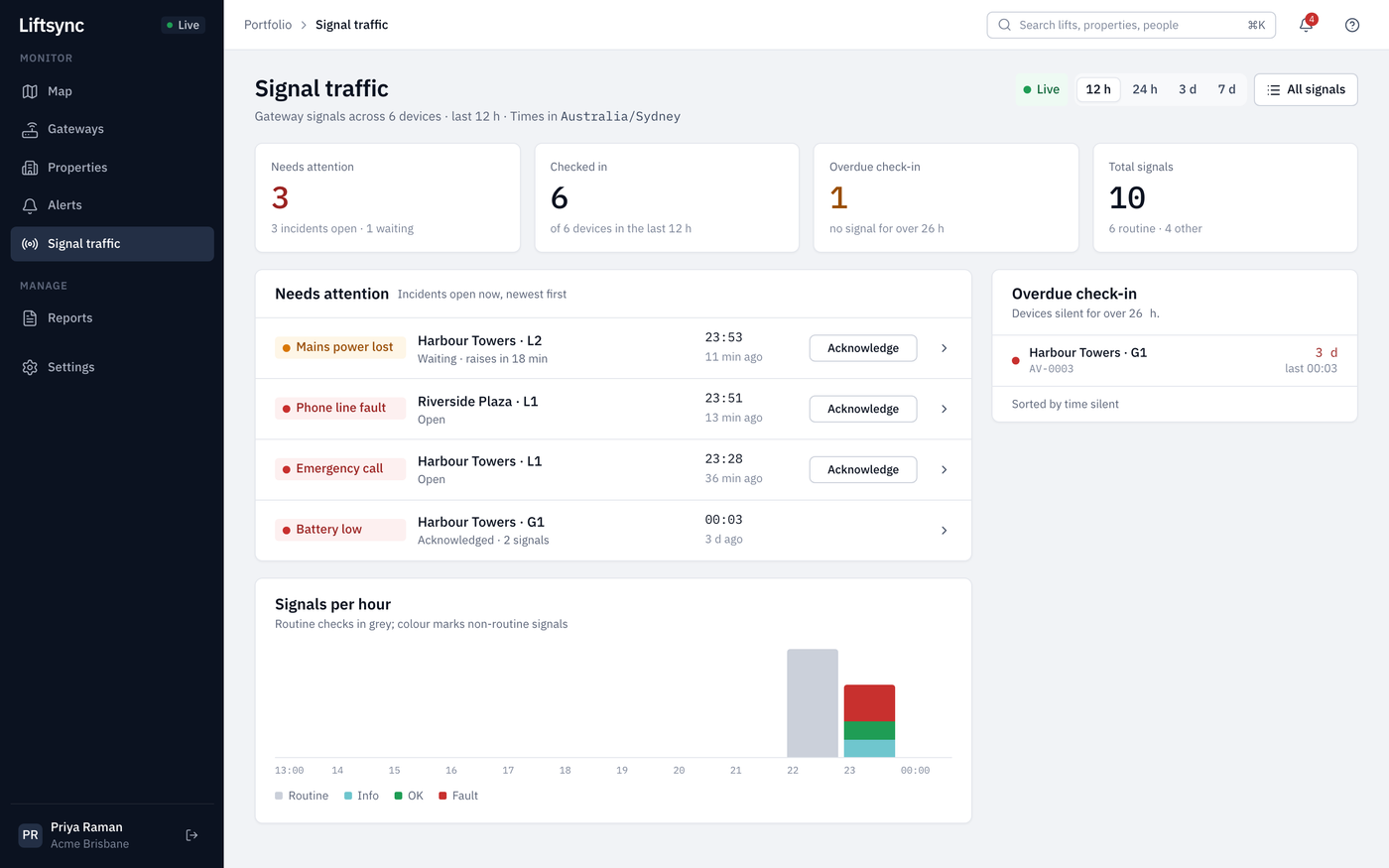
The boxes along the top give you a quick summary:
| Box | What it shows |
|---|---|
| Needs attention | How many alerts are open now |
| Checked in | How many lifts' gateways have reported at least once in the period you chose |
| Overdue check-in | How many lifts' gateways LiftSync hasn't heard from for over a day |
| Total signals | How many reports arrived in the period, and how many were routine check-ins |
To change the period, select 12 h, 24 h, 3 d or 7 d at the top right.
See what needs attention
The Needs attention list shows the alerts that are open now, newest first. Each row shows the alert, the property and lift, and when it started.
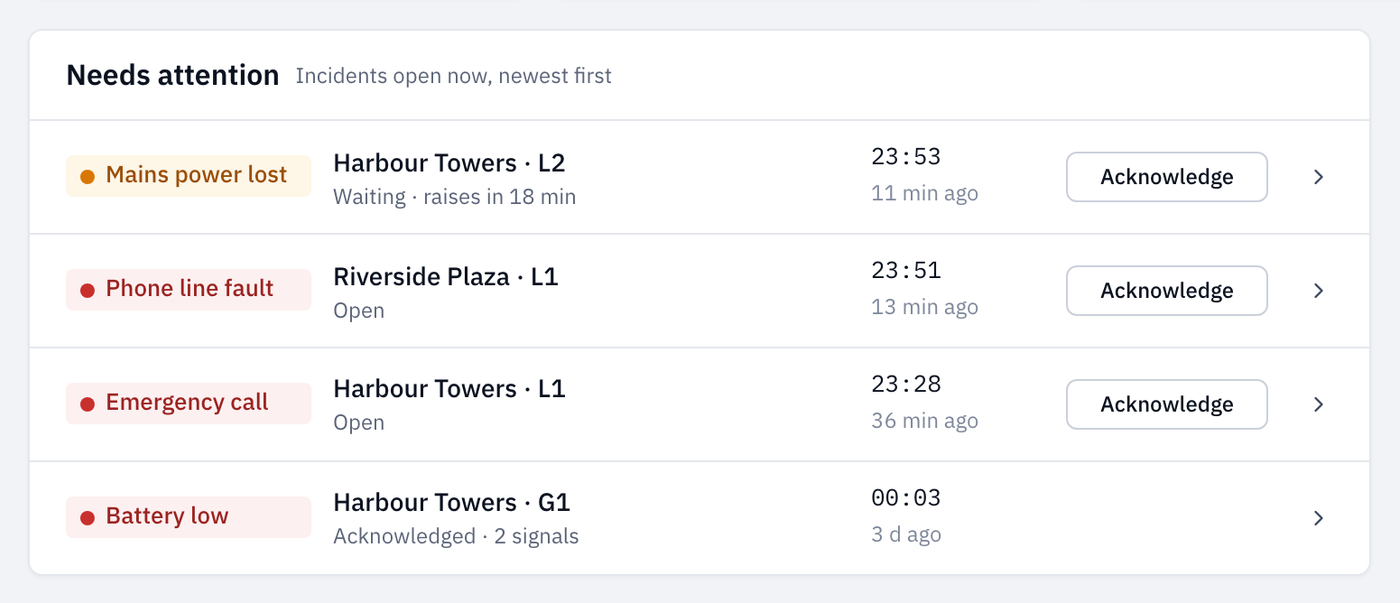
- Select a row's arrow to open the alert.
- Select Acknowledge to tell others you're dealing with it. See Acknowledge and resolve an alert.
- Select Show resolved to also see alerts that were closed in the period you chose.
Viewers see the list, but not the Acknowledge button.
Find lifts that have gone quiet
Each lift's gateway sends LiftSync a regular check-in to show it's working. The Overdue check-in list on the right shows any lift whose gateway hasn't sent anything for over a day, the longest silent first.
The gateway in a lift on this list may have lost power or its phone signal, or have a fault. Until it's sorted, the lift's emergency phone may not work. Ask your technician to check the gateway.
Look up a particular report
- Select All signals at the top right. The list of every report opens, newest first.
- To see one kind of report, select it under By signal, for example Emergency call. The number next to each kind shows how many arrived in the period.
- To find a property, type part of its name or address in the search box and press Enter.
- To look further back, select 12 h, 24 h, 3 d or 7 d.
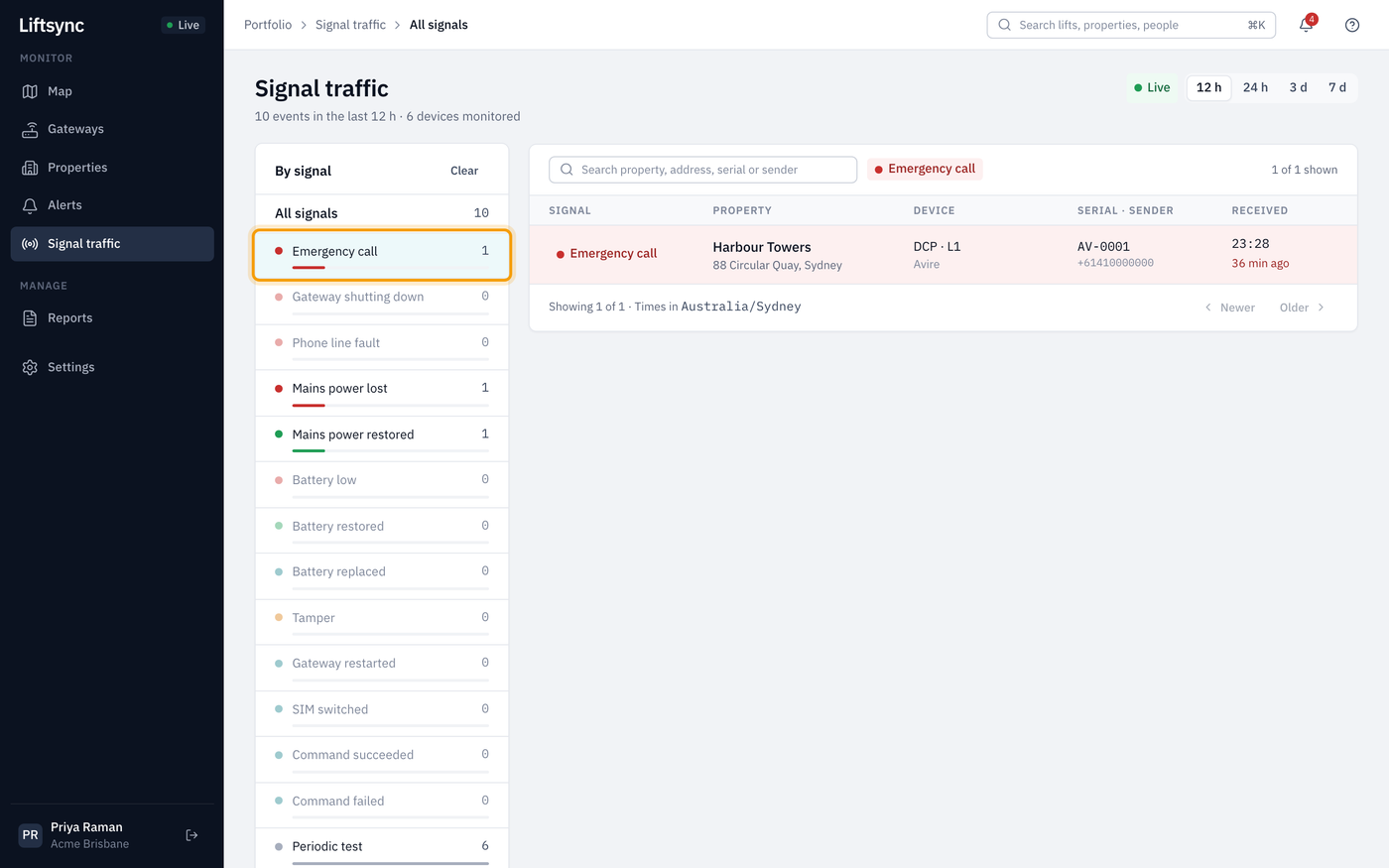
Reports about a problem are shown in red. To see every kind of report again, select Clear next to By signal, or select All signals.
If there are more reports than fit on one page, use Older and Newer at the bottom of the list.