A gateway is the device in a lift that connects the emergency call button to help and reports to LiftSync. LiftSync only monitors a lift's emergency call equipment once its gateway is in LiftSync and linked to the lift. This article covers the three steps, usually done by whoever fits the gateway:
- Register the gateway, so LiftSync knows about it. It goes into stock.
- Place it at the property where it's being fitted.
- Allocate it to the lift or lifts it looks after.
You can place and allocate in one go. If you're standing at the lift with a new gateway, you can also do all three at once from the property page. You can also take a gateway out again and return it to stock.
Register a new gateway
- Select Gateways in the sidebar.
- Select Register gateway.
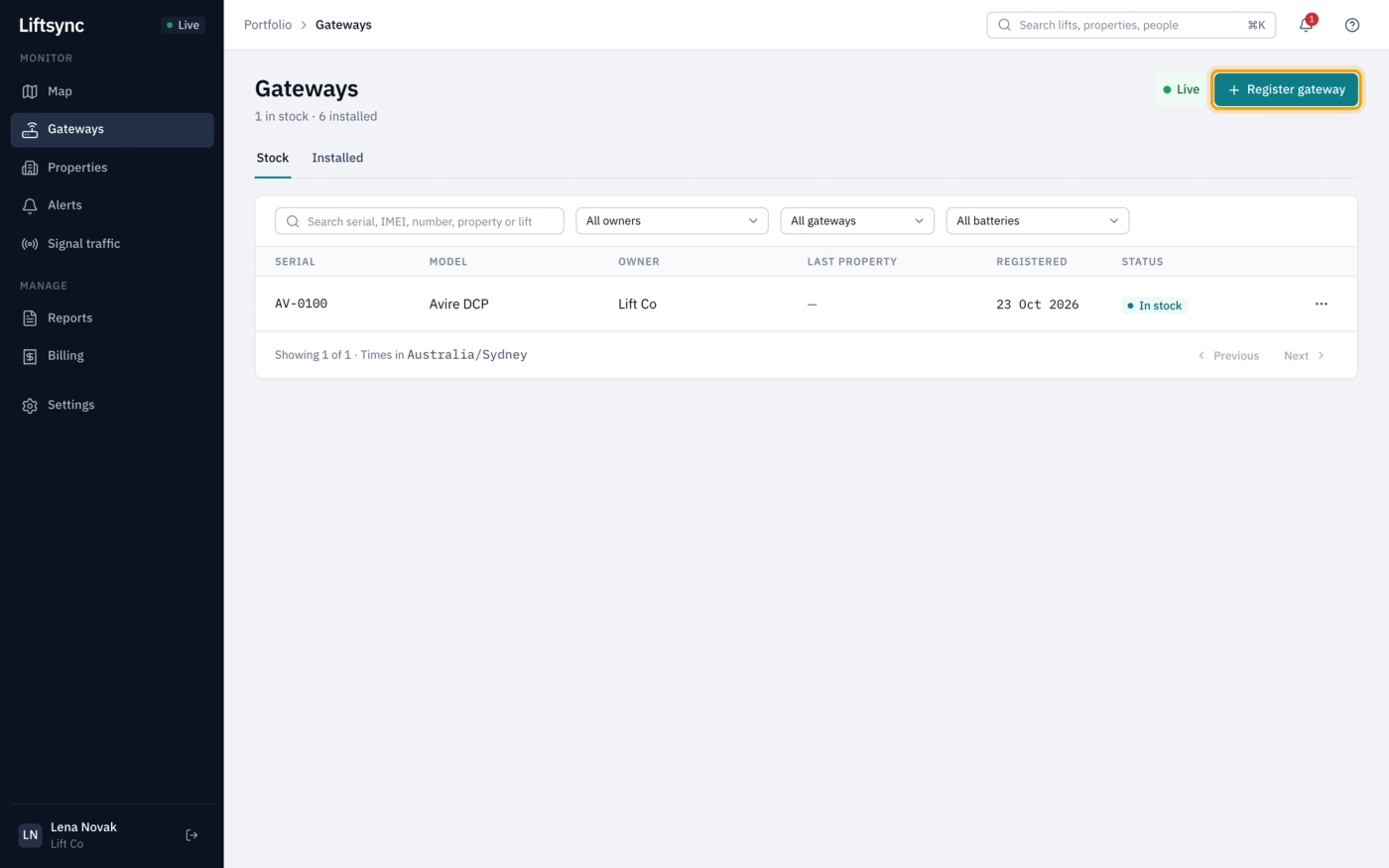
- Under Owner, choose the organisation or lift company that owns the gateway. If there's only one, it's already chosen.
- Under Model, choose the gateway's make and model.
- In Serial, type the serial number from the gateway's label.
- If you have them, type the gateway's phone numbers: the number of the SIM card in the gateway in Primary SIM number, and the second SIM's number, if it has one, in Backup SIM number. LiftSync uses these to recognise messages from the gateway, so add them now or later in Edit numbers.
- Select Register gateway.
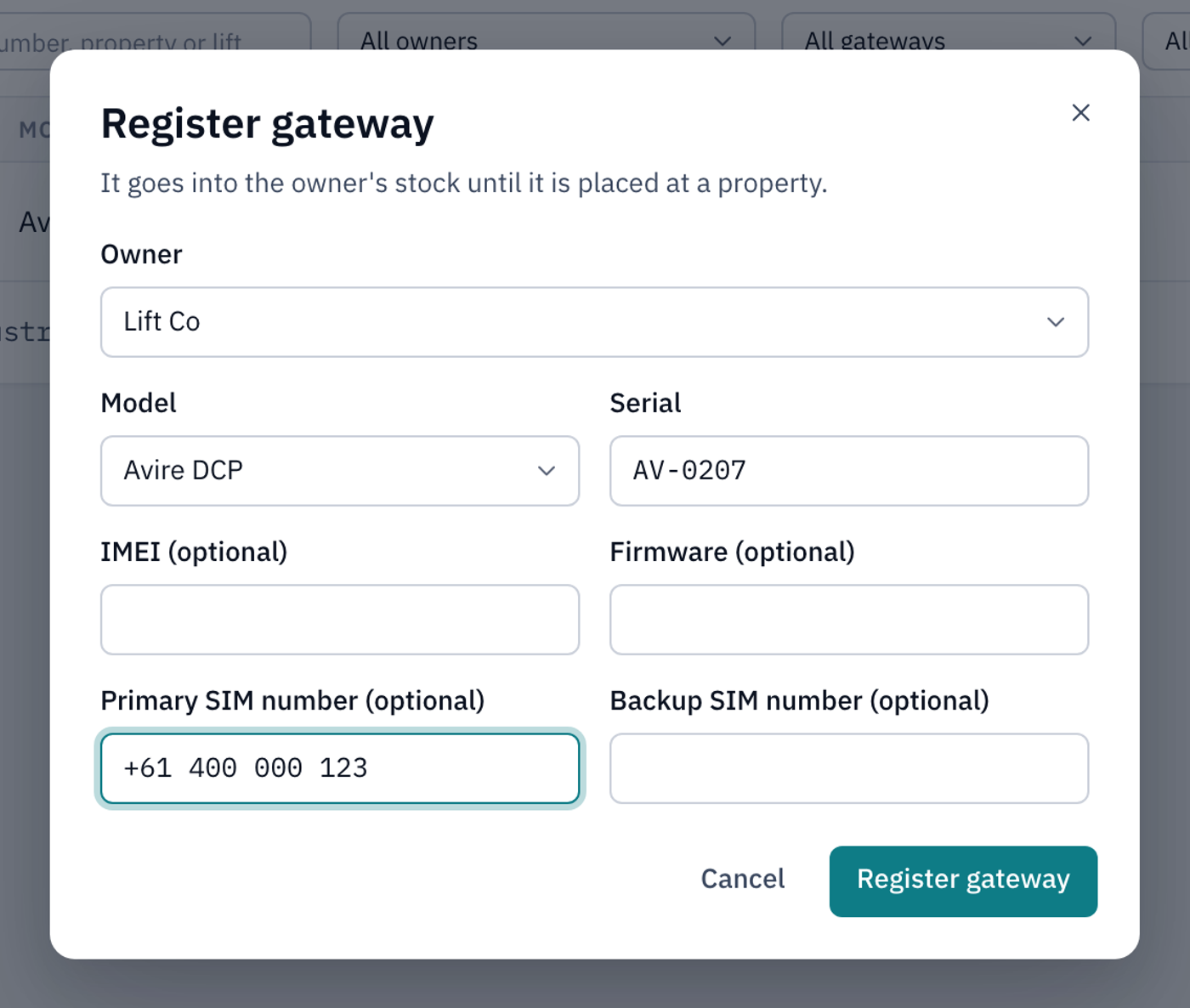
Register gateway stays greyed out until you've chosen an owner and a model and typed a serial number. You can leave IMEI and Firmware empty.
The new gateway's page opens. It shows In stock, and it's listed on the Stock tab of the Gateways page.
If a phone number you typed is already on another gateway, LiftSync tells you which one. If you're swapping a faulty gateway for a new one, select Move number here to take the number from the old gateway.
Fit a gateway to a lift from the property page
The quickest way to fit a gateway is from the property. Lifts with no gateway are listed under Pending on the property's Assets card.
- Select Properties in the sidebar and open the property.
- On the lift with no gateway, select the + (Install gateway).
- Choose the gateway you're fitting:
- Awaiting allocation here lists gateways already at this property.
- In stock lists gateways that aren't at a property yet, grouped by owner. If there are lots, type part of the serial number, IMEI or SIM number in Search stock to find it.
- Select Install gateway.
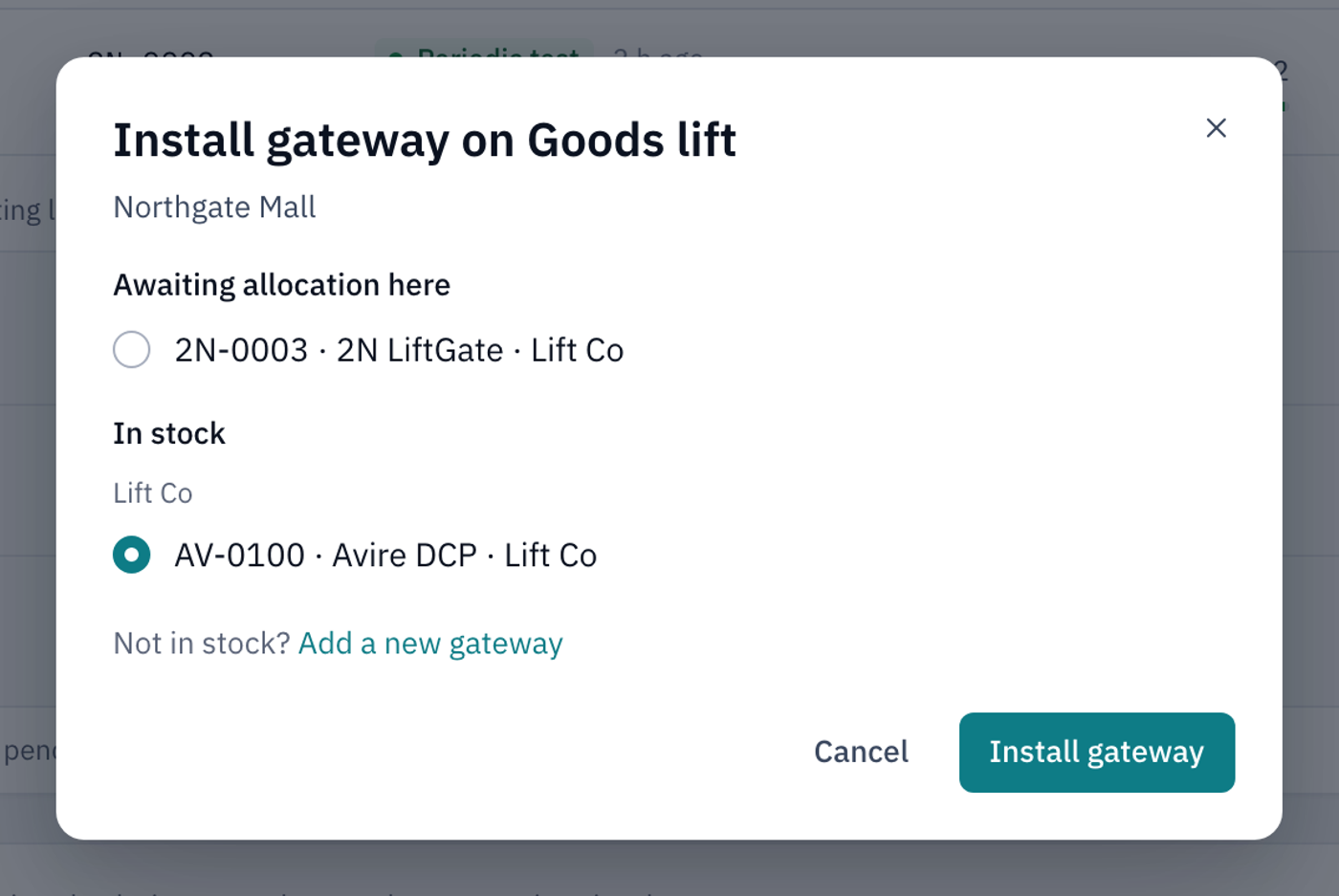
The gateway is placed at the property and linked to the lift in one step. LiftSync starts monitoring the lift's emergency call equipment as soon as the gateway reports. Until then, the gateway shows Installed · awaiting first signal.
Add a new gateway while you're at the lift
If the gateway you're fitting isn't in LiftSync yet, you can add it and fit it to the lift in one go, without registering it into stock first.
- On the lift with no gateway, select the + (Install gateway).
- Select Add a new gateway (next to Not in stock?). If you searched and nothing matched, select the Add … as a new gateway button instead. It fills in what you typed.
- Check the Owner. LiftSync suggests one, usually your lift company or the property's organisation.
- Choose the Model and type the Serial from the gateway's label.
- If you have them, type the gateway's SIM numbers in Primary SIM number and Backup SIM number.
- Select Add gateway.
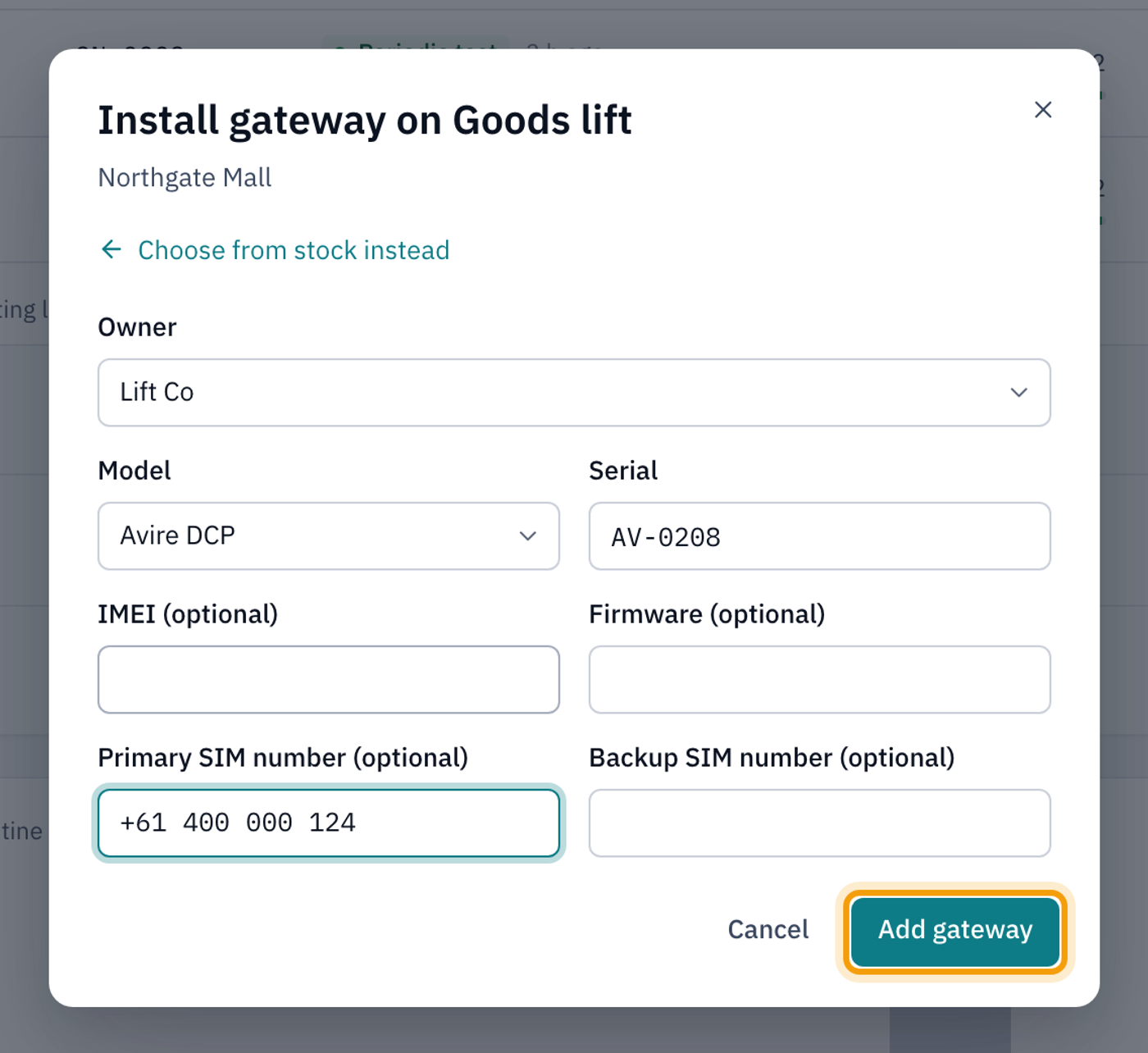
The gateway is added, placed at the property and linked to the lift. To go back to the list of gateways in stock, select Choose from stock instead.
Fit a gateway to a lift from the gateway's page
You can also start from the gateway. This is useful when one gateway looks after more than one lift.
Place it at a property
- Open the gateway from the Stock tab of the Gateways page.
- Select Place gateway.
- Under Property, start typing the property's name, then choose it from the list.
- Under Lifts with no gateway, tick the lift or lifts the gateway looks after. You can leave this for now and allocate the lifts later.
- Select Place gateway.
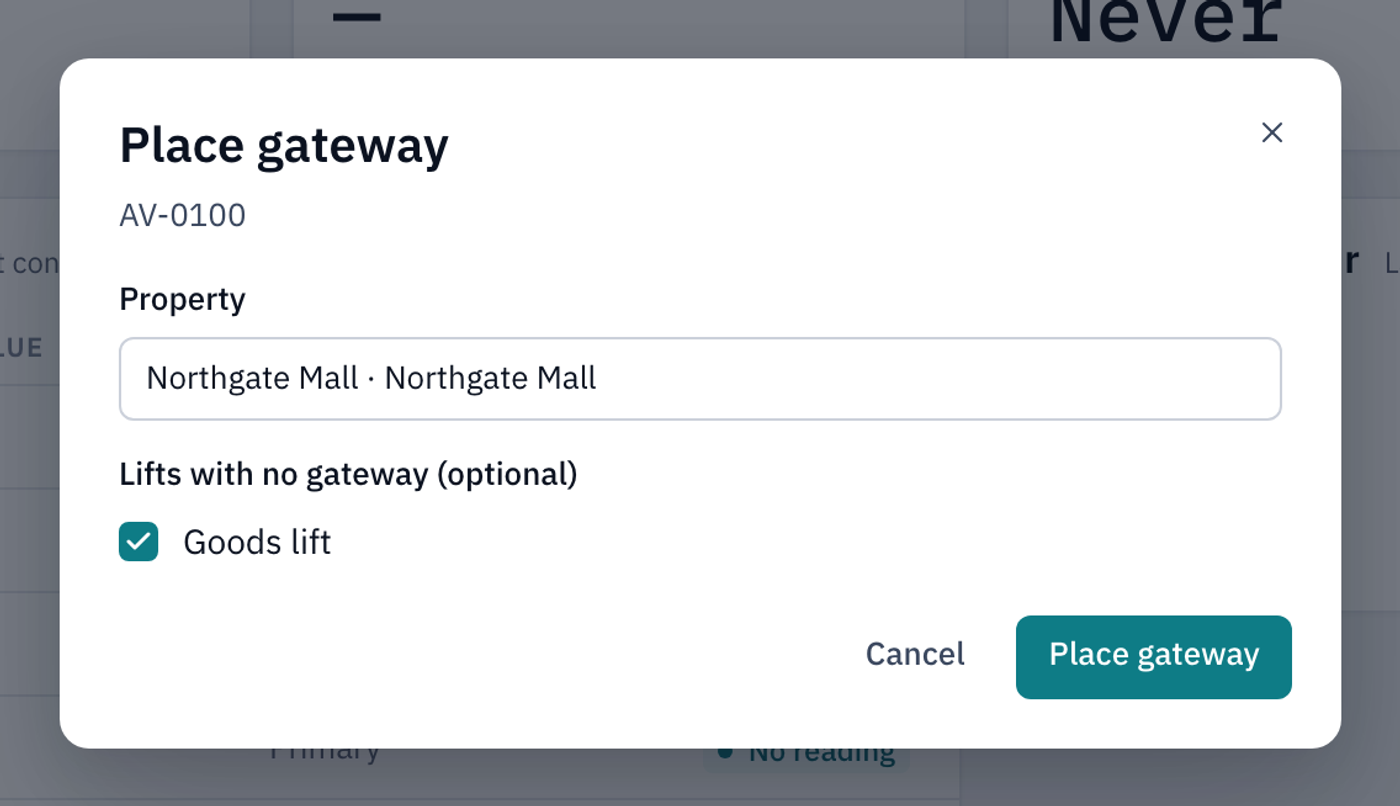
If you didn't tick any lifts, the gateway shows Awaiting allocation. It's at the property, but LiftSync isn't monitoring any lift through it yet.
Allocate it to lifts
- Open the gateway. On the Gateways page, choose Awaiting allocation in the All filter to find gateways that still need it.
- Select Allocate lifts. For a gateway already linked to lifts, select ⋯, then Allocate lifts.
- Tick every lift the gateway looks after, and untick any it no longer does.
- Select Allocate lifts.
A lift that already has another gateway shows has and that gateway's serial number. If you tick it, also tick Replace to confirm that the new gateway takes over the lift from the old one.
You can also allocate lifts from the ⋯ at the end of a gateway's row on the Gateways page.
Move a gateway to another property
If a gateway is taken out of one property and fitted at another, select ⋯ on the gateway's page, then Move gateway. Choose the new property and its lifts, as you would when placing it. Any open alerts from the gateway move with it.
Return a gateway to stock
When a gateway is taken out of a lift and not fitted anywhere else yet, release it to stock.
- On the gateway's page, select ⋯, then Release to stock.
- Check the question names the right gateway and whose stock it goes back to.
- Select Release gateway.
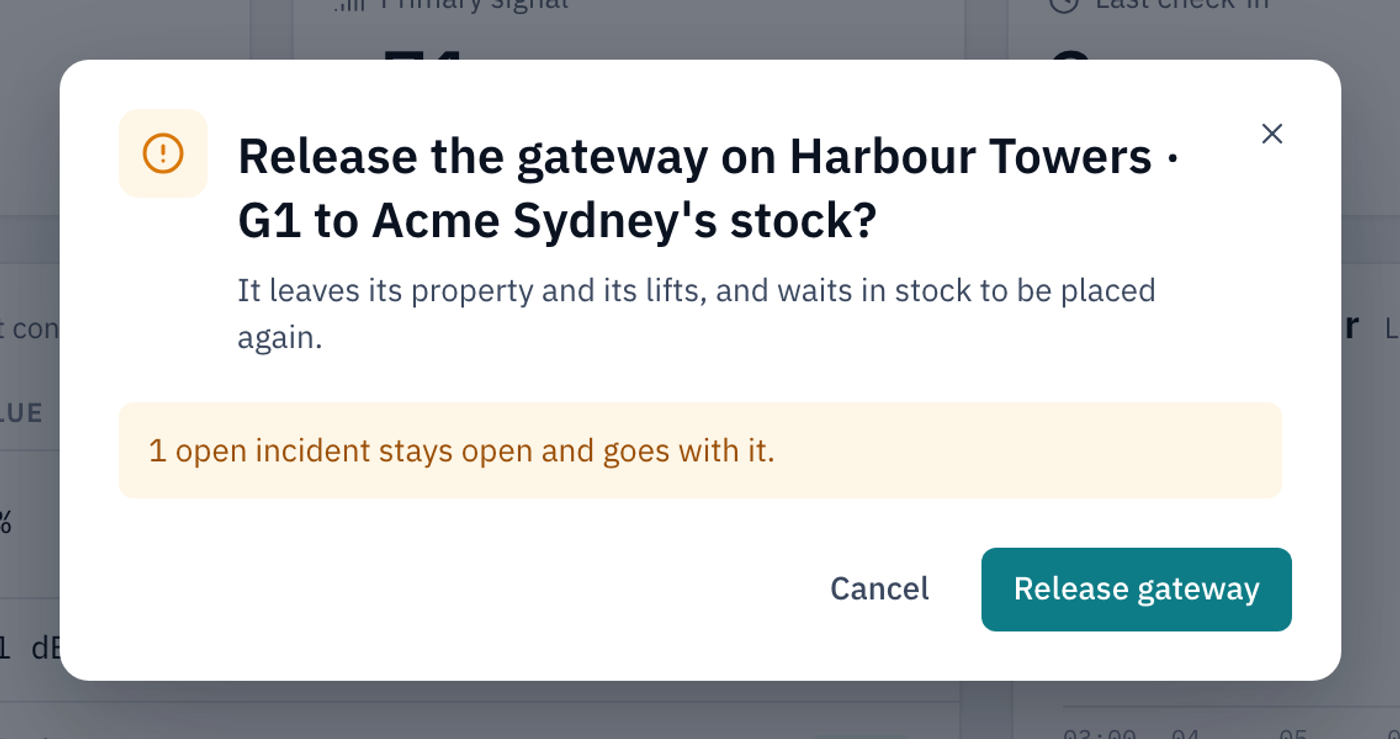
If the gateway has open alerts, the window tells you. They stay open and go with the gateway. The gateway moves to the Stock tab, ready to be placed again.
To change your mind, select Cancel.