When LiftSync raises an alert about a lift's emergency call equipment, such as a phone line fault, it can email or text the people who need to know. This is called escalation. This article shows you how to see who gets told, and how to add or remove people.
How escalation works
Two lists decide who is told:
- Escalation contacts are the people who can be told. A property has its own list, and so does an organisation.
- Policies say which of those people are told about which alerts, and how soon. LiftSync sets up a default policy for everyone, which tells the property's escalation contacts about every alert straight away.
So for most properties, adding someone to the property's escalation contacts is all it takes for them to be told about every alert there. To tell different people about different alerts, see Change who's told for one property or organisation.
See who's told about alerts at a property
- Select Properties in the sidebar and open the property.
- Select Escalation at the top of the page.
The Incidents tab lists each kind of alert, and who is told about it.
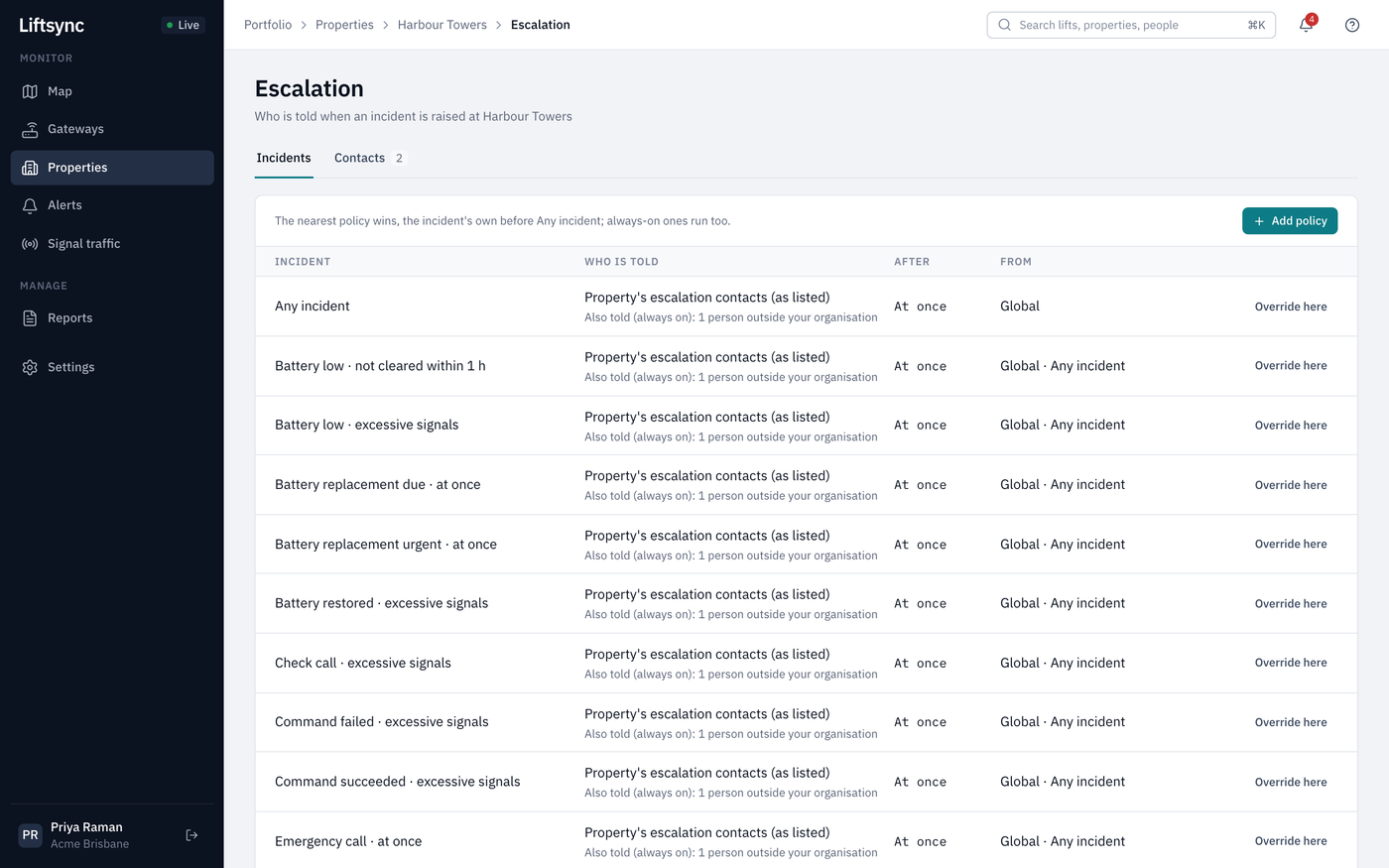
| Column | What it shows |
|---|---|
| Incident | The kind of alert, such as Phone line fault · at once. Any incident covers every kind of alert that doesn't have its own row set up. |
| Who is told | Who LiftSync tells. (as listed) means each person is told by email, SMS or both, as set on the Contacts tab. |
| After | How long after the alert is raised LiftSync tells them. At once means straight away. |
| From | Where the rule comes from: This property, This organisation, a parent organisation, or Global, LiftSync's default. |
You may also see Also told (always on) under a row. This means LiftSync also tells someone outside your organisation, such as a monitoring service. You can't change this here.
To see the same thing for a whole organisation, select Settings in the sidebar, select the organisation, then select Escalation.
Spot an alert nobody will hear about
If Who is told shows (empty) or Nobody in orange, LiftSync won't tell anyone about that kind of alert at this property. For example, Property's escalation contacts (empty) means the policy tells the property's escalation contacts, but nobody is on the list. Add someone, as described below.
Add someone to be told about alerts
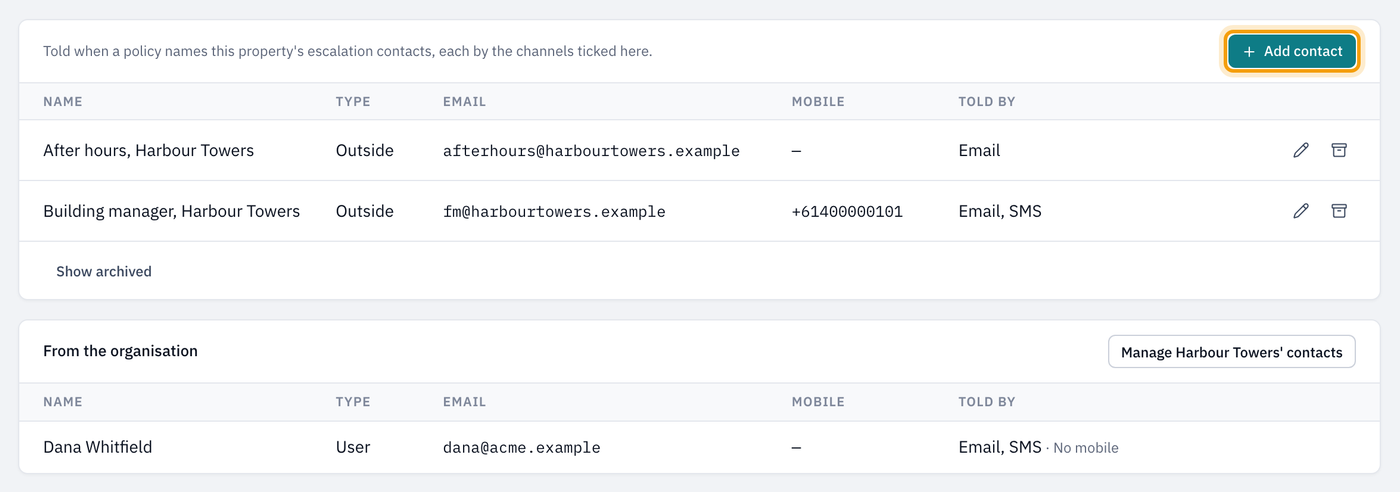
- On the property's Escalation page, select the Contacts tab.
- Select Add contact.
- Choose who to add:
- A user: someone who already signs in to LiftSync. Search for them by name or email. Their email address and mobile number come from their LiftSync account.
- Someone else: anyone else, such as a lift technician or building manager. Type their Name, Email and Mobile.
- Under Tell by, tick Email, SMS or both. For someone else, each one becomes available once you've typed the address it needs.
- Select Add contact.
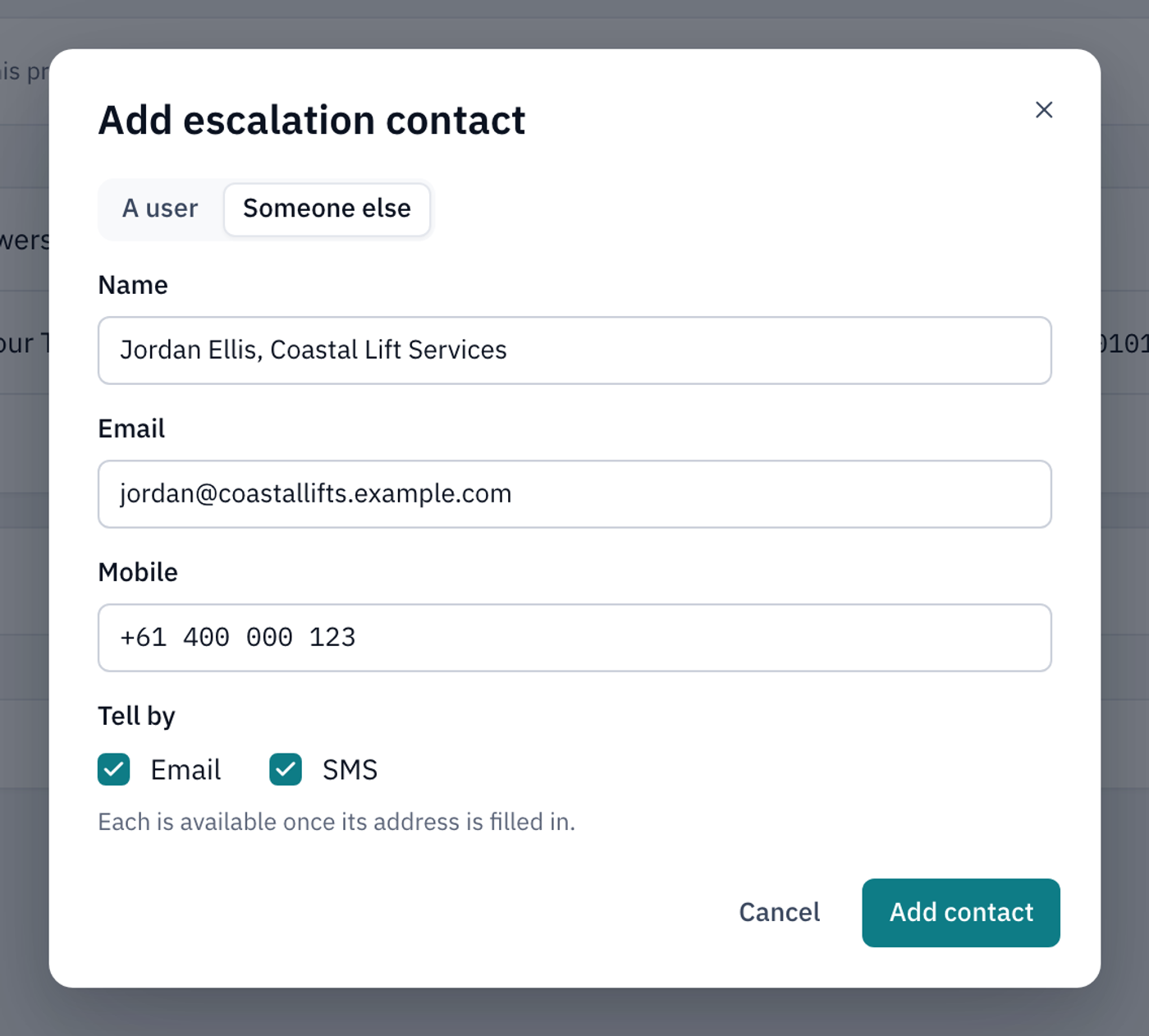
Add contact stays greyed out until you've chosen a user or typed a name, and ticked at least one way to tell them.
If a user later loses access to the organisation, they stay on the list but aren't told. The list shows No longer has access next to them.
Add someone for a whole organisation
An organisation has its own escalation contacts, on the Contacts tab of the organisation's Escalation page. On a property's Contacts tab, they're shown under From the organisation. Select Manage and the organisation's name to change them.
People on the organisation's list are only told when a policy names Organisation's escalation contacts. The default policy only tells the property's list. To use the organisation's list, see Change who's told for one property or organisation.
Change or remove someone
- On the Contacts tab, select the pencil next to the person.
- Change how they're told, or, for someone else, their name, email or mobile. A user's details can only be changed in their own profile.
- Select Save changes.
To stop telling someone, select the archive box next to them, then select Archive contact to confirm. Policies that name them stop telling them.
To bring someone back, select Show archived under the list, then select the circular arrow next to their name.
When people are told
- Emails go as soon as the policy says, at any time of day.
- SMS messages wait for the daytime, 8 am to 8 pm in the organisation's time zone, unless the policy says Send SMS at any hour.
- Acknowledging an alert stops escalation. Once someone acknowledges or resolves the alert, LiftSync cancels any messages it hasn't sent yet. See Acknowledge and resolve an alert.
To see who was actually told about an alert, open it and look at the Timeline. Each Escalation step shows who LiftSync contacted, how, and whether it was delivered. If nobody was told, the timeline says why, for example "Nobody is on the property's escalation contacts".
Check escalation from a gateway
A gateway is the device in a lift that connects the emergency call button to help and reports to LiftSync. Each gateway's page has an Escalation tab showing who is told about alerts from that lift. It's the same as the property's list, and you can't change it here.
- Select Gateways in the sidebar and open the gateway.
- Select the Escalation tab.
- To make changes, select Manage at and the property's name.
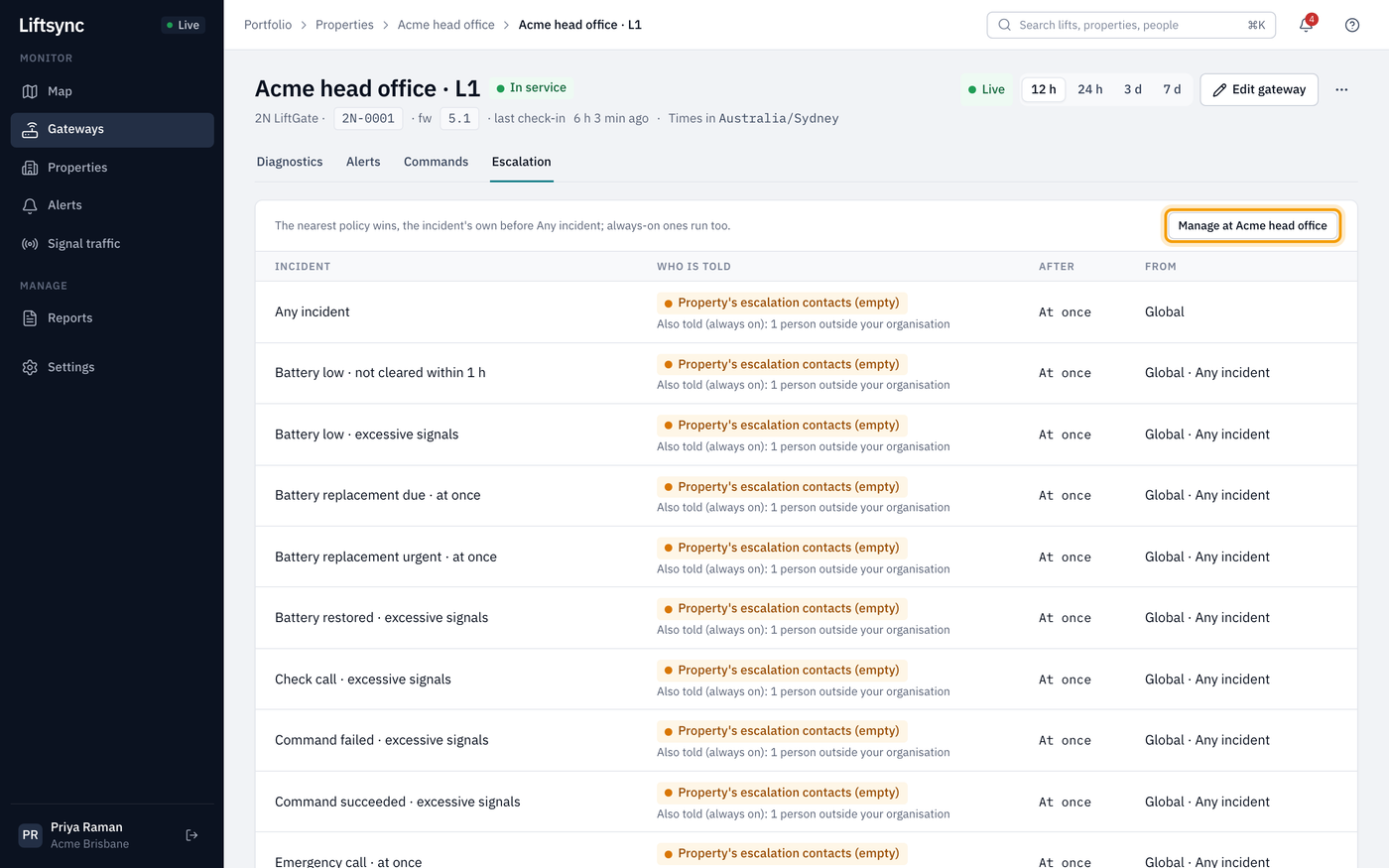
A gateway in stock, not fitted to a lift, shows In stock: no incidents are raised.