Change the email address and password you sign in with, or connect your Google or Microsoft work account so you can sign in without typing a password. Everyone can change these for themselves.
Find your sign-in settings
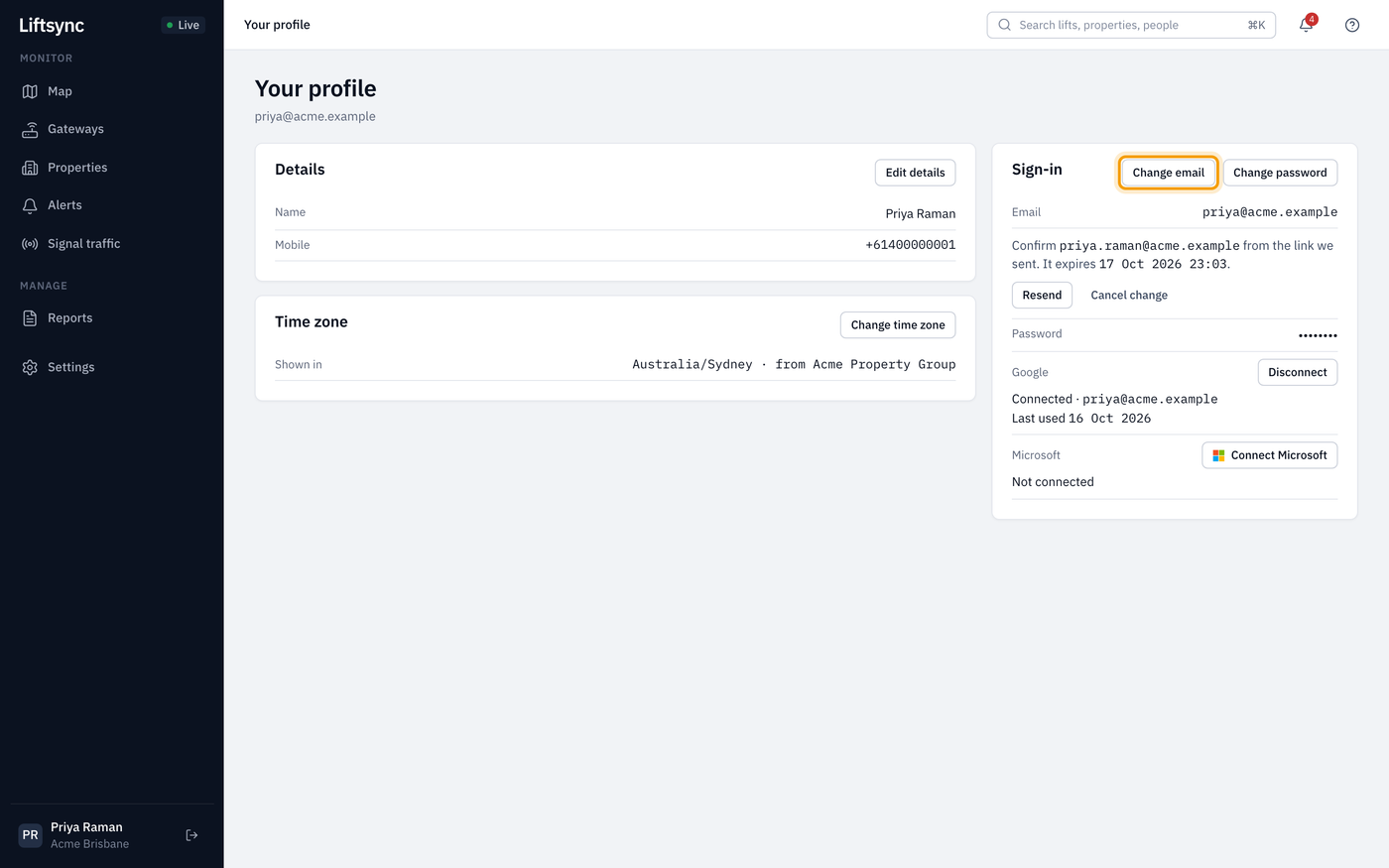
- Select your name at the bottom of the sidebar. LiftSync opens Your profile.
- Look at the Sign-in card. It shows your email address, whether you have a password, and whether Google and Microsoft are connected.
Change your email address
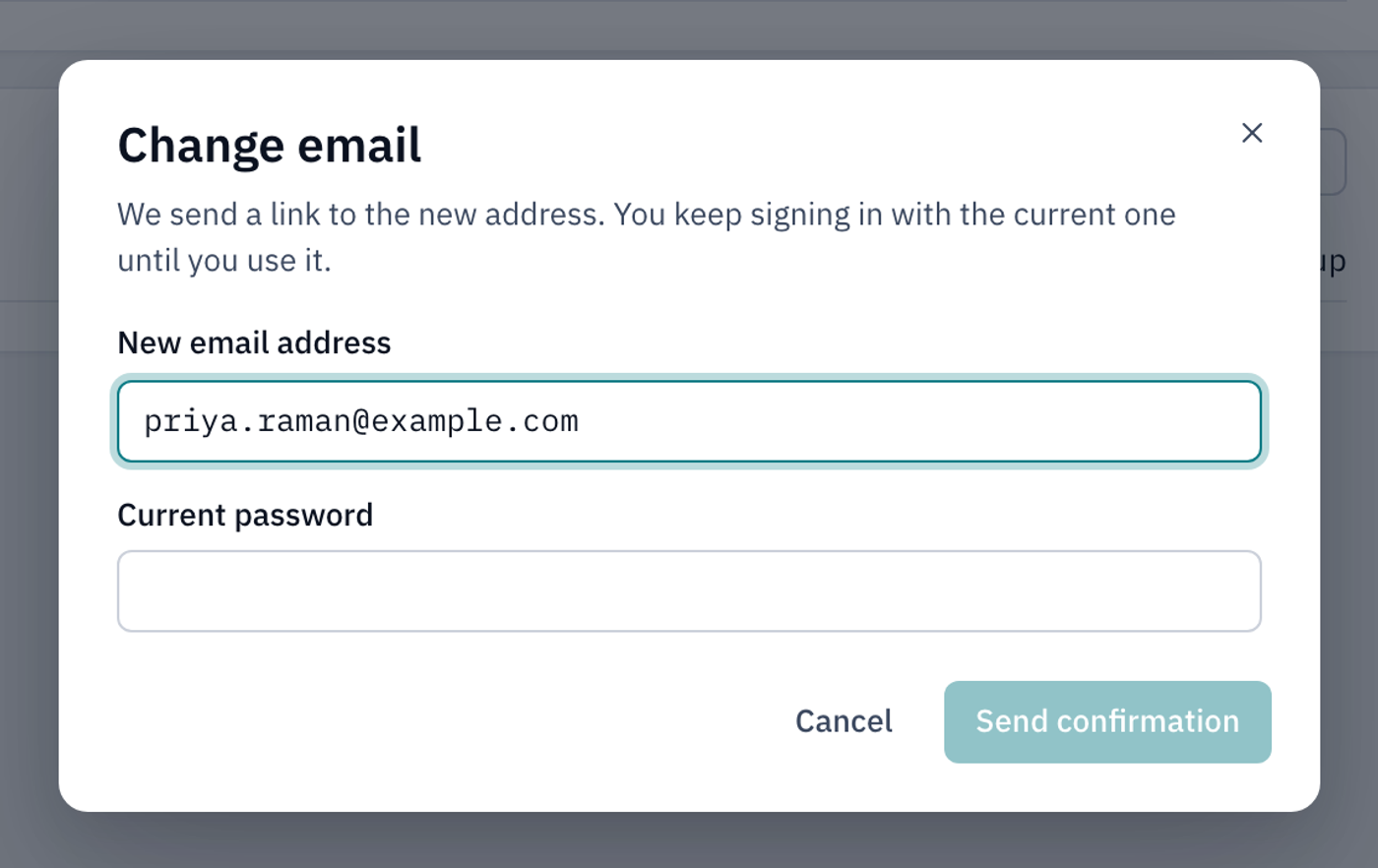
You sign in with your email address, so LiftSync checks the new one before it switches over. You keep signing in with your current address until you confirm the new one.
- In the Sign-in card, select Change email.
- Type your New email address.
- Type your Current password.
- Select Send confirmation.
LiftSync emails a link to the new address. The Sign-in card shows that it's waiting for you to confirm, and when the link expires. The link lasts 24 hours.
- Open the email at the new address and select the link. Sign in to LiftSync if it asks you to.
- On the Confirm email change page, check the old and new addresses, then select Confirm email change.
LiftSync takes you back to your profile and shows Your email address is now and the new address. Use it next time you sign in. LiftSync signs you out on your other devices and emails your old address to say the address was changed.
If the email doesn't arrive, select Resend in the Sign-in card. To keep your old address, select Cancel change.
If the email change doesn't work
| Message | What to do |
|---|---|
| Current password is incorrect | Type your current password again. |
| That's already your email address | You don't need to change it. |
| That email address is already in use | Someone else in LiftSync uses that address. Use a different one, or ask your organisation's owner. |
| Too many email changes. Try again later | Wait an hour and try again. |
| This link is no longer valid, or it was sent for a different account | The link has expired, has been used, or you're signed in as someone else. Sign in as yourself, or start the change again. |
Change your password
- In the Sign-in card, select Change password.
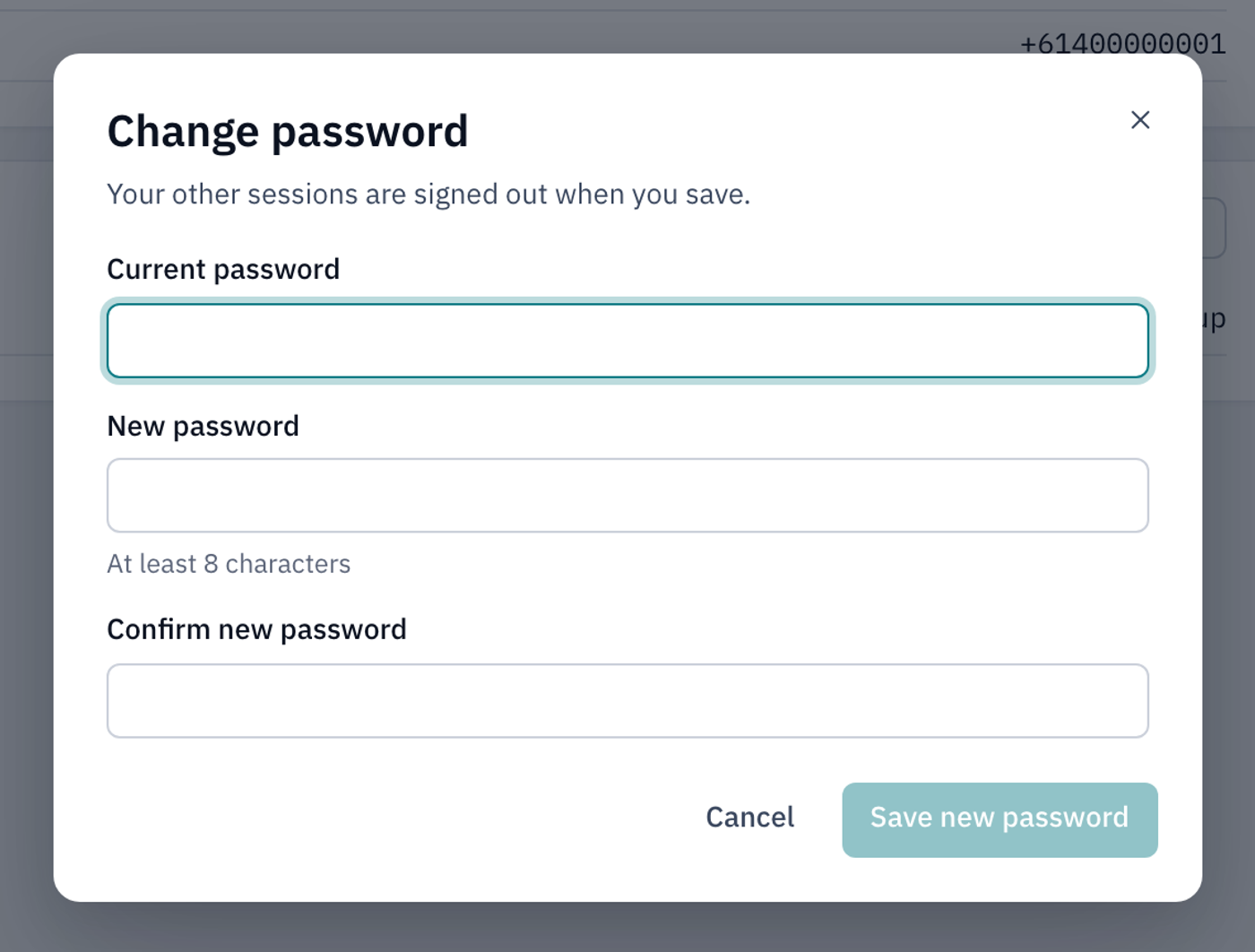
- Type your Current password.
- Type a New password. It must be at least 8 characters.
- Type it again in Confirm new password.
- Select Save new password.
LiftSync shows Password changed. It signs you out on your other devices, and emails you to say your password was changed. If you get that email and didn't change your password, contact LiftSync straight away.
If you see The new passwords don't match, type the new password again in both boxes. If you see Choose a password you don't already use, pick a password that's different from your current one.
Connect Google or Microsoft
If your work email is a Google or Microsoft account, connect it so you can sign in with Sign in with Google or Sign in with Microsoft instead of typing your password. LiftSync may mark one as Suggested if your email address uses it.
- In the Sign-in card, select Connect Google or Connect Microsoft.
- Choose your account on the Google or Microsoft page that opens.
You come back to your profile and see, for example, Google is connected. You can sign in with it next time. The card shows the account's email address and when you last used it.
Choose the Google or Microsoft account with the same email address you use for LiftSync. If you choose a different one, you see That Google account uses a different email address (or Microsoft). If that account is already connected to someone else's LiftSync account, you see a message saying so.
Disconnect Google or Microsoft
- In the Sign-in card, select Disconnect next to Google or Microsoft.
- Select Disconnect.
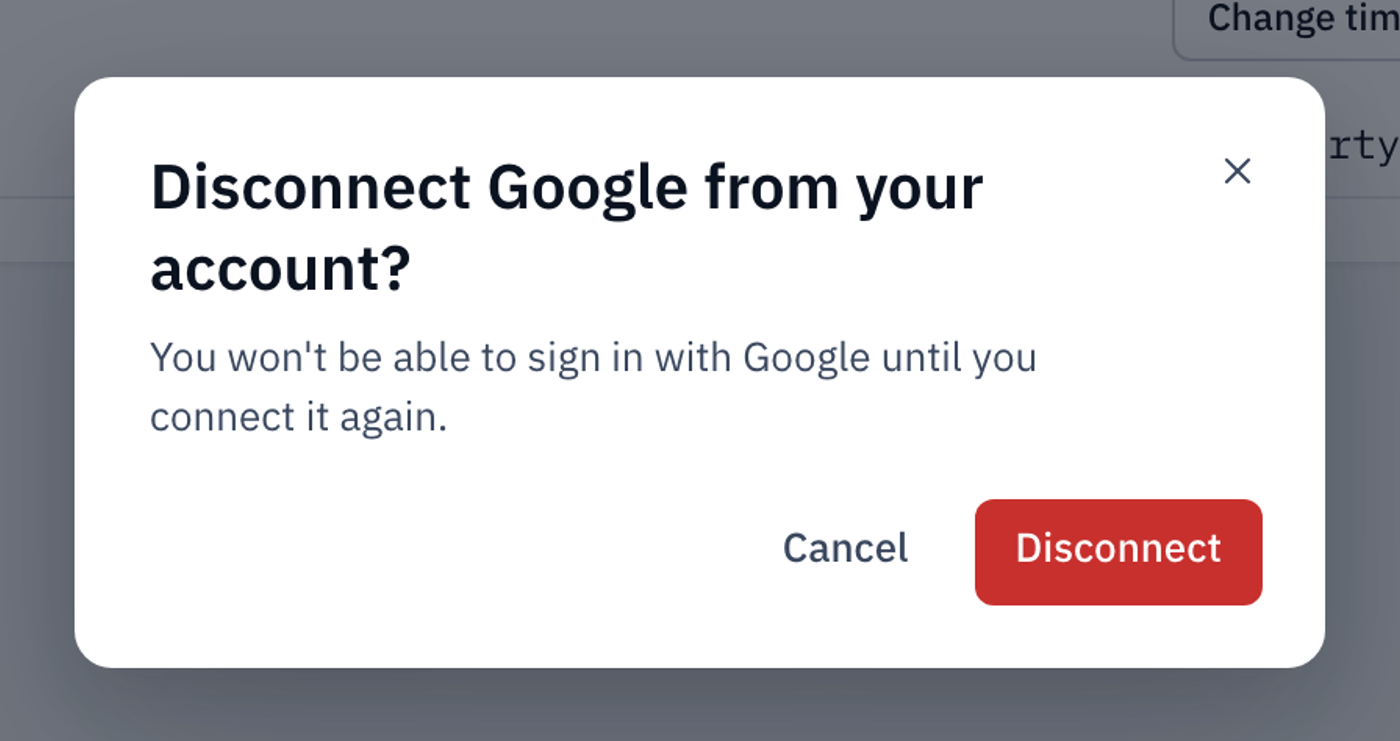
You can't sign in with that account until you connect it again. Sign in with your email address and password instead.
If Google or Microsoft is the only way you can sign in, the Disconnect button is greyed out and the card says Set a password before disconnecting Google (or Microsoft). This stops you locking yourself out.