Before LiftSync can count a month, it needs to know what you charge (plans), who you send invoices to (accounts) and which account pays for each organisation's gateways (arrangements). This article shows how to set up all three.
Plans: what you charge
A plan turns a number of gateways into an amount on the invoice. Go to Billing, then the Plans tab. Each plan shows its price, which organisations use it, how many gateways it covers and any price change coming up.

Add a plan
- Select New plan.
- Type a Name, for example
Standard monitoring. - Under Pricing, choose how the plan charges:
- A price per gateway: the same price for every gateway.
- Tiered: different prices in bands, for example a lower price above 100 gateways. Select Add a band for each band.
- A flat monthly fee: one amount whatever the number of gateways.
- Type the price. If you like, type a Minimum a month, the least the plan charges in a month.
- Choose the month the price applies from (Prices apply from).
- Check the Invoice line, the text on the invoice.
{label}and{period}are filled in for you. - Type the Xero item and Xero account codes from your Xero. Once Xero is connected, you can choose them from a list.
- Select Save plan.
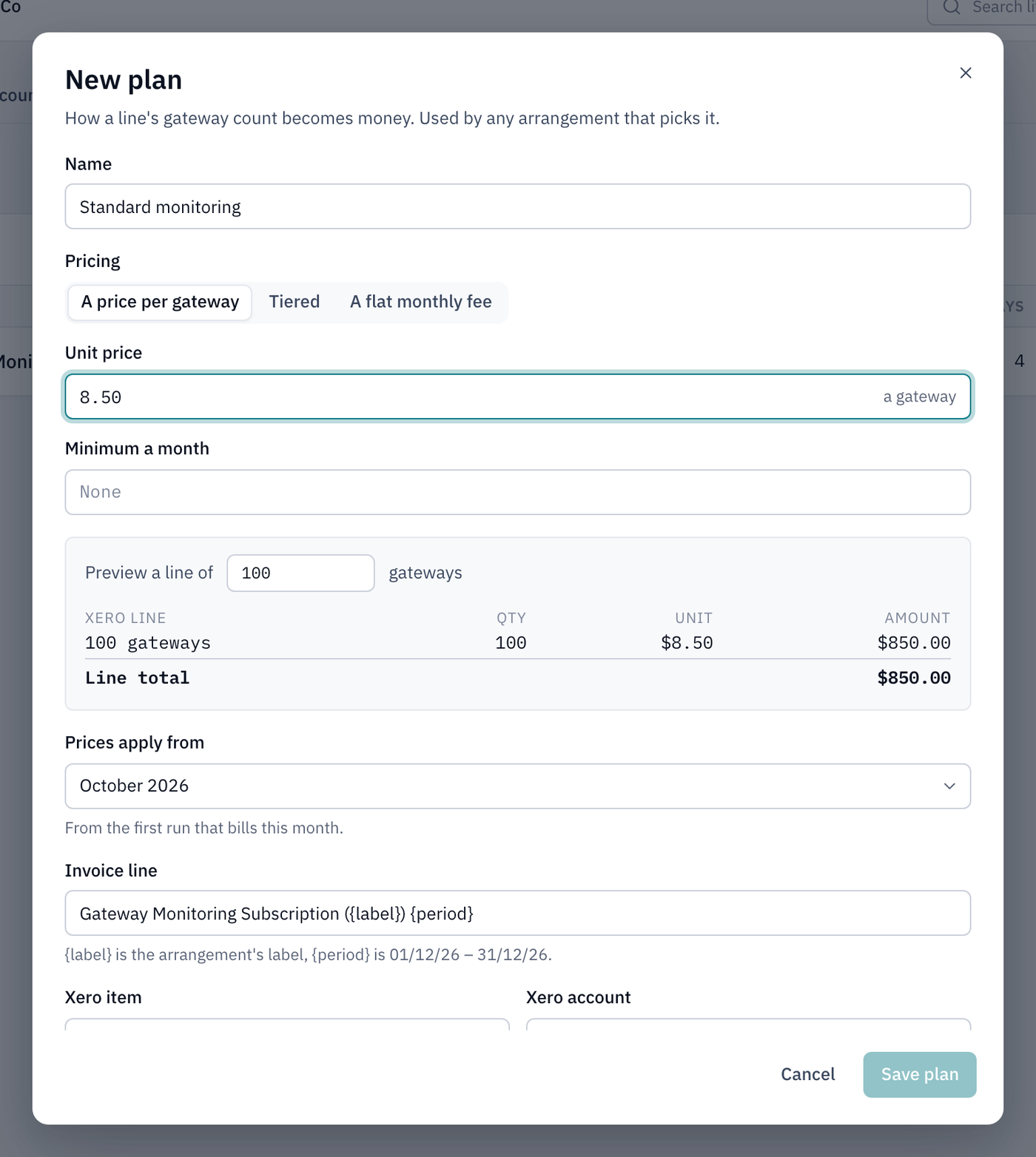
The box under the price shows what a line of gateways would cost, so you can check the price before you save. Change the number of gateways to try other amounts.
Change a plan's price
Select the tag next to the plan (Change price), choose the month the new price starts and type it, then select Save price. Earlier months keep the price they had.
To rename a plan or change its invoice line or Xero codes, select the pencil (Edit details). To stop offering a plan, select the archive box (Archive).
Accounts: who you invoice
An account is a customer organisation that receives invoices. Each account matches a contact in your Xero by its account number. Go to Billing, then the Accounts tab.
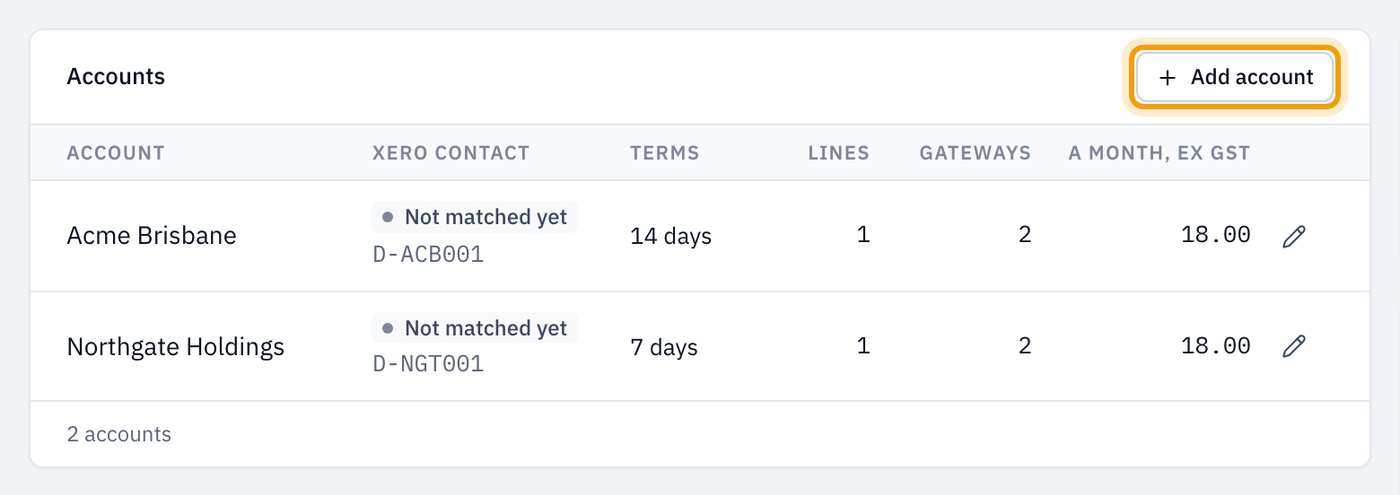
Not matched yet under Xero contact means LiftSync hasn't found the contact in your Xero yet. Once Xero is connected, select Match contacts again on the Xero card.
Add an account
- Select Add account.
- Under Pays, search for the organisation and choose it.
- Type the Account number: the contact's account number in your Xero, for example
D-ELE001. - Choose the Payment terms: Net (due on the invoice date) or 7 to 30 days.
- If the customer isn't in your Xero yet, tick Create the contact in Xero and fill in their details. This only works once Xero is connected. Leave it unticked to match a contact Xero already has.
- Select Add account.
If an existing account shows Create in Xero, LiftSync couldn't find its contact in Xero. Select it to create the contact.
Change or pause an account
Select the pencil next to an account to change its account number or payment terms. Turn off Active to leave the account's lines out of the monthly invoices for now, then select Save changes.
Add the account when you add a new customer
When you add a new customer from Settings › Organisations, you can create their Xero contact and account in the same step: tick Create the contact in Xero in the Add organisation window. This only shows once billing is on and your Xero is connected. See Look after your customers' organisations.
Who pays for each organisation
Each organisation's gateways are paid for by the nearest arrangement: one set on the organisation itself or, if it has none, one set on an organisation above it. To see and change it:
- Select Settings, then open the organisation from Organisations.
- Select the Billing tab.
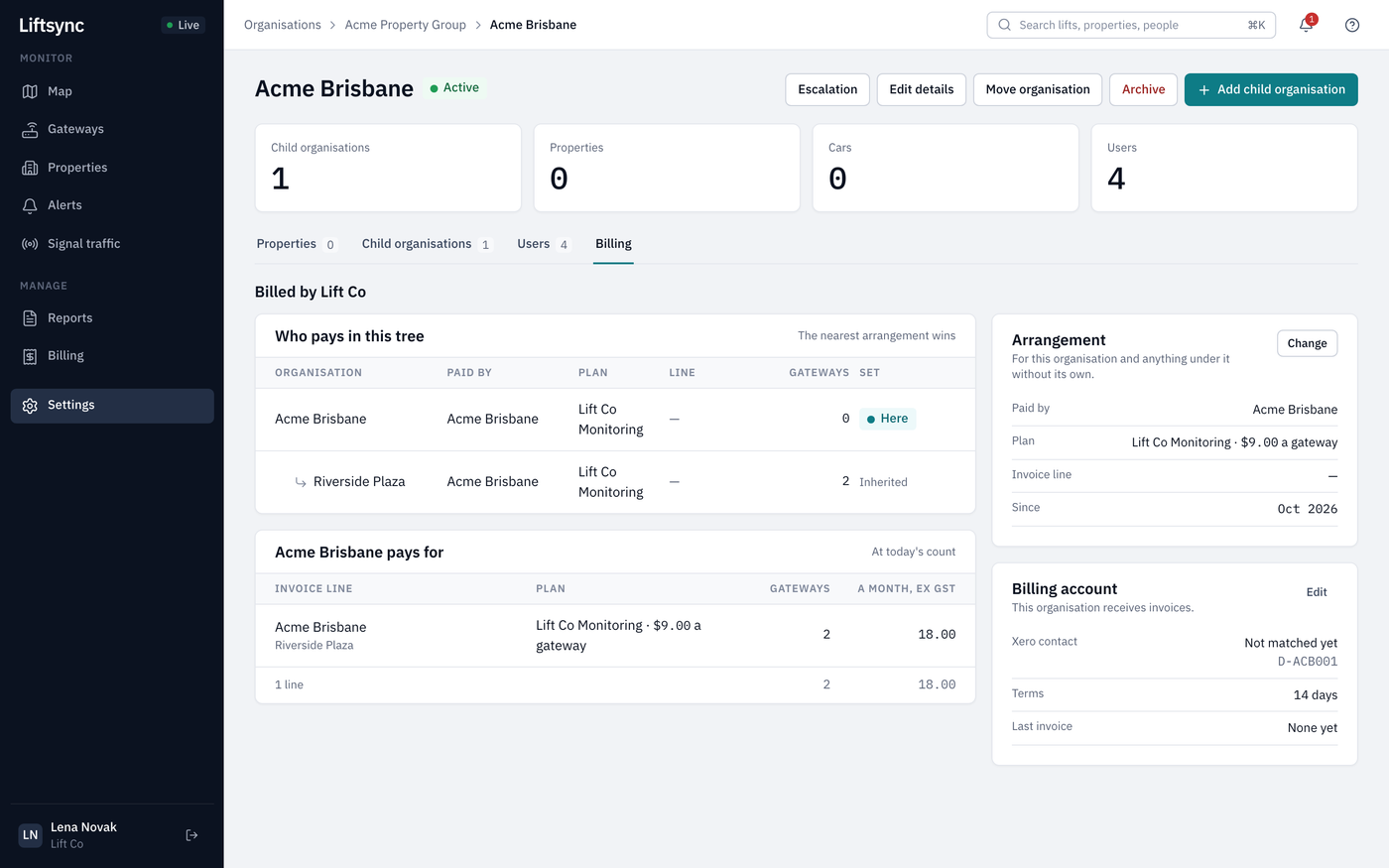
- Who pays in this tree lists the organisation and those under it, with who pays and the plan. Here means the arrangement is set on that organisation; Inherited means it comes from above.
- … pays for shows the invoice lines this organisation's account gets, at today's count of gateways.
- Billing account shows whether the organisation receives invoices itself. If it doesn't, select Open Accounts to add it.
Change who pays
- On the Arrangement card, select Change.
- Choose one:
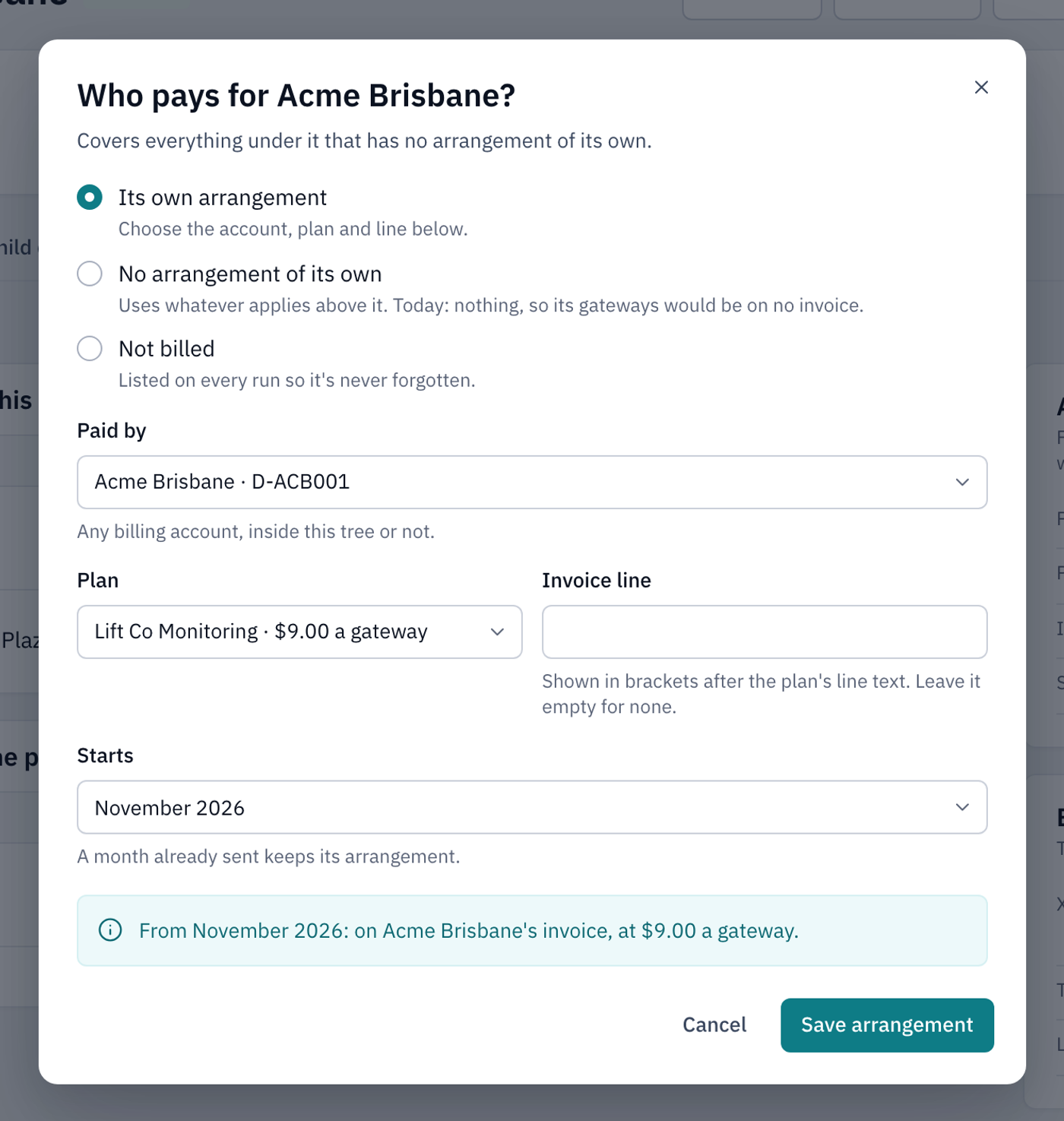
- Its own arrangement: choose the account in Paid by (any account, not just this organisation's), the Plan, and an optional Invoice line label.
- No arrangement of its own: use whatever is set above it.
- Not billed: this organisation's gateways aren't invoiced. It's listed on every month's invoices so it's never forgotten.
- Choose the month it Starts. A month already sent keeps its arrangement.
- Check the summary at the bottom, then select Save arrangement.