Keep a gateway's details up to date so LiftSync can recognise it and work out when its backup battery needs replacing. A gateway is the device in a lift that connects the emergency call button to help and reports to LiftSync.
Change a gateway's details
- Select Gateways in the sidebar and open the gateway.
- Select Edit gateway at the top of the page.
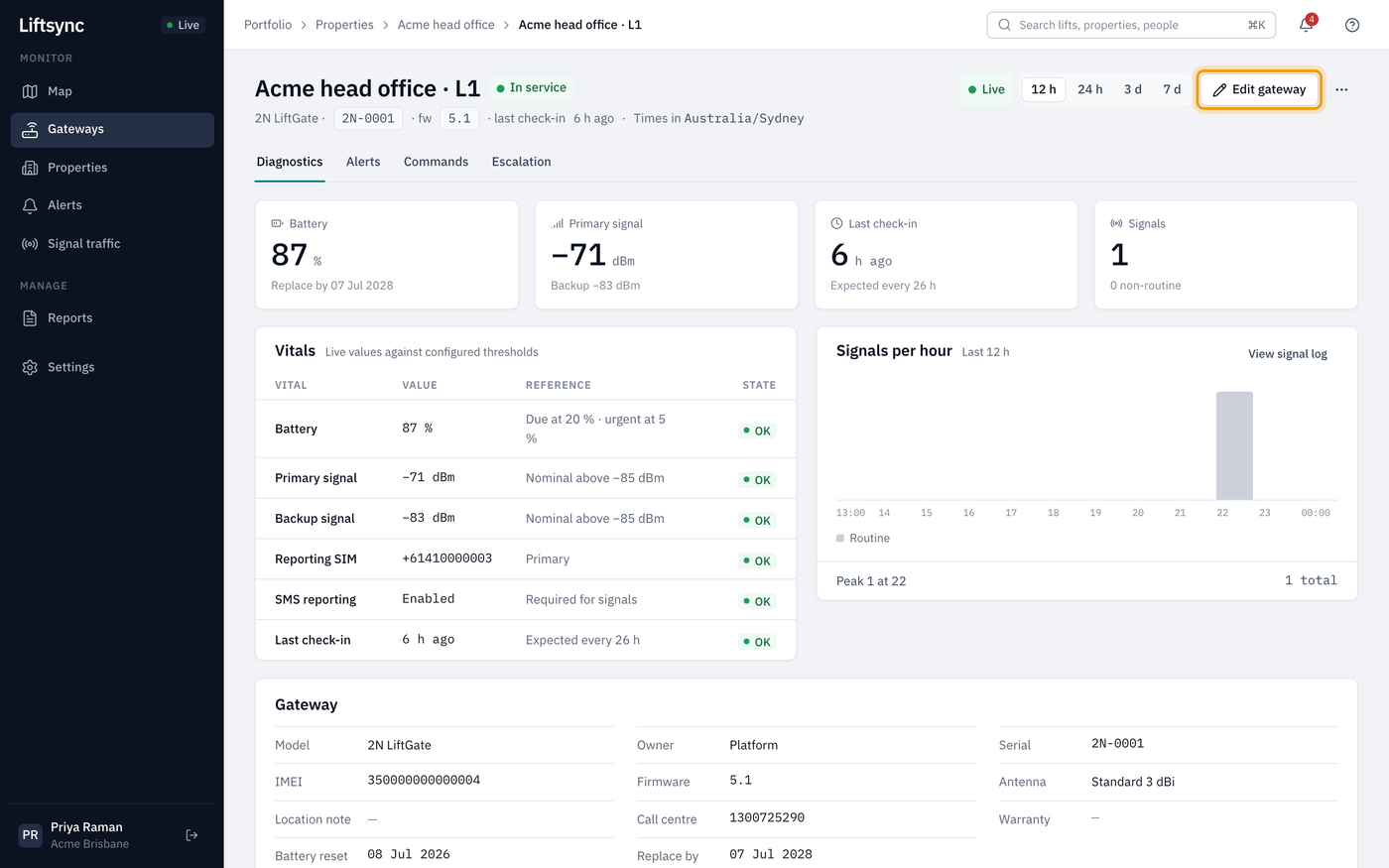
- Change what you need. The boxes most people change are described below.
- Select Save changes.
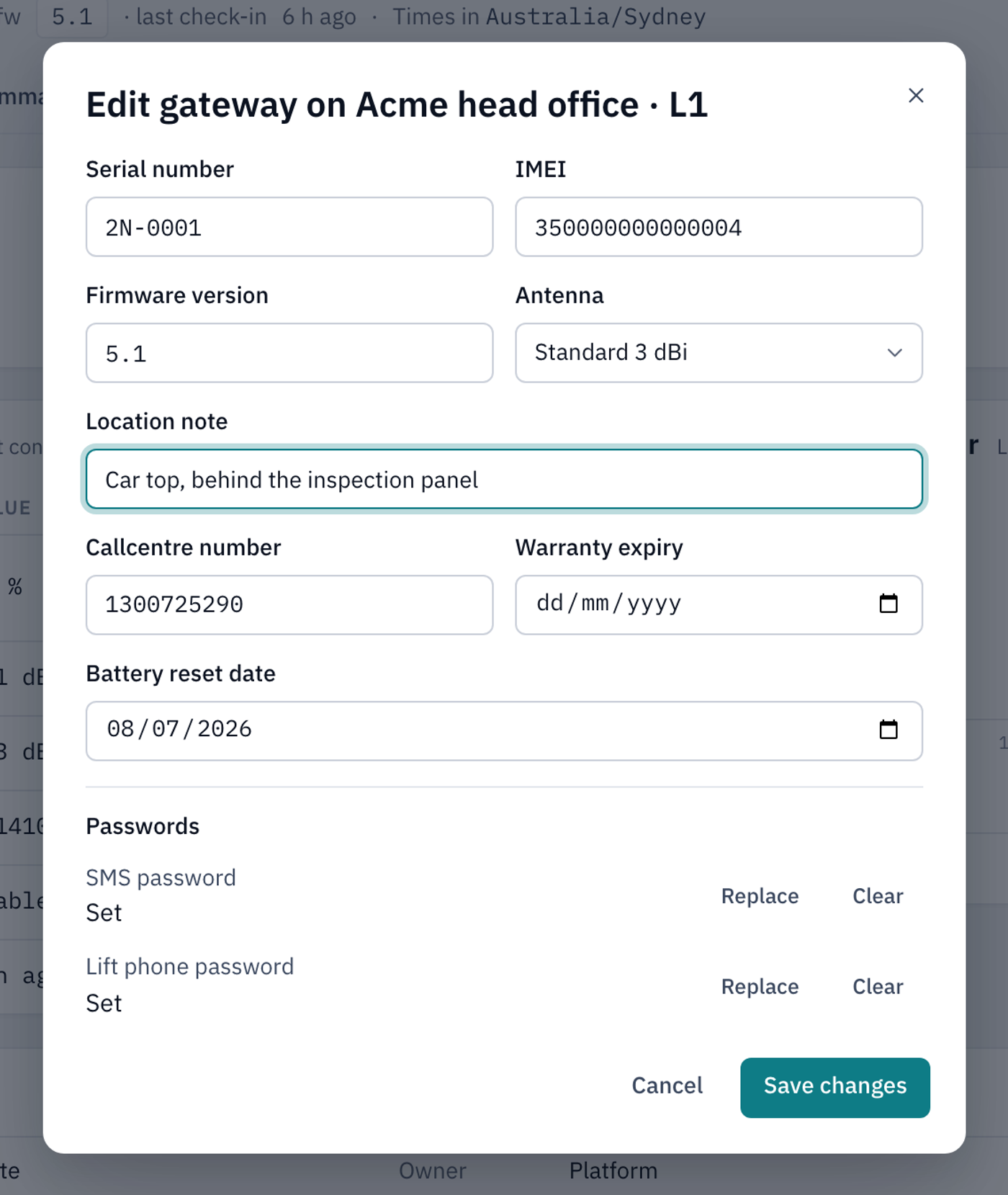
Save changes stays greyed out until you've changed something. Leaving a box empty clears it.
| Box | What it's for |
|---|---|
| Location note | Where the gateway is fitted, to help a technician find it, for example "Car top, behind the inspection panel". It's shown on the gateway's page |
| Callcentre number | The number the lift's emergency phone dials. Changing it here records the number in LiftSync; to put it on the gateway itself, send the Set call centre number or Program lift phone number command. See Send a command to a lift's gateway |
| Warranty expiry | When the gateway's warranty ends, for your records |
| Battery reset date | The date the backup battery was last replaced. LiftSync uses it to work out the battery's remaining life and the Replace by date |
The other boxes (Serial number, IMEI, Firmware version and Antenna) describe the gateway itself. They're filled in when the gateway is added, and you only need to change them if your lift company asks you to.
After replacing the backup battery
When a technician replaces a gateway's backup battery, set Battery reset date to the day it was replaced. LiftSync starts the battery's countdown again from that date, and closes any open Battery low alerts for the gateway.
Some gateways can be told about the new battery directly with the Reset battery command. See Send a command to a lift's gateway.
Passwords
Under Passwords, SMS password and Lift phone password show Set or Not set. Some gateway models need these before LiftSync can send them commands. Select Replace to type a new one, or Clear to remove it. Each password saves on its own, separately from Save changes. You can't see a saved password.
Change a gateway's phone numbers
LiftSync recognises messages from a gateway by its phone numbers. Change them when a SIM card in the gateway is replaced, or when the gateway shows No number.
- On the gateway's page, scroll down to the Gateway card.
- Next to SIMs, select Edit numbers.
- Change the numbers:
- Primary SIM number: the phone number of the main SIM card in the gateway.
- Backup SIM number: the number of the second SIM card, if the gateway has one.
- SIP caller IDs: other numbers that call in for this gateway, if your lift company has set any up. Select Add caller ID to add one, or the cross next to a number to remove it.
- Select Save numbers.
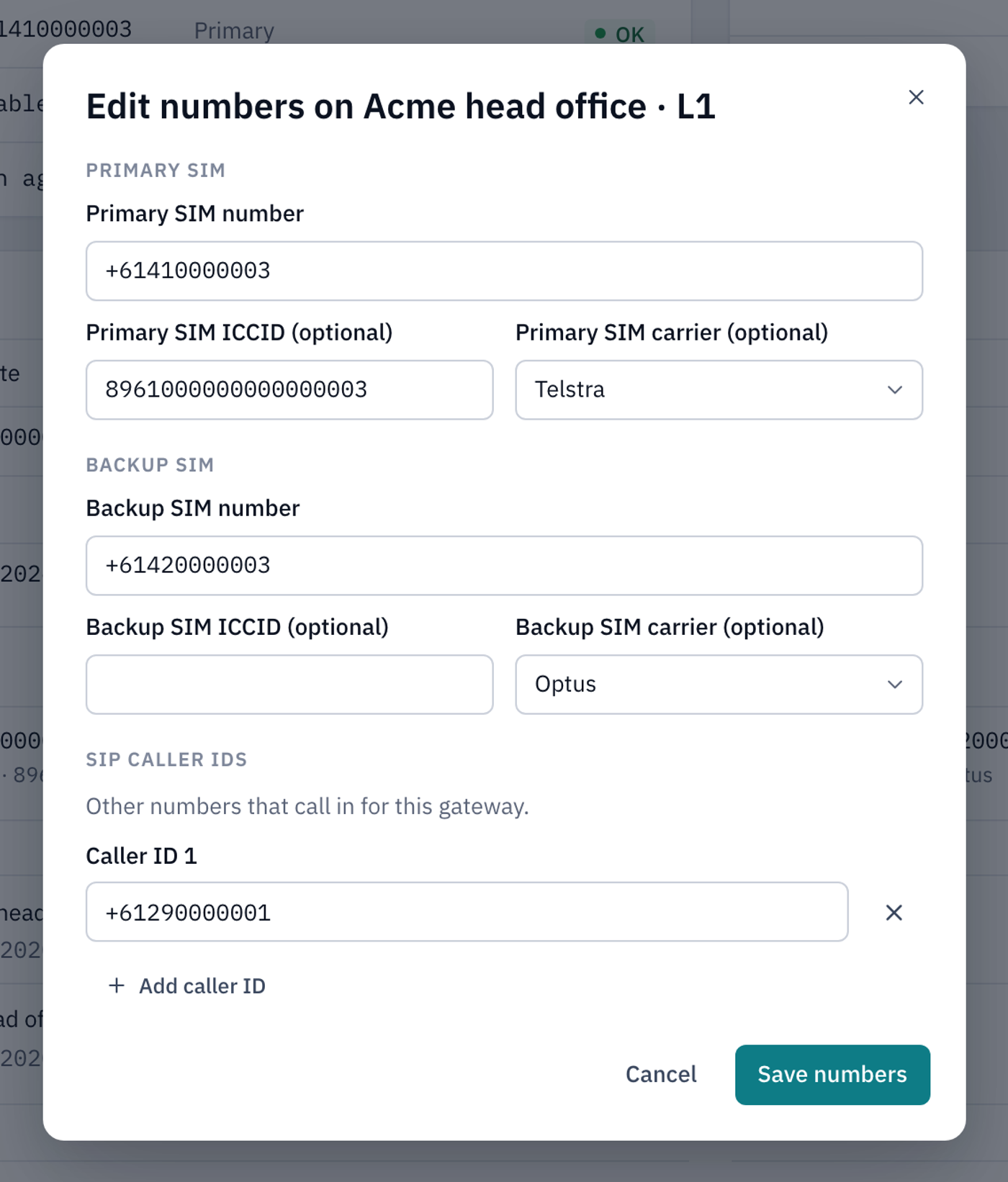
You can leave the ICCID and carrier boxes empty.
If you remove or change a number, the window warns you that messages from the old number will stop matching this gateway. LiftSync won't know which gateway they came from.
If a number is already on another gateway
A phone number can only belong to one gateway. If you type a number that's on another gateway, LiftSync tells you which one. If you're replacing a faulty gateway with a new one and moving its SIM card across, select Move number here to take the number from the old gateway.
To see numbers a gateway used to have, select Number history next to Edit numbers. It only appears once a number has been changed.