If you work at a lift company that looks after LiftSync for its customers (a reseller), this article covers what's different for you: what you see, how your role works across your customers, and how to set customers up with organisations, people and gateways.
What you see
LiftSync shows you every customer your lift company looks after, all together.
- Properties, Map, Alerts and Signal traffic cover all your customers' properties and lifts at once. Operators and above can acknowledge and resolve your customers' alerts in the same way as their own staff. See Acknowledge and resolve an alert.
- Settings › Organisations lists each customer's organisation at the top level, with the organisations under it. Your lift company itself isn't in this list.
- Settings › Reseller is your lift company's own page: its staff and the customers it looks after. See Manage your lift company's staff.
- Gateways shows the gateways at your customers' properties, plus your lift company's own stock of gateways that aren't fitted yet.
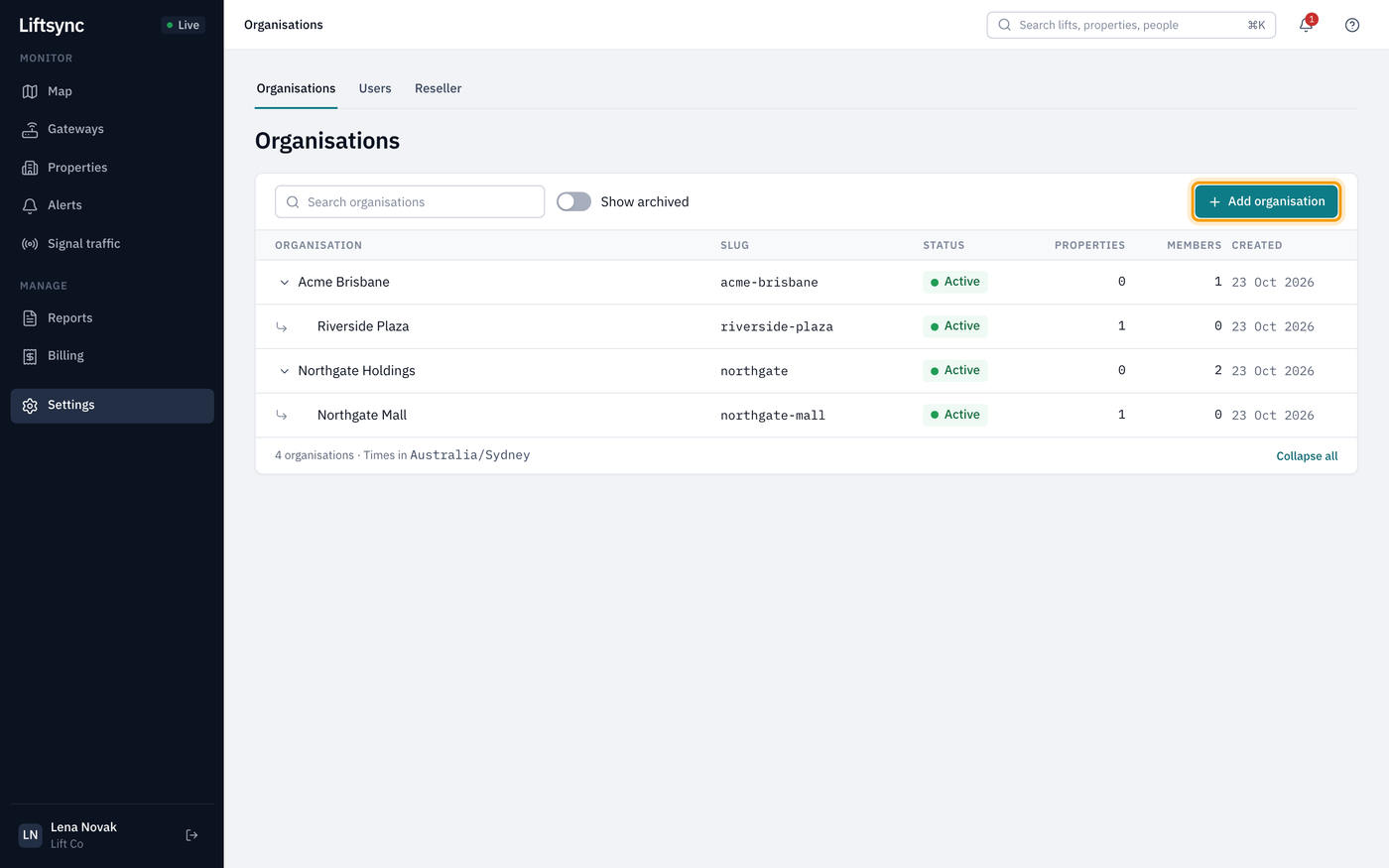
A lift company owner sees each customer's organisation, not the rest of the customer's account.
You only see the part of a customer's account that's been linked to your lift company. For example, if a property group has linked only its Brisbane organisation, you see Brisbane and the organisations under it, not the property group's other cities.
How your role works for each customer
You don't need to be added to each customer. Your role at your lift company counts as the same role in every customer organisation it looks after, and in every organisation under them:
| Your role at the lift company | What you can do for each customer |
|---|---|
| Owner | Everything a customer's own owner can: invite people, move and archive organisations, and everything an admin can. |
| Admin | Add new customers and organisations, add properties and lifts, add gateways, look after contacts and set up Escalation. |
| Operator | Acknowledge and resolve alerts, send commands to gateways, and fit your lift company's gateways to lifts. You can see settings pages but not change them. |
| Viewer | See every customer's map, properties, alerts and gateways, without changing anything. |
The same list is on your lift company's page, in the What each role can do card.
What your customers see
People at your lift company don't appear in your customers' Users lists, and your customers can't change your access. When someone at your lift company acts for a customer, the customer sees your lift company's name, not the person's. For example, an alert your operator acknowledged shows Acknowledged by Lift Co in its history. Your own staff see the person's name.
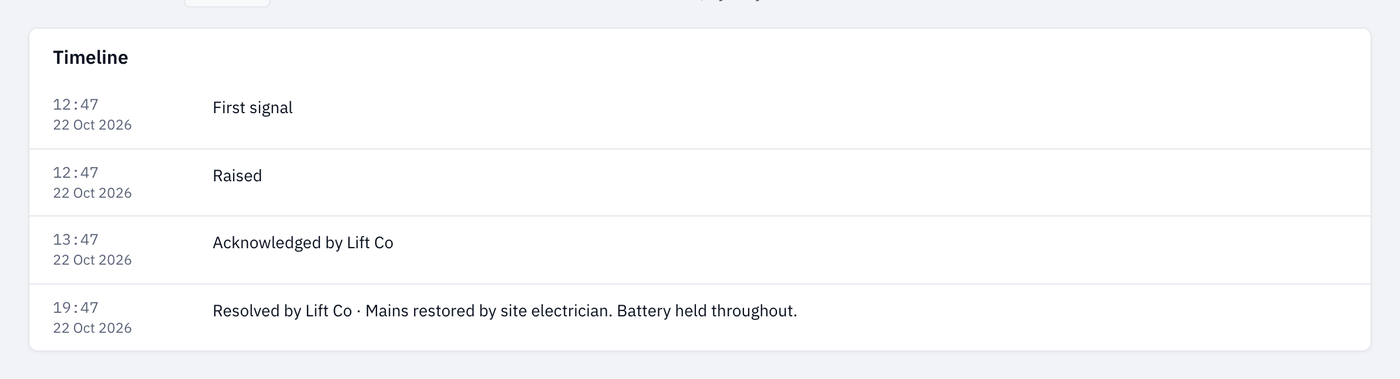
The customer sees the lift company's name on each step its staff took.
Add a new customer
Owners and admins at your lift company can set up a brand-new customer. The new customer is linked to your lift company straight away, so everyone on your staff can see it.
- Select Settings in the sidebar. LiftSync opens Organisations.
- Select Add organisation.
- Leave Parent organisation on New customer of your lift company.
- Type the customer's Name. LiftSync works out the Slug from the name, so you don't need to change it. You may not see a Slug box at all.
- If you like, add an Address, a Time zone and a Billing address.
- Select Add organisation.
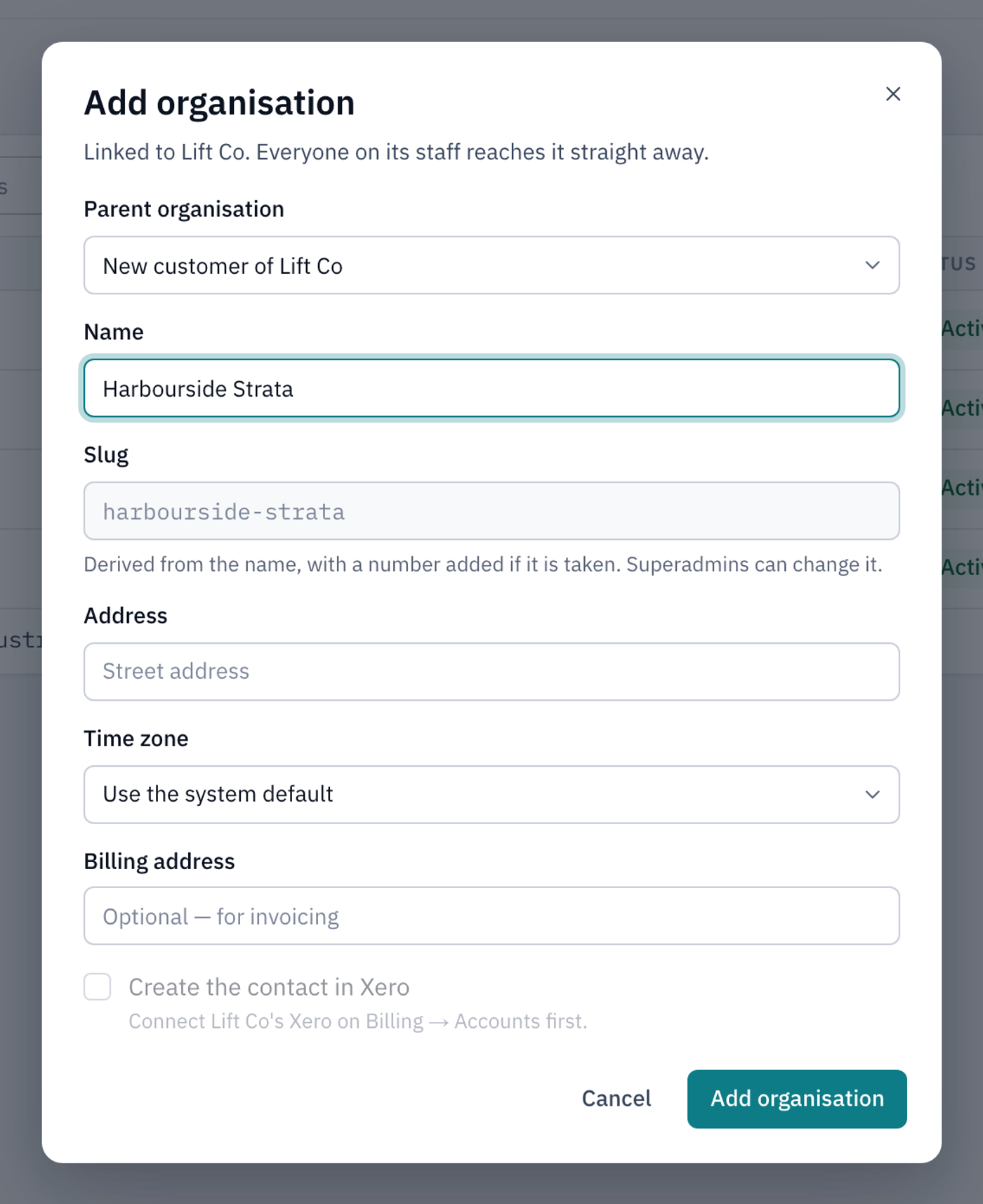
The new customer appears at the top level of your Organisations list, and on the Organisations tab of your lift company's page. Next, add their properties and invite their people.
Add an organisation for a customer
You can also add organisations underneath a customer, for example one for each building they own.
- On the Organisations page, select Add organisation.
- Choose the customer, or one of their organisations, as the Parent organisation.
- Type a Name and fill in anything else you need. If you leave the time zone as it is, the new organisation uses its parent's.
- Select Add organisation.
You can also open the customer's organisation and select Add child organisation, which fills in the parent for you.
The new organisation appears under the customer's organisation, and everyone with access to that customer can see it. For more about changing, moving and archiving organisations, see Manage your organisation.
Invite a customer's staff
Owners at your lift company can give a customer's staff access by inviting them to the customer's organisation.
- Go to Settings › Users and select Invite user.
- Choose the customer's organisation under Organisation. The list only shows your customers and the organisations under them.
- Choose a Role, then follow the steps in Invite people and manage their access.
The Users page shows everyone with access to your customers. Some of them may have access from higher up in the customer's account, for example from the customer's head office. On an organisation's Users tab they show via that organisation and Managed above, and you can't change their access. Ask the customer to change it.
Use your own gateway stock
Your lift company can keep its own stock of gateways that aren't fitted to a lift yet. A gateway is the device in a lift that connects the emergency call button to help and tells LiftSync whether it's working.
- Select Gateways in the sidebar.
- Select the Stock tab. Gateways that belong to your lift company show its name under Owner.
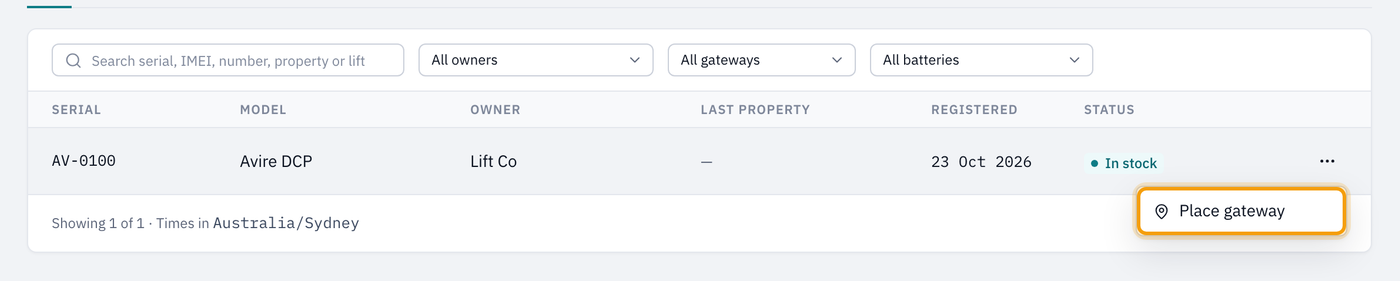
Your customers don't see your stock. They see a gateway once you've placed it at one of their properties.
From here:
- To add a gateway to your stock, select Register gateway and choose your lift company as the Owner.
- To fit a gateway at a customer's property, select … next to it, select Place gateway and choose the property. Then choose which lifts it serves with Allocate lifts.
For the full steps, see Add a new gateway and fit it to a lift. To check how a gateway is doing, see Check a gateway.
A gateway from your stock still belongs to your lift company after it's fitted. It shows your lift company under Owner, and you can return it to your stock later. To hand a gateway over to a customer or another company, contact LiftSync.
What to ask LiftSync to do
Some things can only be done by LiftSync. Contact LiftSync to:
- Link an organisation that's already in LiftSync to your lift company, for example when an existing LiftSync customer moves to you.
- Stop looking after a customer.
- Hand a gateway over to a different owner.
- Turn a person's account off or back on.
- Start billing your customers through LiftSync.
To add, change or remove people at your lift company, you don't need LiftSync: owners and admins can do it themselves. See Manage your lift company's staff.