If your lift company invoices its customers for monitoring, LiftSync can do the counting for you. Each month it works out how many gateways each customer has, prices them with your plans, and creates the invoices in your own accounting system (Xero). You check the invoices in LiftSync and send them when you're ready.
Open Billing
Select Billing in the sidebar, under Manage. It opens your lift company's monthly invoices (Runs).
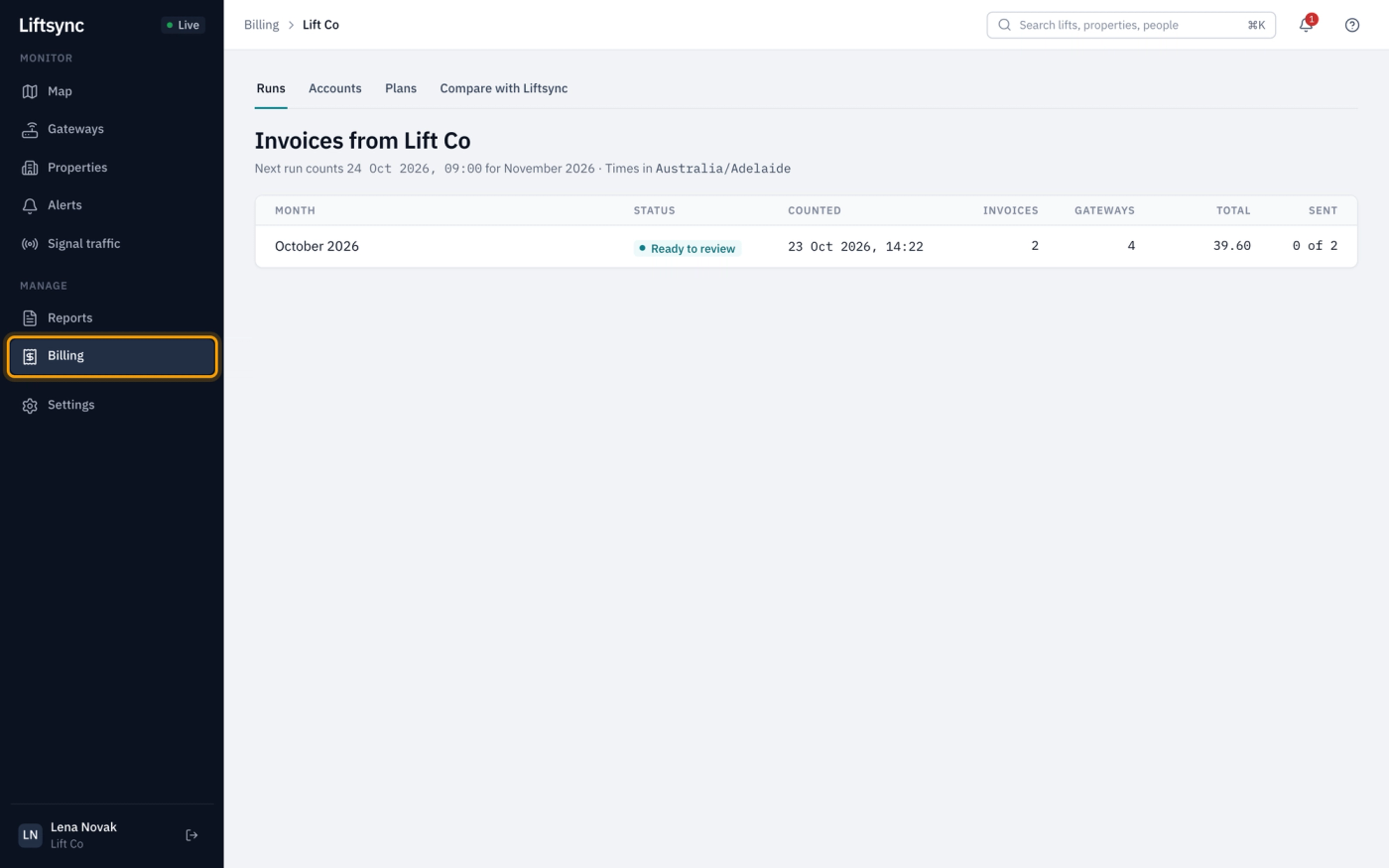
Billing has four tabs:
| Tab | What it's for |
|---|---|
| Runs | Each month's invoices. Check them and send them. See Check and send the monthly invoices. |
| Accounts | The customers you invoice, your Xero connection and when billing runs. |
| Plans | What you charge, for example a price for each gateway. See Set up plans, accounts and who pays. |
| Compare with Liftsync | What you charge each customer beside what LiftSync charges you. See Compare your charges with LiftSync's. |
How the monthly cycle works
Billing works one month ahead:
- On the count day (the 24th at 09:00 unless you change it), LiftSync counts the gateways for next month. For example, December is counted on 24 November.
- It prices each customer's gateways with their plan and makes a draft invoice for each account. The invoices are dated the 1st of the month they cover.
- The month shows on Runs as Ready to review. Check it, then send the invoices to Xero.
LiftSync counts the gateways fitted to a lift at your customers' properties. Gateways in lifts marked Off service, or whose reporting is turned off, are still counted.
Get billing ready
Before the first month is counted, check these, in order:
- Connect your Xero (below).
- Add a plan for each price you charge, and an account for each customer you invoice. See Set up plans, accounts and who pays.
- Choose the first month to bill (below). Nothing is counted until you do.
Connect your Xero
LiftSync creates the invoices in your lift company's own Xero, so it needs permission to use it.
- Go to Billing, then the Accounts tab.
- In the Lift Co's Xero card (it shows your lift company's name), select Connect Xero.
- Sign in to Xero and choose your organisation when Xero asks. You come back to Accounts.
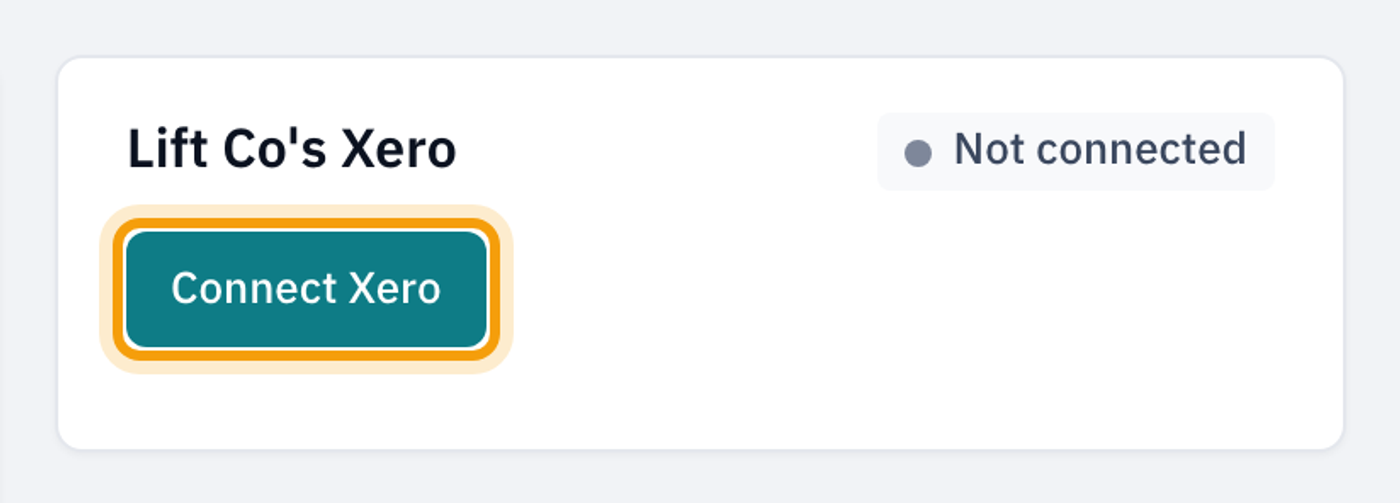
The card shows one of these:
| Status | What it means |
|---|---|
| Not connected | LiftSync can count invoices but can't send them. Select Connect Xero. |
| Connected | LiftSync can create invoices in your Xero. Match contacts again links your accounts to their Xero contacts. |
| Reconnect | Xero has stopped LiftSync's access, for example because someone removed the connection in Xero. Select Reconnect Xero. |
To stop LiftSync using your Xero, select Disconnect. Months are still counted, but nothing can be sent until you connect again.
Choose when billing runs
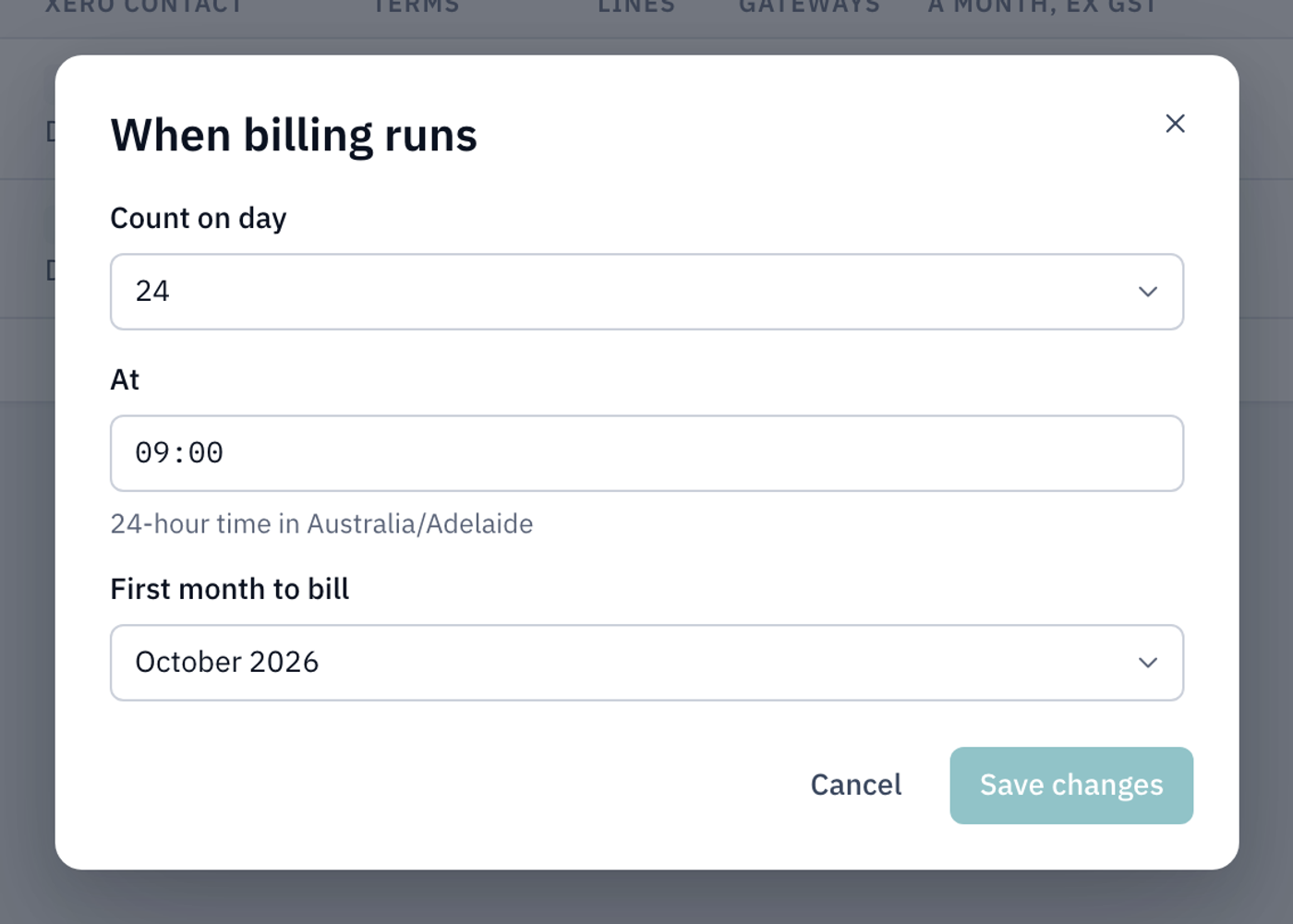
The When billing runs card on Accounts shows the count day, the month being billed, the invoice date, your first month and the next run.
- On the When billing runs card, select Edit.
- Choose the Count on day (the 1st to the 28th) and type the time (At), in 24-hour time.
- Choose the First month to bill. Leave it on Not set: billing is off to stop LiftSync counting.
- Select Save changes.