Each lift's signal log shows everything the lift's gateway has reported to LiftSync: emergency calls, power cuts, battery warnings and its regular check-ins. The gateway is the device in the lift that connects the emergency call button to the call centre. Use the log to see what happened to the emergency call equipment and when, for example before you ask a technician to check the gateway.
Open a lift's signal log
- Open the property. See Find and check your properties and lifts.
- In the Assets card, find the lift.
- Select the arrow at the end of the lift's row.
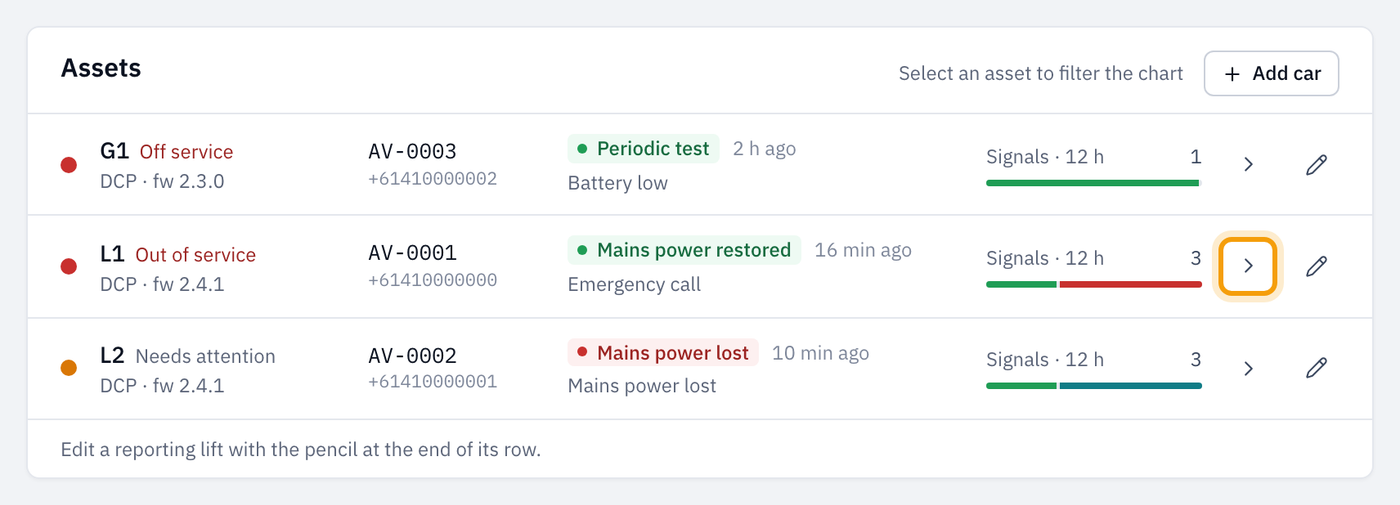
The signal log opens on the right of the page.
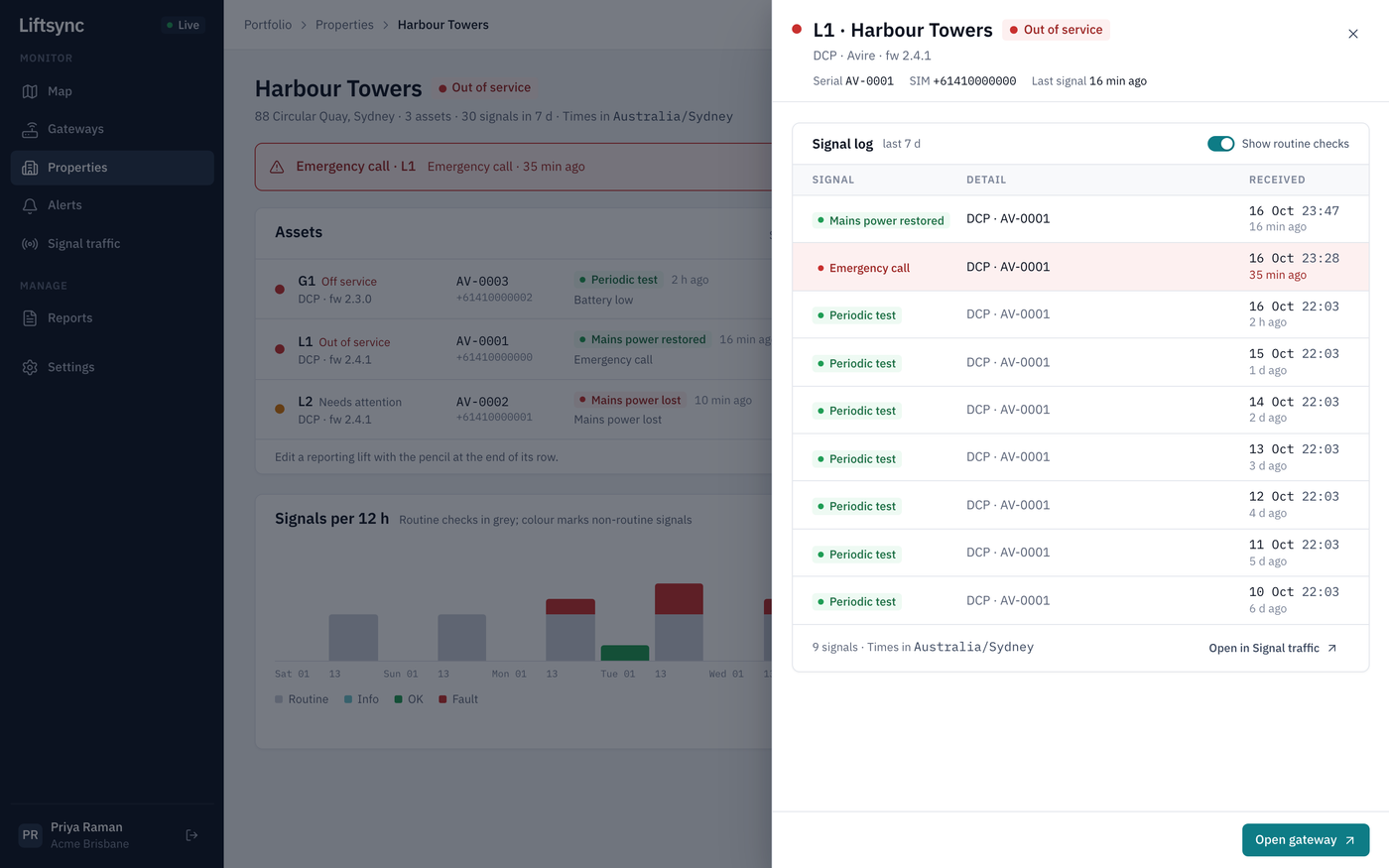
The top of the panel shows the lift's name, the status of its emergency call equipment and when its gateway last reported. Below that, each row is one report from the gateway:
- Signal is what the gateway reported, such as Emergency call or Mains power restored. Problems are shown in red.
- Received is the date and time it arrived, and how long ago.
The most recent reports are at the top. Times are in your own time zone, which is shown at the bottom of the list.
To close the signal log, select the × at the top right. You're back on the property page.
Choose how far back to look
The signal log covers the same period as the property page.
- Close the signal log.
- At the top of the property page, select 12 h, 24 h, 3 d or 7 d.
- Open the lift's signal log again.
The top of the list shows the period it covers, for example last 7 d.
Hide the routine check-ins
Each gateway sends a regular check-in to show it's working. These are useful to know about, but they can fill up the list.
- To hide them, turn off Show routine checks.
- To see them again, turn it back on.
If the gateway has reported nothing else in that period, you'll see a message such as "No non-routine signals in the last 12 h".
See more of a lift's reports
Select Open in Signal traffic at the bottom of the list. The Signal traffic page opens, showing only this lift. There you can search, and filter by the type of report. See Check activity across all your lifts.
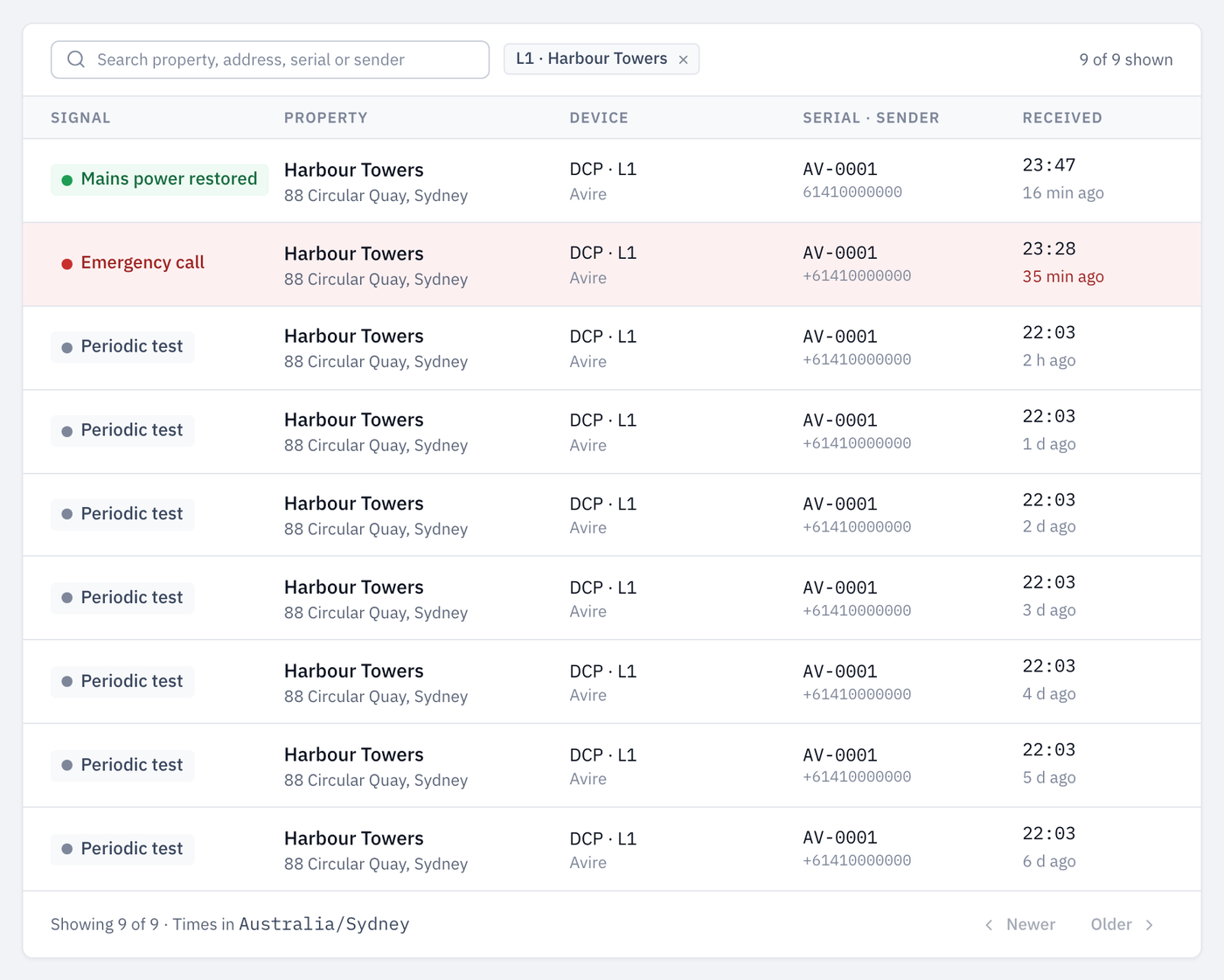
To remove the lift filter and see all your lifts again, select the × on the lift's name next to the search box.
Go to the lift's gateway
The gateway's page shows the equipment's details and settings.
- Select Open gateway at the bottom of the signal log.
Links elsewhere in LiftSync that open a lift, such as a lift's button on the map, also take you to its gateway page. See Check a gateway.