Your organisation's account in LiftSync can be split into smaller organisations, for example one for each city or each building. This article shows you how to find your organisations, change their details, add new ones underneath, and move or archive them.
Find your organisations
- Select Settings in the sidebar. LiftSync opens Organisations.
- Look through the list. Organisations sit under the one they belong to, so you can see how your account is laid out.
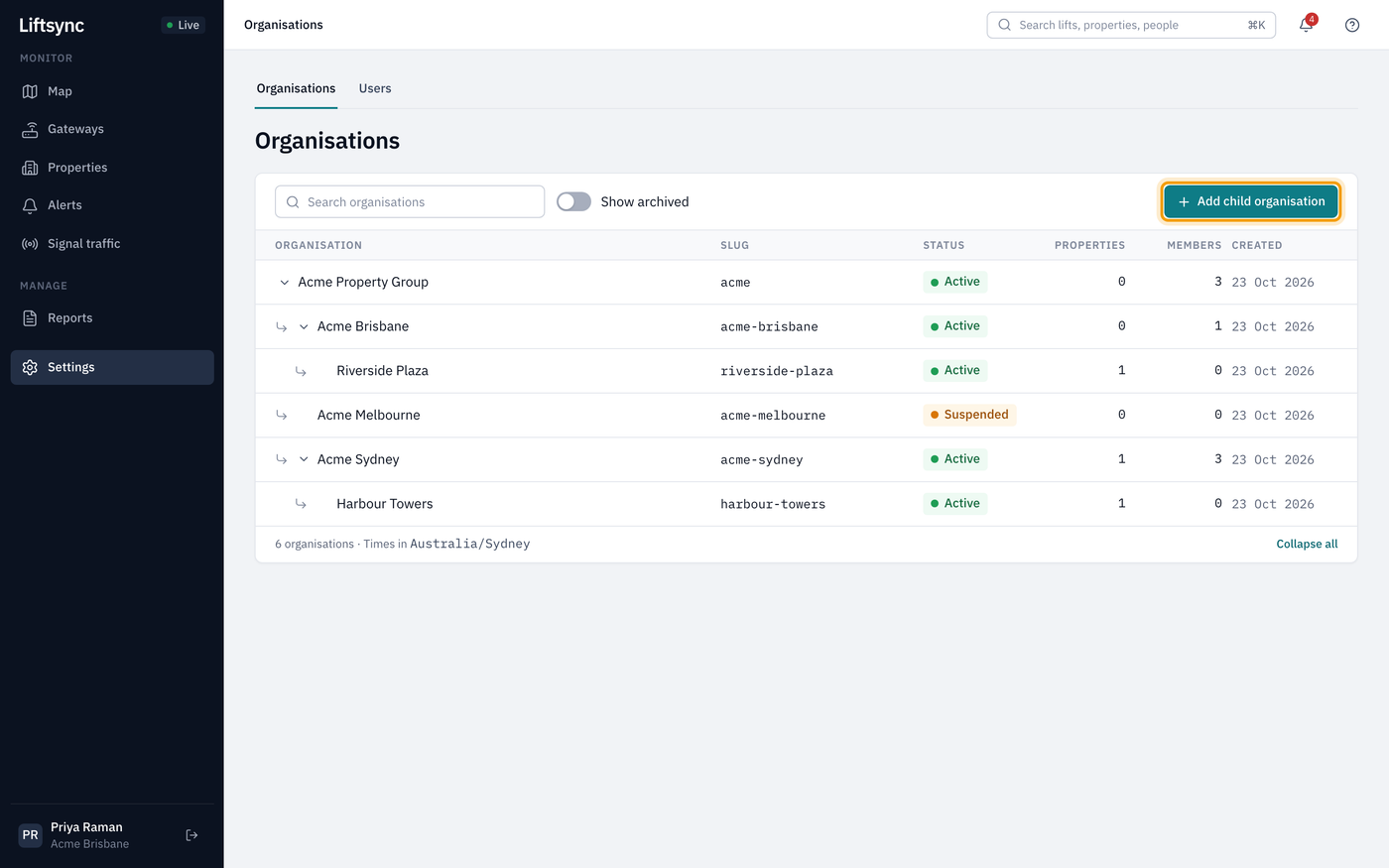
From here you can:
- Type in Search organisations and press Enter to find one by name.
- Select the arrow next to an organisation to hide or show the ones under it. Collapse all at the bottom folds everything up.
- Turn on Show archived to include organisations that have been archived.
- Select an organisation's row to open its page.
You only see the organisations you belong to and the ones underneath them. If you're missing one, ask an owner to give you access.
Each organisation has a status:
| Status | What it means |
|---|---|
| Active | The organisation is in use. |
| Suspended | The organisation has been put on hold. Contact LiftSync if you're not sure why. |
| Archived | Someone has archived the organisation. It only shows when Show archived is on. |
Look at an organisation
Select an organisation in the list to open its page. Across the top you see how many child organisations, properties, lifts (Cars) and people it has.
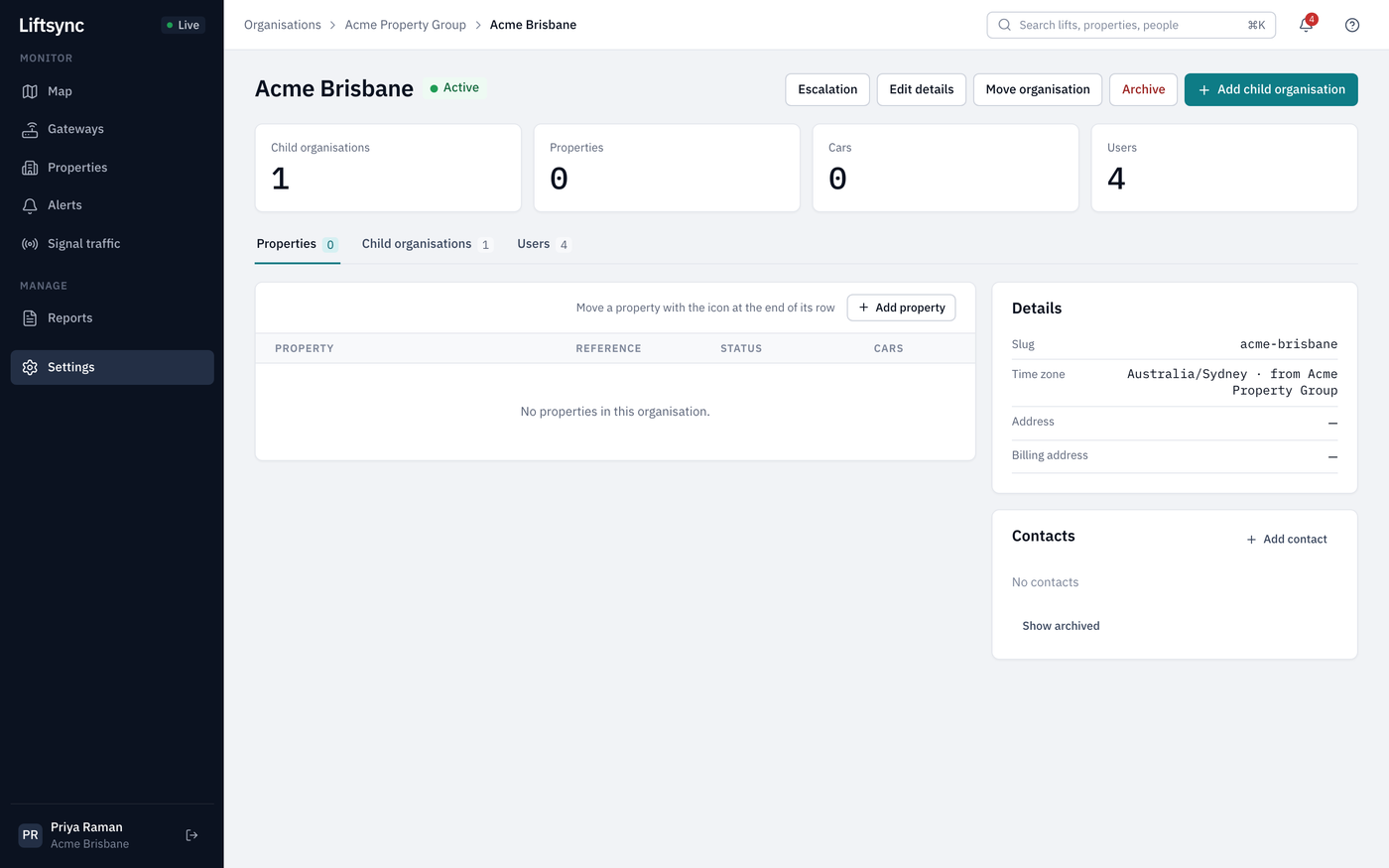
Below that are three tabs:
- Properties: the buildings in this organisation. Select one to open it. See Add or change a property and its lifts.
- Child organisations: the organisations directly underneath this one.
- Users: everyone who can see this organisation, including people whose access comes from an organisation above it. Owners can invite people from here. See Invite people and manage their access.
On the right, the Details card shows the organisation's time zone and addresses. You can ignore any other codes it shows.
The Contacts card lists people to call about this organisation, such as an after-hours call centre. Owners and admins can add and change them. See Keep on-site contacts up to date.
Change an organisation's details
- Open the organisation's page.
- Select Edit details.
- Change what you need:
- Name: how the organisation appears everywhere in LiftSync.
- Address and Billing address: optional.
- Time zone: leave it on the first choice to use the time zone of the organisation above it, or choose a different one.
- Select Save changes.
You may also see a Slug box: a short name LiftSync makes from the organisation's name. You can't change it, and it may not be shown at all.
Add a child organisation
A child organisation sits under another one. Everyone with access to the parent can already see everything in the child, so you don't need to give them access again.
- On an organisation's page, select Add child organisation. Or, on the Organisations page, select Add child organisation and choose the Parent organisation.
- Type a Name, for example
Acme Perth. - If you like, add an Address, a Time zone and a Billing address. If you leave the time zone as it is, the new organisation uses its parent's.
- Select Add organisation.
The new organisation appears in the list under its parent.
Move an organisation
Moving an organisation puts it, with everything in it, under a different parent.
- Open the organisation's page.
- Select Move organisation.
- Choose the Destination organisation. You can only choose organisations you're an owner of, and not one that sits inside the organisation you're moving.
- Select Move organisation.
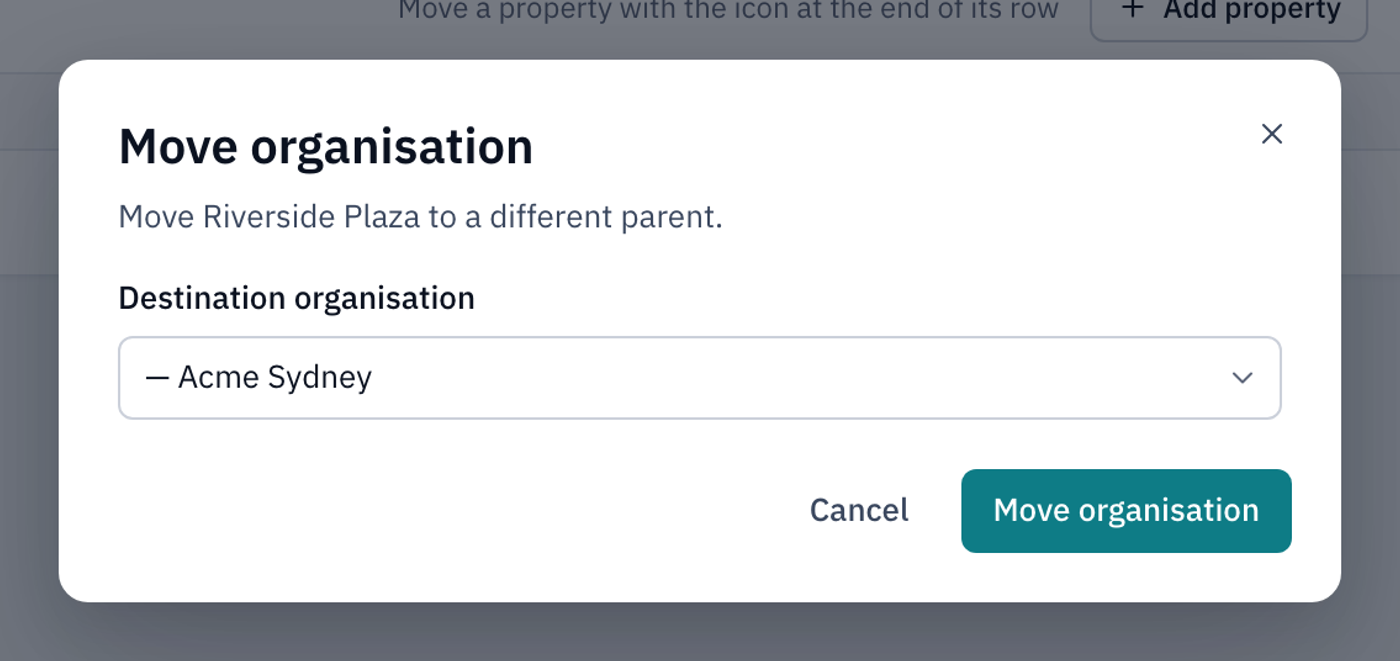
You can't move your top-level organisation. If you need to, contact LiftSync.
Archive an organisation
Archive an organisation you no longer use, for example when you've sold a building. Only owners can archive and restore organisations.
- Open the organisation's page.
- Select Archive. A message tells you how many properties and lifts the organisation covers.
- Select Archive organisation.
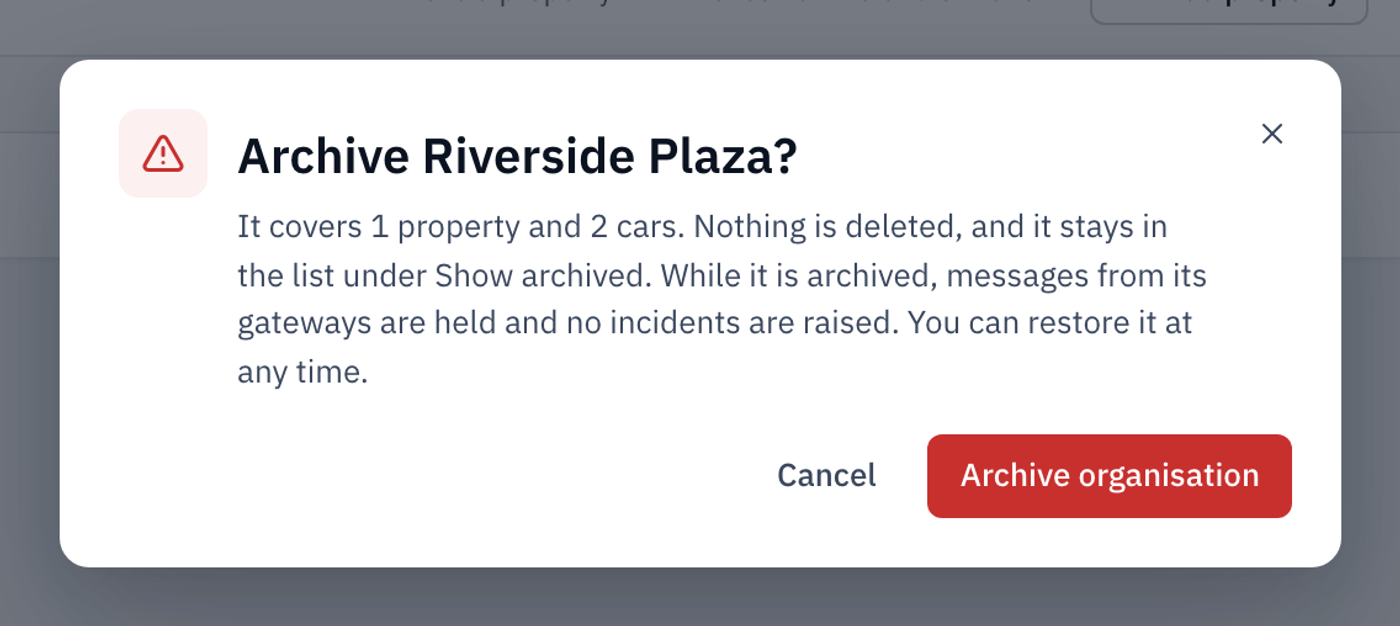
If the organisation still has child organisations, you see Archive or move the child organisations first. Archive or move each child organisation, then try again.
Restore an archived organisation
- On the Organisations page, turn on Show archived.
- Select the archived organisation to open its page.
- Select Restore.
The organisation goes back to Active.