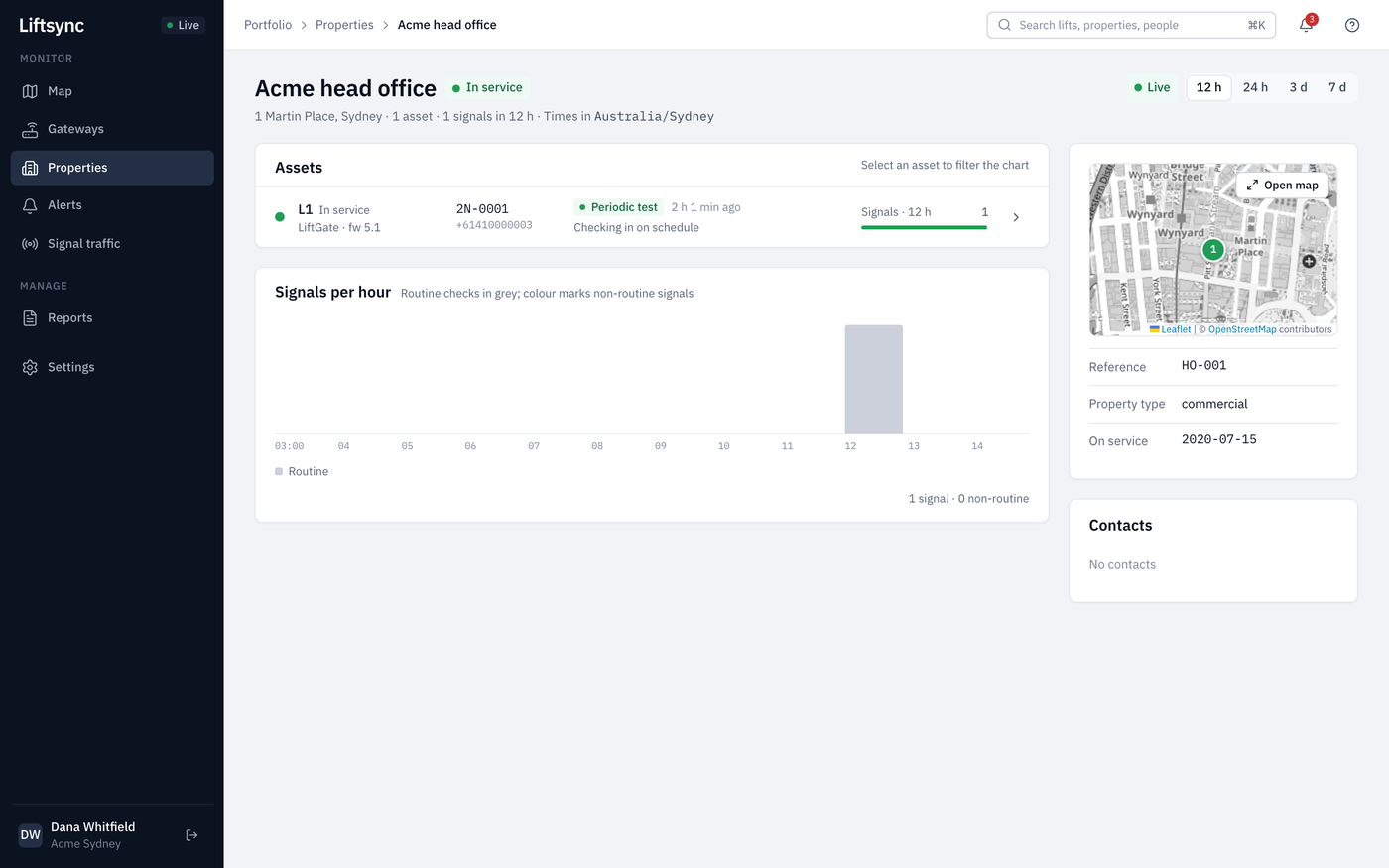
The Properties page lists every building you have access to, grouped by country and state, with the state of the emergency call equipment in its lifts right now. Open a property to see each lift, what its gateway last reported and who to contact on site.
Find a property
- Select Properties in the sidebar.
- Select a state, such as New South Wales, to open it. Each property shows its address, the organisation it belongs to, how many lifts it has and its status.
- To find a property quickly, type part of its name, address or organisation into the search box and press Enter.
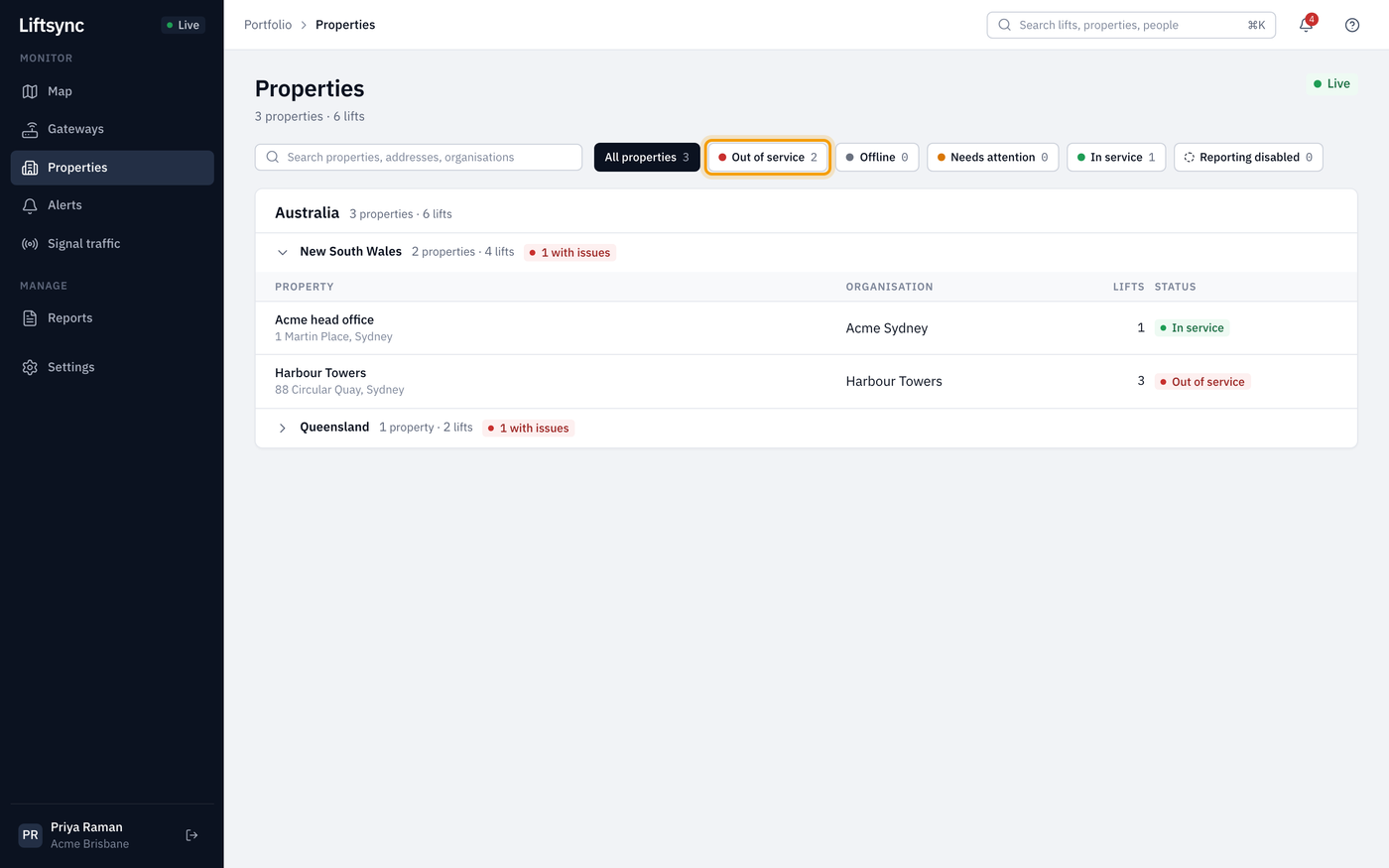
The buttons above the list show only the properties in one state. The number on each button is how many properties are in that state.
| Button | What it shows |
|---|---|
| Out of service | The emergency call equipment in a lift has a fault and may not work |
| Offline | LiftSync hasn't heard from a lift's gateway when it expected to |
| Needs attention | A warning about a lift's emergency call equipment that isn't urgent yet, such as lost mains power |
| In service | The emergency call equipment in every lift is working as expected |
| Reporting disabled | A lift's gateway has been told to stop reporting to LiftSync |
Open a property
Select a property in the list to open it. The top of the page shows the property's name, its status and its address.
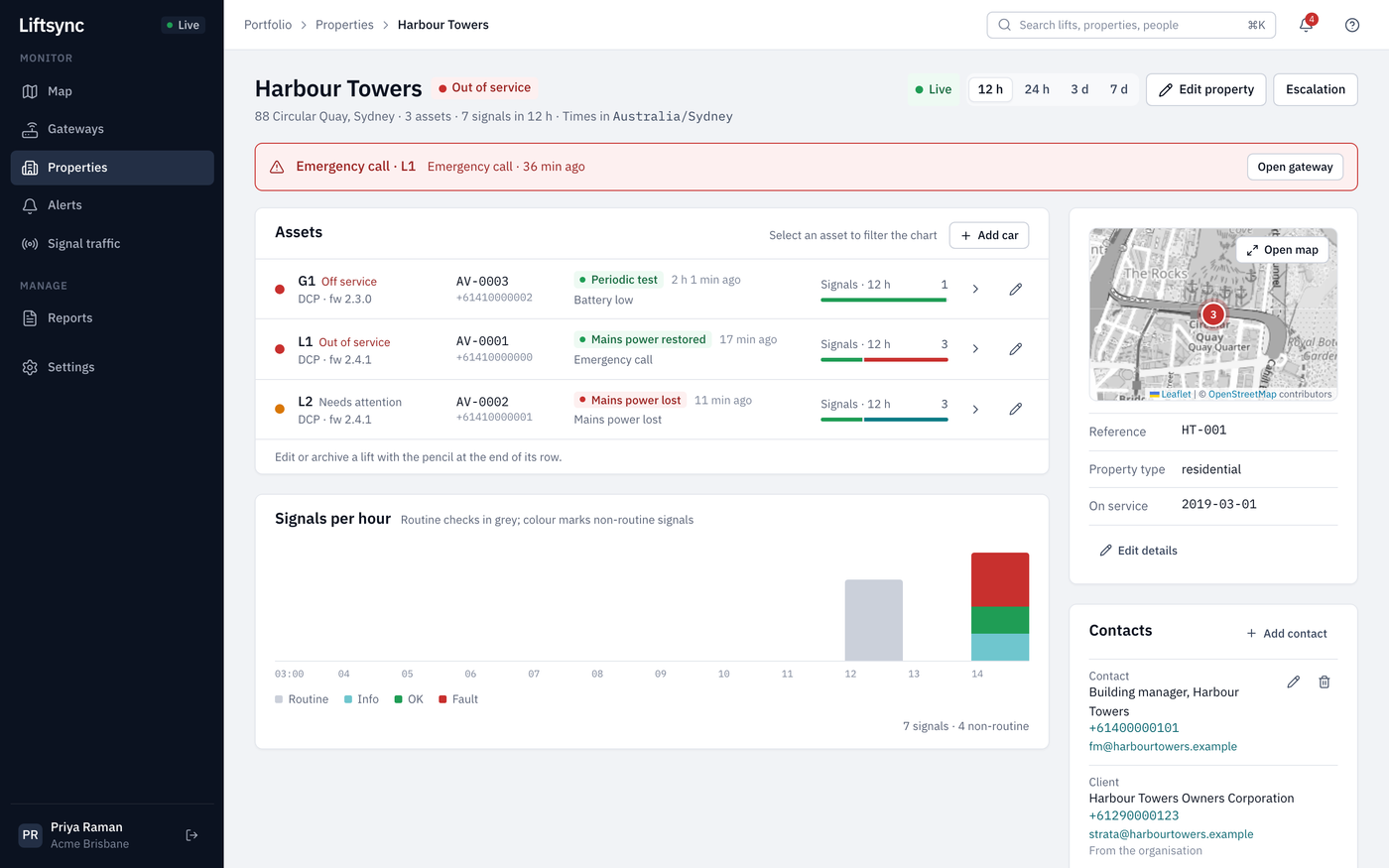
On the property page you can:
- See the latest alert. A red banner at the top shows the most important open alert, such as a phone line fault or an emergency call. Select Open gateway to see more about that lift's gateway.
- Look further back. Select 12 h, 24 h, 3 d or 7 d to choose how much history the page shows.
- See where the property is. Select Open map to see it on the full map.
- Find who to call. The Contacts card lists people on site. Select a phone number to call it or an email address to write to them.
Check each lift
The Assets card lists every lift at the property. For each lift you can see:
- its name and status, such as Out of service or Off service
- the gateway fitted to it (the device that connects the lift's emergency call button to the call centre)
- the last thing the gateway reported, and how long ago
- how much the gateway has reported in the time you chose, in colour
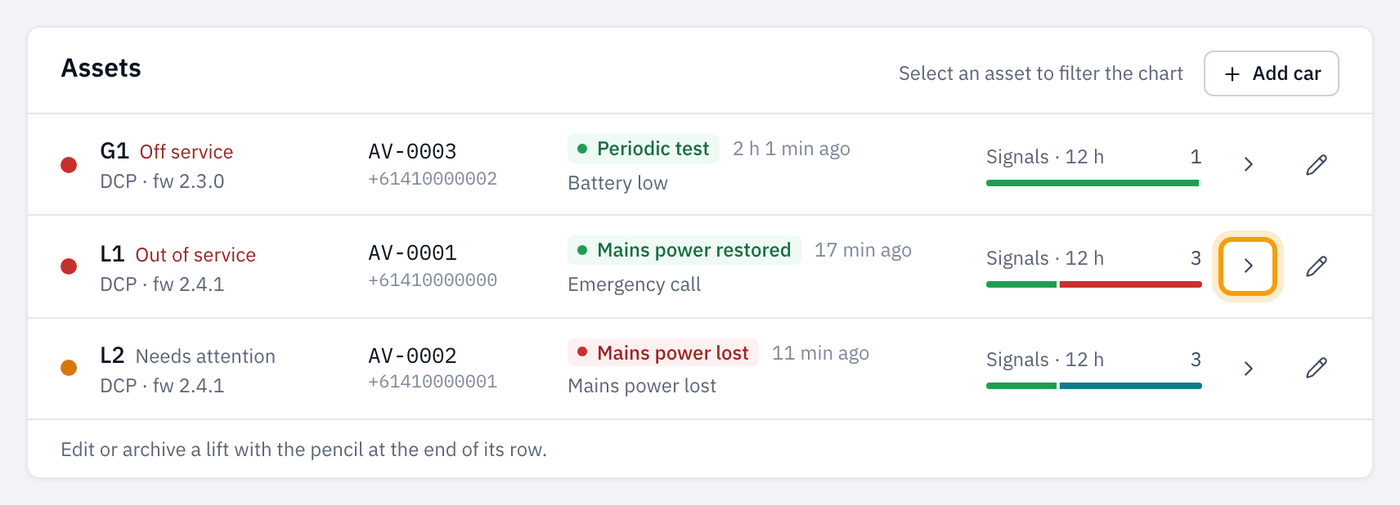
Select a lift's name to show only that lift in the Signals per hour chart. To see everything a lift's gateway has reported, select the arrow at the end of its row. See See a lift's history.
Lifts that have been archived, for example because they were taken out, aren't counted in the property's status. Owners and admins can see them under Archived lifts at the bottom of the Assets card. See Archive a lift.
What you see depends on your role
Everyone with access to a property sees the same lifts, statuses and contacts. Owners and admins also see buttons to change things, such as Edit property, Escalation, Add car, Edit details and Add contact. Operators and viewers don't see these buttons.