Keep each property's name, address and lifts correct, so everyone sees the right building on the map and the right lift when an alert comes in. You can add a new property to an organisation, change a property's details, add or update its lifts, and archive a lift that has been taken out.
Change a property's details
- Select Properties in the sidebar and open the property.
- Select Edit property at the top of the page. (Edit details, under the map, opens the same panel.)
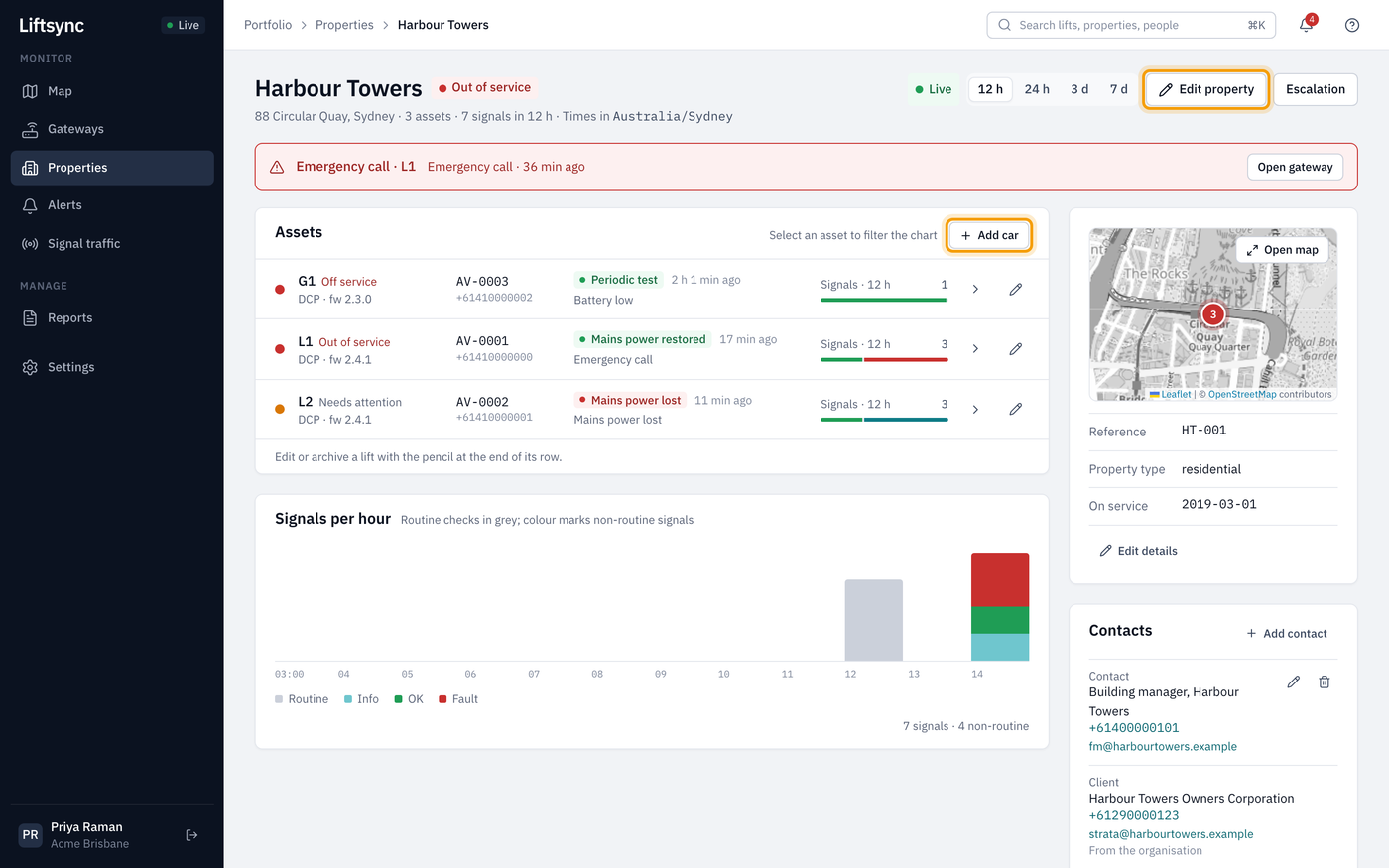
- Change what you need, then select Save changes.
Save changes stays greyed out until you change something. Select Cancel to close the panel without saving.
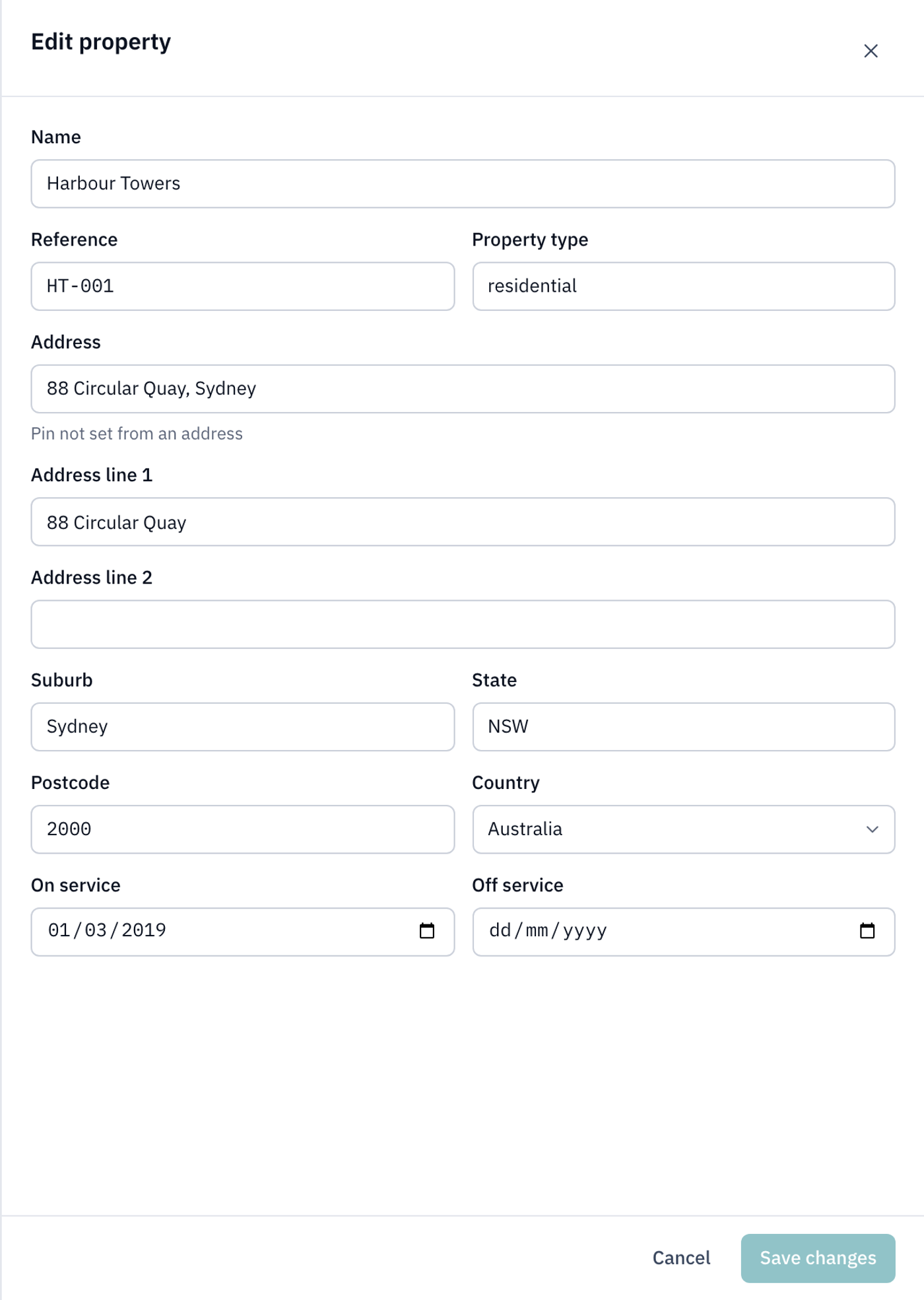
| Box | What it's for |
|---|---|
| Name | The property's name, as it appears everywhere in LiftSync. It can't be empty. |
| Reference | Your own code for the property, such as a job or contract number. Optional. |
| Property type | A short description, such as residential or retail. Optional. |
| Address | Search for the address and pick it from the list. This sets where the property's pin goes on the map. |
| Address line 1 to Country | The address as it's shown. Change these to correct a detail, such as a unit number. |
| On service and Off service | The dates LiftSync started and stopped looking after this property, for your records. |
Move the property's pin on the map
The property's pin only moves when you pick an address from the list under Address. Typing in the address lines below it changes the address text but not the pin.
Under the address, LiftSync shows where the pin came from:
- Pin set from: and an address means the pin was placed from that address.
- Pin not set from an address means the pin was placed another way. To put it in the right place, search for the address and pick it from the list.
Add a property
New properties are added from the organisation they belong to.
- Select Settings in the sidebar, then select the organisation.
- On the Properties tab, select Add property.
- Type the property's Name.
- Under Address, start typing the address and pick it from the list.
- Fill in anything else you want, such as Reference, or Address line 2 for a building or level.
- Select Add property.
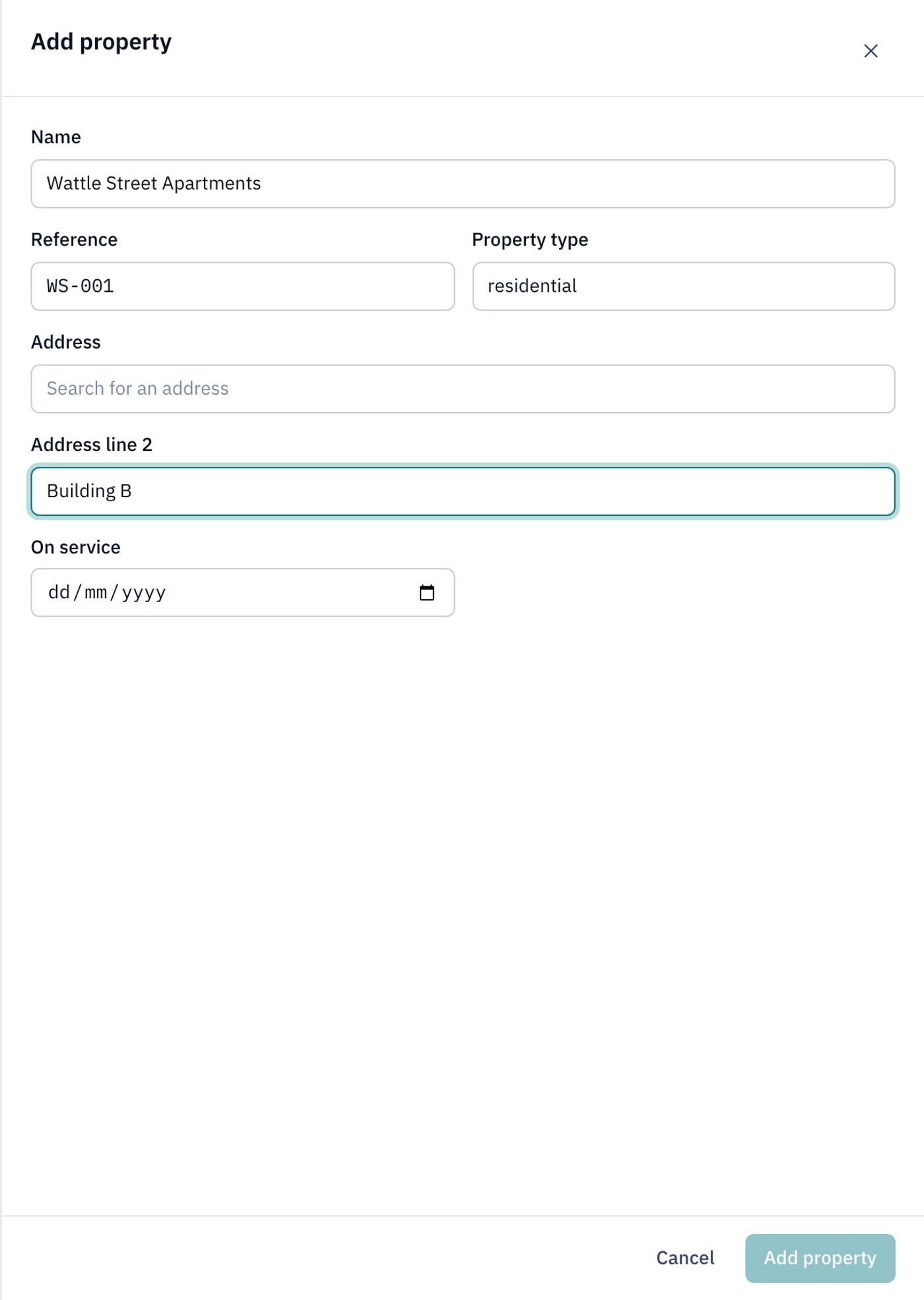
Add property stays greyed out until the property has a name and you've picked an address from the list. LiftSync fills in the rest of the address from the one you pick.
The new property has no lifts yet. Open it and add them, as described below.
Add a lift
- Open the property.
- In the Assets card, select Add car.
- Type the Lift number, the name people at the property use for it, such as
L1orGoods lift. - Fill in any other details you have. They're all optional.
- If the lift's gateway is ready, choose it under Gateway. A gateway is the device in the lift that connects the emergency call button to help and reports to LiftSync. Leave it as No gateway if it hasn't been fitted yet.
- Select Add car.
The Gateway list shows gateways already in lifts at this property, gateways waiting to be fitted here, and gateways in stock. One gateway can serve more than one lift, so you can pick a gateway that's already listed as serving another lift here.
A lift with no gateway appears under Pending at the bottom of the Assets card, marked No gateway. LiftSync doesn't include it in the property's status until a gateway is fitted and reporting. See Add a new gateway and fit it to a lift.
Change a lift's details
- Open the property.
- In the Assets card, select the pencil at the end of the lift's row.
- Change what you need, then select Save changes.
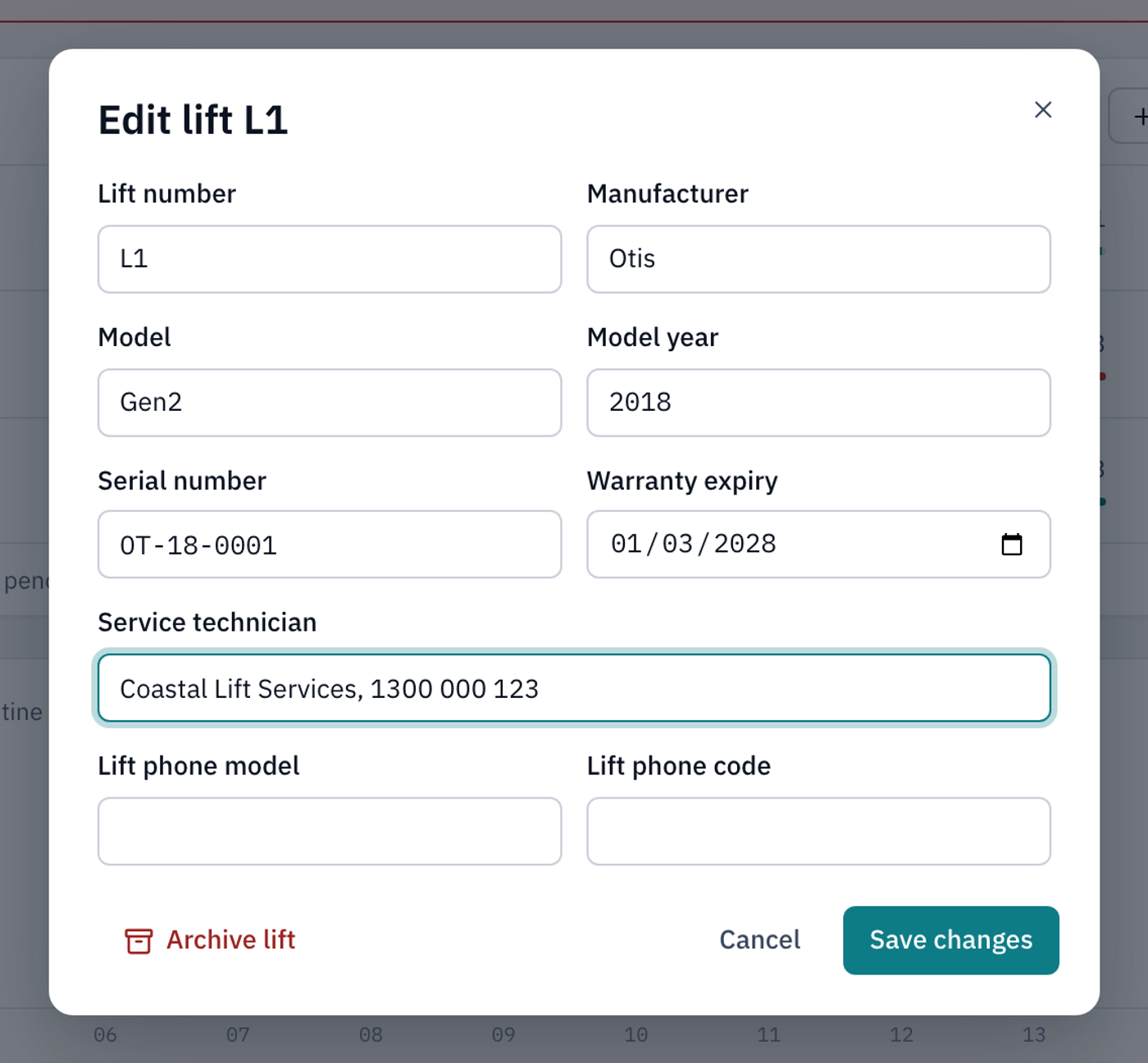
| Box | What it's for |
|---|---|
| Lift number | The lift's name at the property, such as L1. It can't be empty. |
| Manufacturer, Model, Model year | Who made the lift and which model it is. |
| Serial number | The lift's own serial number (not the gateway's). |
| Warranty expiry | When the lift's warranty ends. |
| Service technician | Who services the lift, for example the company and its phone number. |
| Lift phone model and Lift phone code | Details of the emergency phone in the lift, for your records. |
To clear a detail, delete what's in the box and save.
Only lifts with a gateway that's reporting have a pencil. To change a lift under Pending, fit its gateway first.
Archive a lift
Archive a lift that has been taken out or replaced, so it no longer shows on the map or on Properties. Nothing is deleted, and you can restore it at any time.
- Open the property.
- In the Assets card, select the pencil at the end of the lift's row.
- Select Archive lift.
- Read the question. It says what happens to the lift's gateway.
- Select Archive lift.
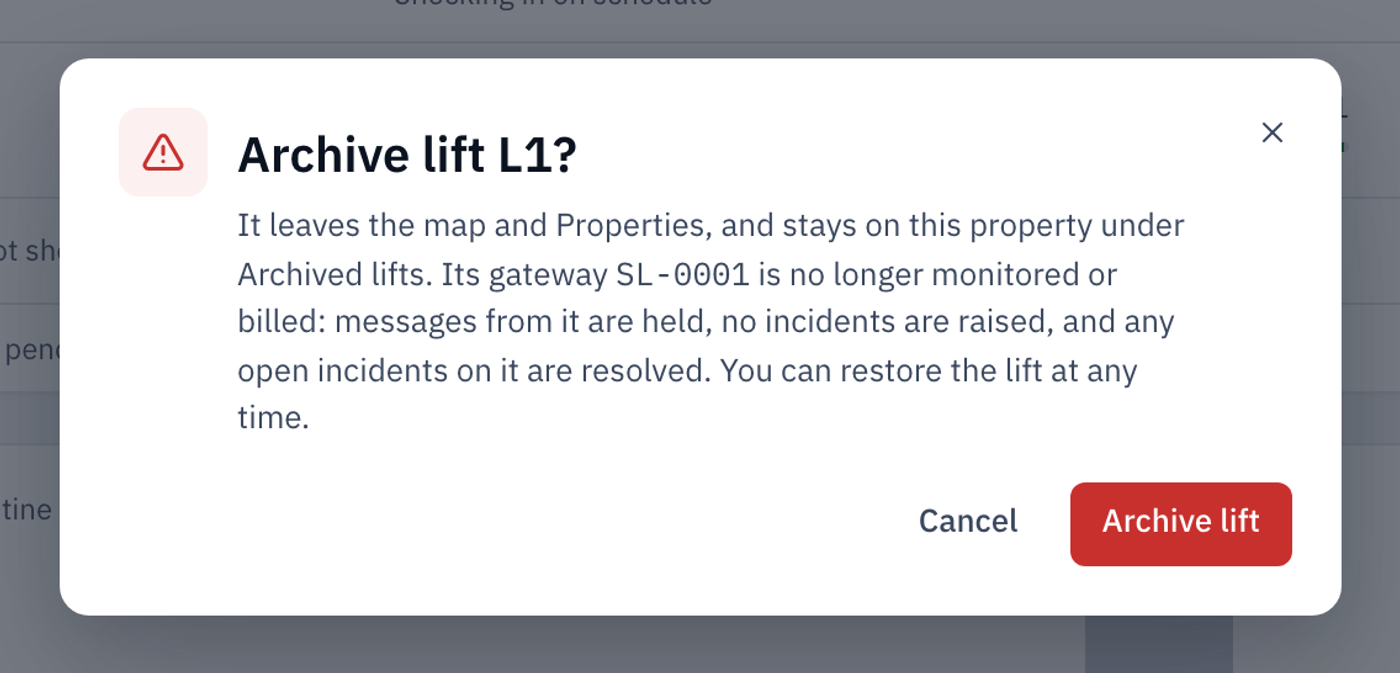
The lift moves to Archived lifts at the bottom of the Assets card. It's no longer on the map, on Properties or in search results.
If the gateway is still fitted in another lift, move it there instead of leaving it on the archived lift. See Move a gateway to another property.
Restore an archived lift
- Open the property.
- In the Assets card, select Archived lifts. Each archived lift shows its gateway and who archived it, and when.
- Select Restore lift next to the lift.
- Select Restore lift to confirm.
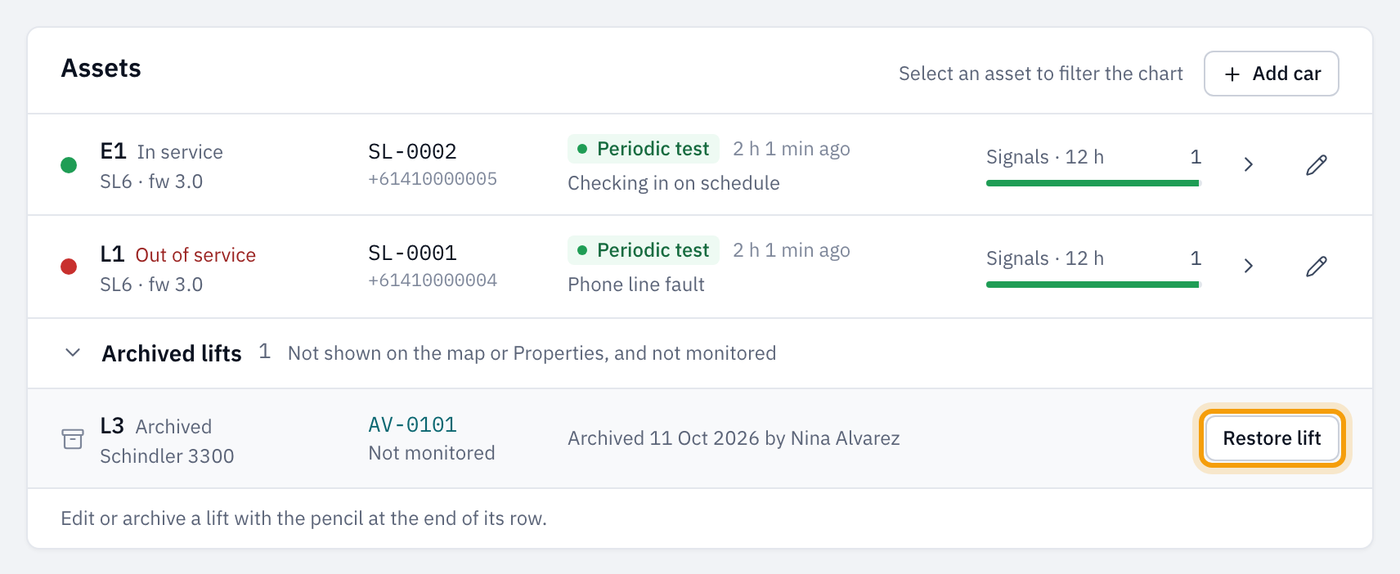
The lift goes back on the map and Properties. If its gateway wasn't being monitored, LiftSync starts monitoring it again from its next message.
Mark a lift as off service
Off service means a lift has been marked as out of use on purpose, for example during building works, so LiftSync doesn't expect to hear from its gateway. It's different from Out of service, which means the lift's emergency call equipment has a fault and may not work.
There's no button in the portal to mark a lift Off service. If a lift is going out of use for a while, ask whoever set up LiftSync for you, such as your lift company. If a lift has been taken out for good, archive it instead, as described above.
The On service and Off service dates on a property are for your records. Changing them doesn't change the status of the property or its lifts.
If something goes wrong
If LiftSync can't save your changes, a message appears in red above the buttons saying what went wrong, and the window stays open with your changes. Fix the problem and try again, or select Cancel to leave things as they were.