Each month LiftSync counts your customers' gateways and makes a draft invoice for each account. Nothing goes to your customers until you check the month and send it. This article shows you how.
Find a month's invoices
Select Billing in the sidebar. The Runs tab lists each month that has been counted, newest first, with its status, when it was counted, the number of invoices and gateways, the total and how many invoices have been sent.
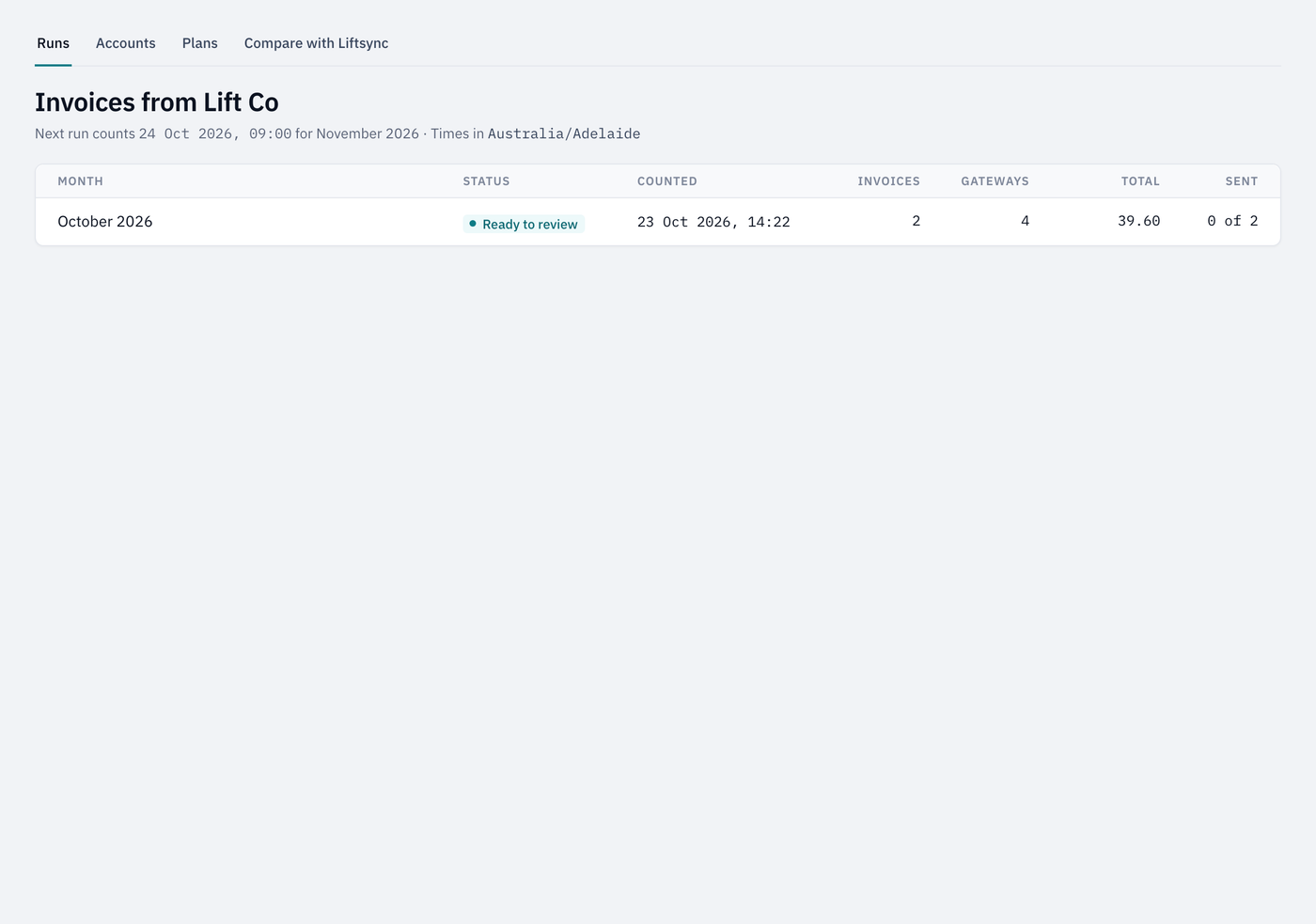
The line under the heading says when the next month will be counted.
| Status | What it means |
|---|---|
| Ready to review | Counted, and nothing has been sent yet. |
| Out of date | Something has changed since the count, for example a plan or an account. Select Recount before you send. |
| Sending | The invoices are on their way to Xero. |
| Partly sent | Some invoices went and some didn't. Open the month to see which. |
| Sent | Every invoice has gone. |
Check a month
Select a month to open it.
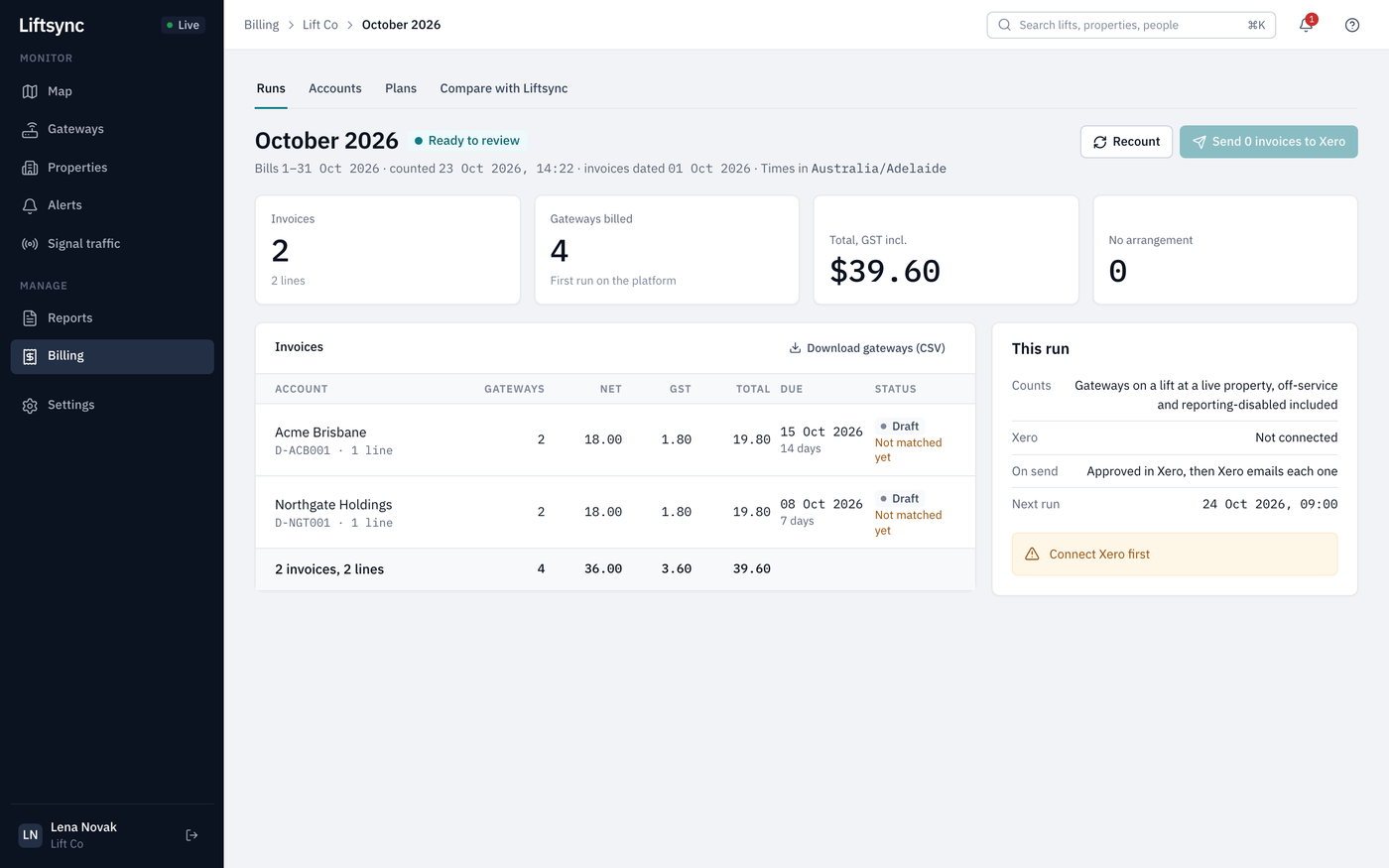
Check these, top to bottom:
- The tiles: how many invoices, how many gateways, the total including GST, and how many gateways have no arrangement (nobody set to pay).
- Needs a decision: organisations whose gateways aren't on any invoice because nobody is set to pay for them. For each one, select Set who pays to choose an account and plan, or Mark not billed if you don't charge for them. The month is counted again straight away.
- Not billed: organisations you've chosen not to invoice. They're listed every month so nothing is missed.
- Account inactive: accounts you've switched off, so their lines were left out.
- Invoices: one row for each account, with its gateways, amounts, due date and status.
- This run: which gateways are counted, your Xero connection, what happens when you send, and the next run.
To get the list of every gateway on the month's invoices, select Download gateways (CSV). It opens in a spreadsheet program.
If you've changed a plan, an account or who pays since the month was counted, select Recount to count it again.
Look at one invoice
Select an account in the Invoices table. The invoice opens on the right, with its lines, the total and exactly what Xero will receive: the contact, the date and due date, the reference and each line.
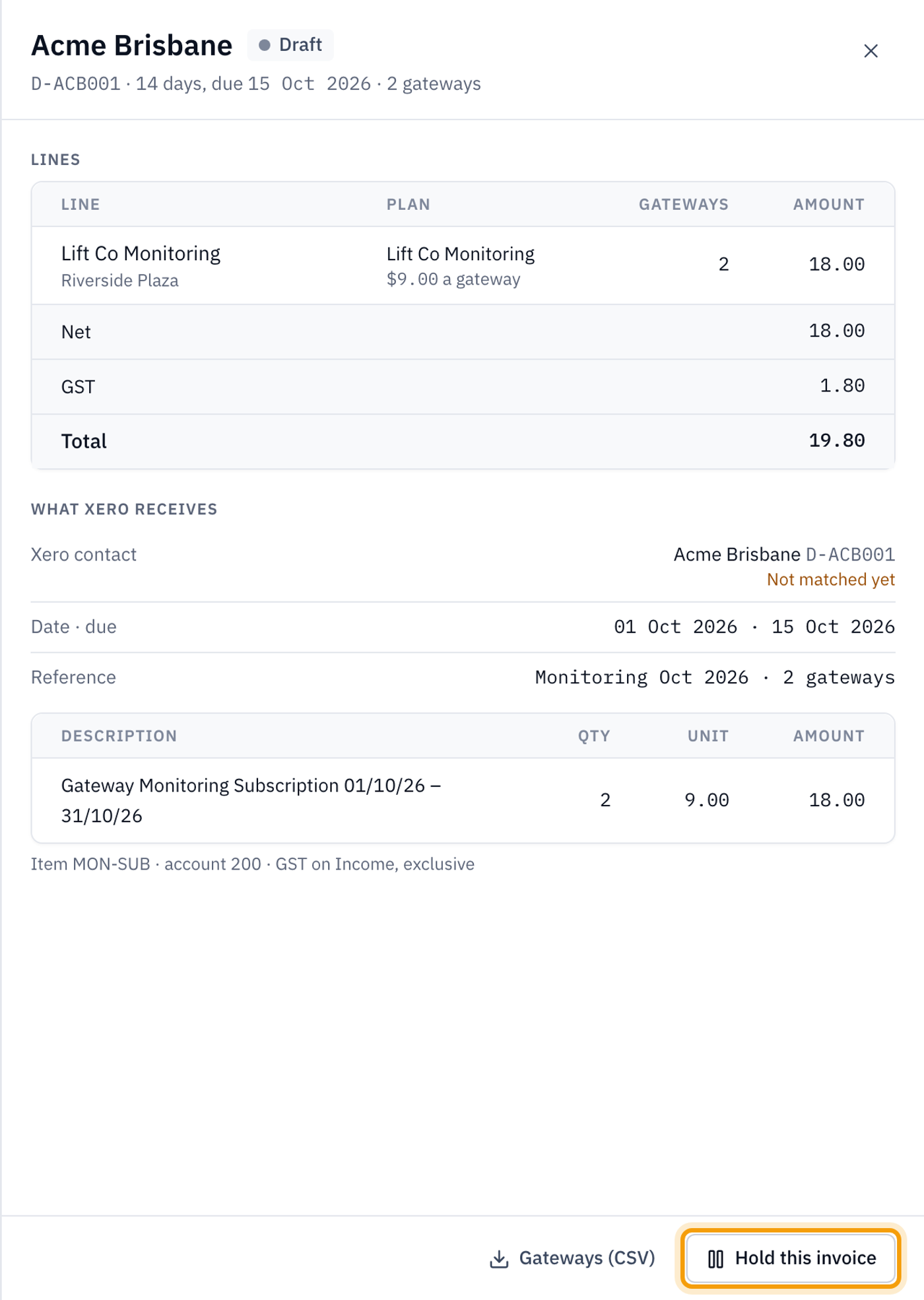
- Hold this invoice keeps it back when you send the rest, for example while you check something with the customer. It shows Held.
- Release this invoice puts a held invoice back, ready to send.
- Retry tries a failed invoice again. For one marked Not emailed, it asks Xero to email it again and doesn't create a second invoice.
- Gateways (CSV) downloads the gateways on this invoice.
Send the invoices
- Open the month.
- Select Send (the button says how many invoices, for example Send 2 invoices to Xero).
- Read the question. It lists any organisations not billed this month.
- Select Send invoices.
The invoices go to your Xero one by one, and their status changes to Sent. Held invoices stay behind until you release them and send again.
Send is greyed out until it can be used. Hover over it to see why, for example Connect Xero first. See Connect your Xero.
If an invoice can't be sent, it shows Failed. Open it to see why, fix the problem (for example, match the account to its Xero contact) and select Retry.