By default, LiftSync tells a property's escalation contacts about every alert straight away. You can change that for one property, or for every property in an organisation. For example, you can tell the lift technician about phone line faults, or wait 30 minutes before telling anyone about lost mains power in case it comes back by itself.
What a policy is
A policy is one rule: when this kind of alert is raised here, tell these people, this long after it's raised. Each policy has:
- Incident: the kind of alert it's for, such as Phone line fault · at once, or Any incident for every kind.
- Tell after: how many minutes after the alert is raised to tell people.
0means straight away. - Tell: who to tell, and whether by email or SMS (text message).
The policies you set up for a property or an organisation replace LiftSync's default for that kind of alert. That's why the portal calls this an override.
Which policy is used
When an alert is raised, LiftSync uses the closest policy that covers it:
- a policy for the property
- then one for the property's organisation
- then one for an organisation above it
- then LiftSync's default, shown as Global.
At the same place, a policy for that kind of alert comes before an Any incident policy. Only one of these policies is used. Anything shown as Also told (always on) is told as well.
The From column on the Escalation page shows which policy each kind of alert uses.
Change who's told for one property
- Select Properties in the sidebar and open the property.
- Select Escalation.
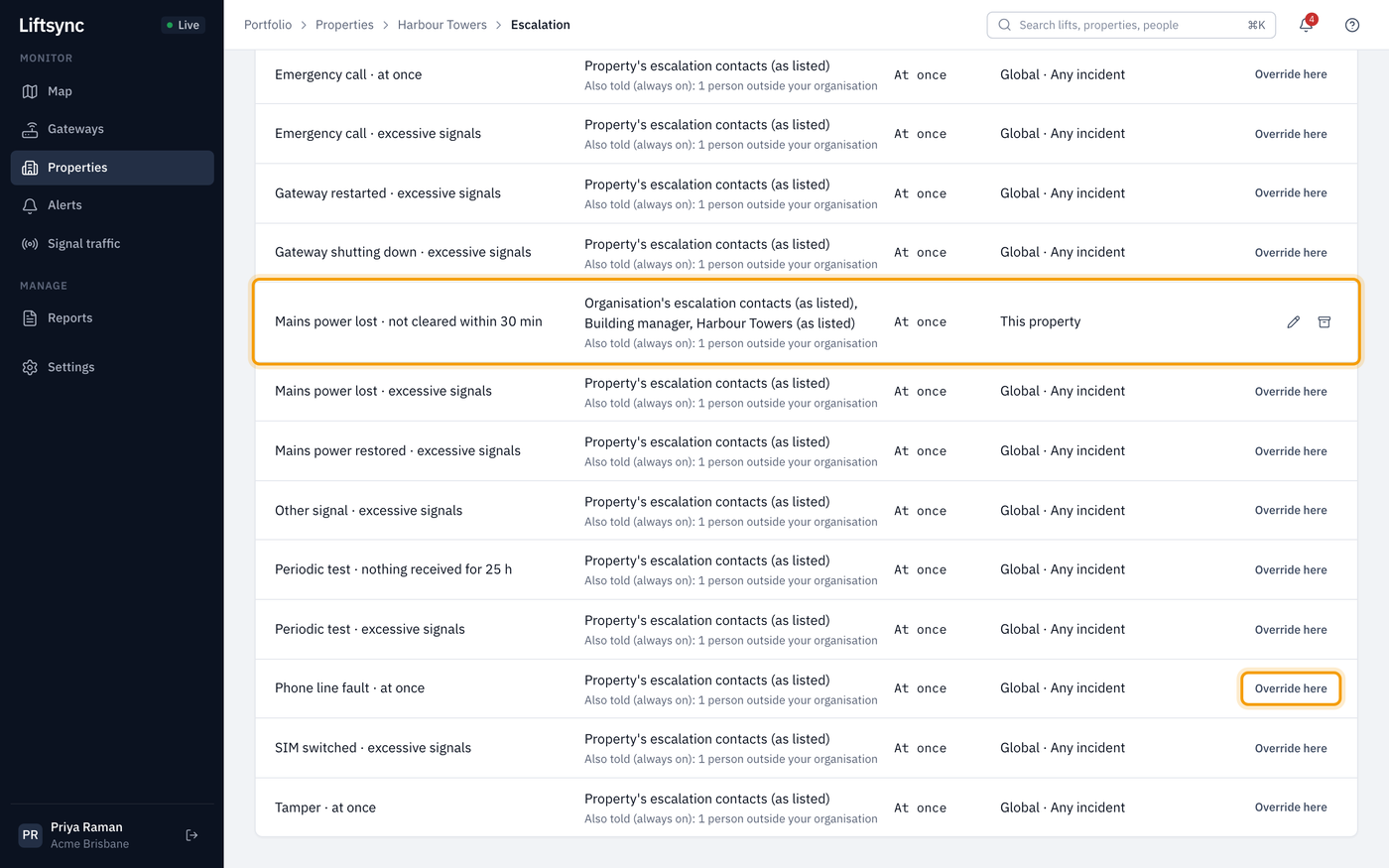
- Find the kind of alert you want to change, and select Override here on its row. To change every kind of alert at once, select Override here on the Any incident row, or Add policy at the top.
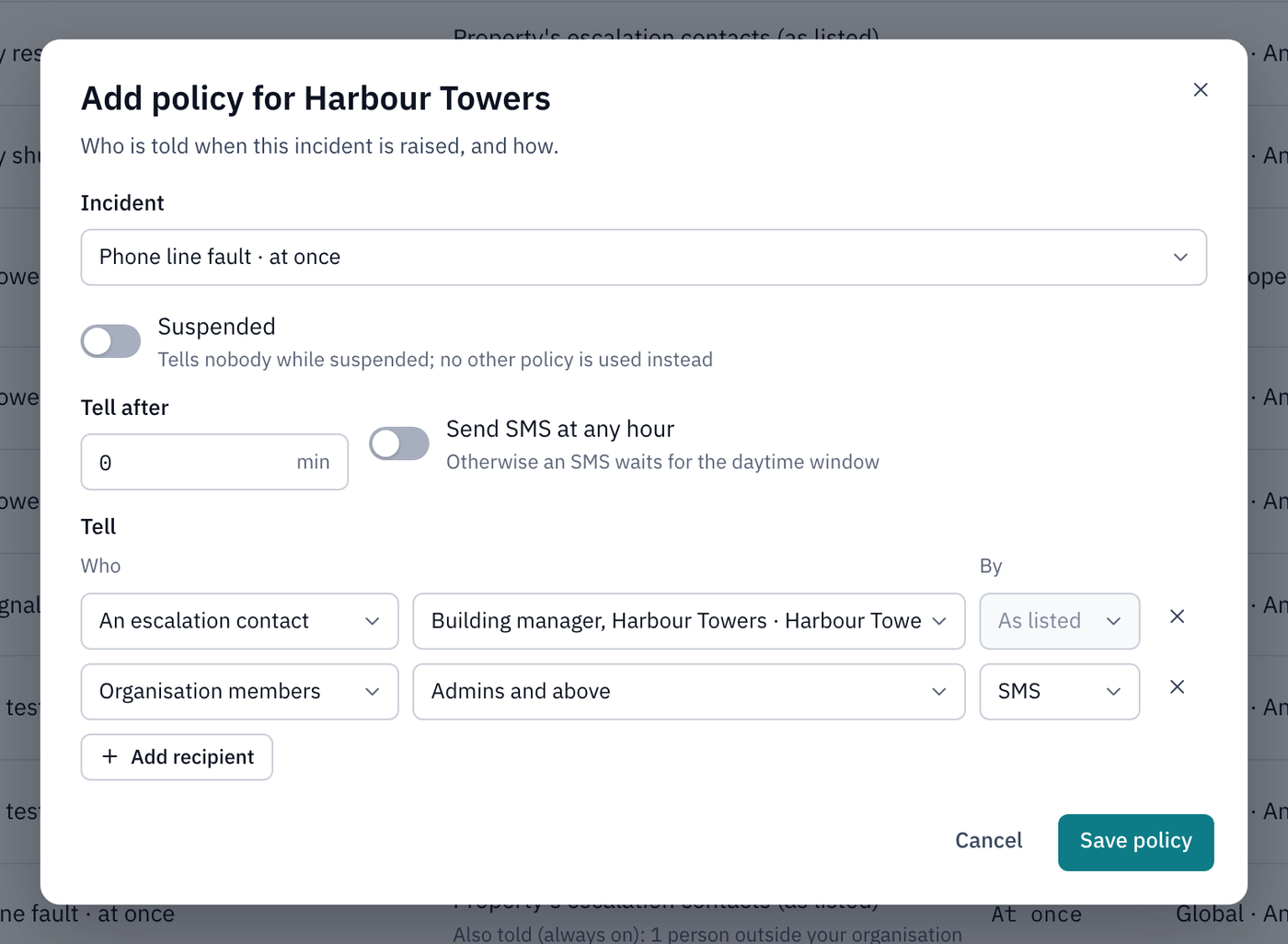
- Check the Incident is the one you want.
- In Tell after, enter how many minutes to wait. Leave it at
0to tell people straight away. - Under Tell, choose who to tell (see the table below). Select Add recipient to tell more than one person or group, or the × to take one off.
- Select Save policy.
The row now shows This property under From, and a pencil and an archive box instead of Override here.
If Save policy is greyed out, the message under Tell says what's missing, for example Choose who each recipient is.
Who you can tell
| Who | What it means | By |
|---|---|---|
| Property's escalation contacts | Everyone on the property's list | As listed |
| Organisation's escalation contacts | Everyone on the property's organisation's list | As listed |
| An escalation contact | One person from either list. Choose them in the next box. | As listed |
| Organisation members | Everyone who signs in to LiftSync with access to this organisation, at the role you choose or higher, such as Admins and above | Email or SMS |
As listed means each person is told by email, SMS or both, as ticked on the Contacts tab. For Organisation members, choose Email or SMS in the By box.
Other settings
- Send SMS at any hour: SMS messages normally wait for the daytime. Turn this on for alerts that can't wait until morning. Emails always go straight away.
- Suspended: while this is on, the policy tells nobody.
Change who's told across an organisation
A policy for an organisation covers every property in it, and every organisation under it, unless a property or a lower organisation has its own policy for that kind of alert.
- Select Settings in the sidebar, then select the organisation.
- Select Escalation.
- Select Override here on a row, or Add policy, and fill in the policy as for a property.
- Select Save policy.
If some properties in the organisation have their own policies, the bottom of the list says so, for example "1 property has its own policies". Those properties keep using their own.
Change or remove a policy
You can only change a policy on the page where it was set up: the row shows This property or This organisation under From.
- To change it, select the pencil on its row, make your changes and select Save policy.
- To remove it, select the archive box on its row, then select Remove policy.
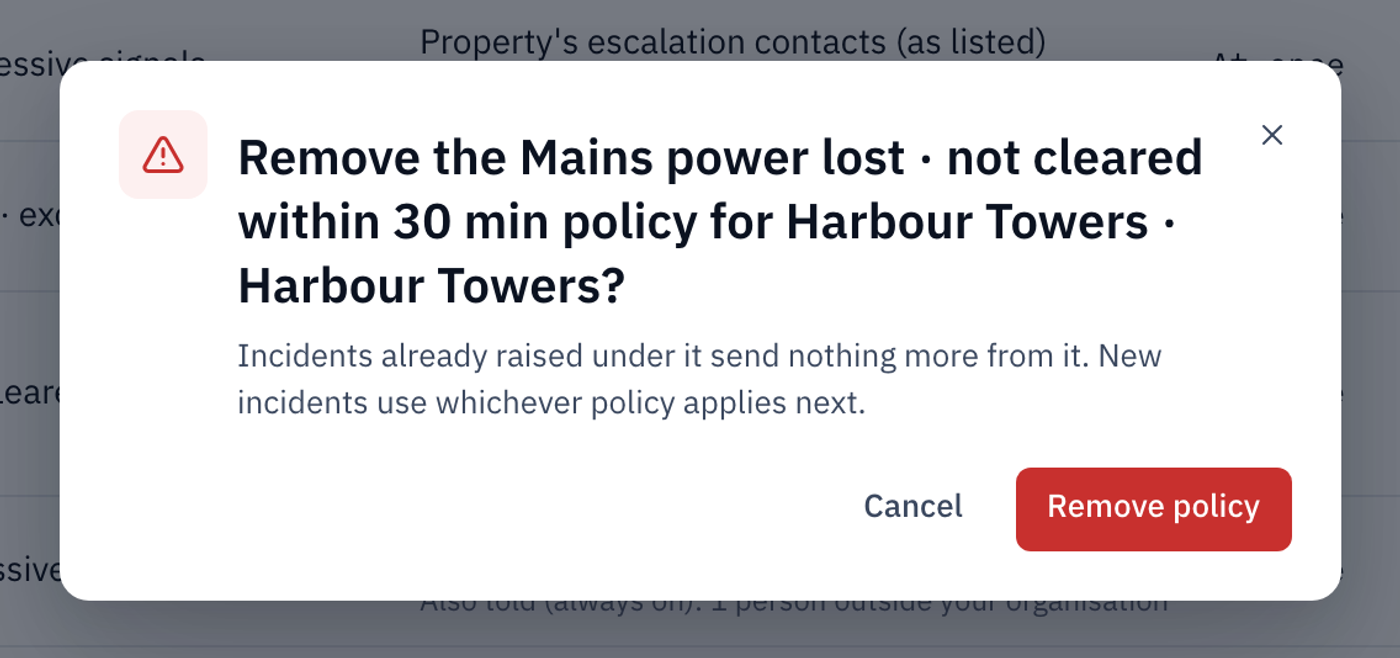
Once a policy is removed, new alerts use whichever policy applies next, such as the organisation's or LiftSync's default.