The Contacts card lists who to call about a property, such as the building manager or the lift technician, and who to call about an organisation, such as the client or the person who pays the bills. Keep it up to date so whoever is dealing with a problem can reach the right person quickly.
Contacts and alerts
LiftSync doesn't send alerts to the people on the Contacts card. It's a list of who to call, for whoever is looking at the property.
To have someone told by email or SMS (text message) when something goes wrong with the emergency call equipment, add them to the property's escalation contacts instead. See Choose who gets told when something goes wrong.
Add a contact to a property
- Select Properties in the sidebar and open the property.
- In the Contacts card, select Add contact.
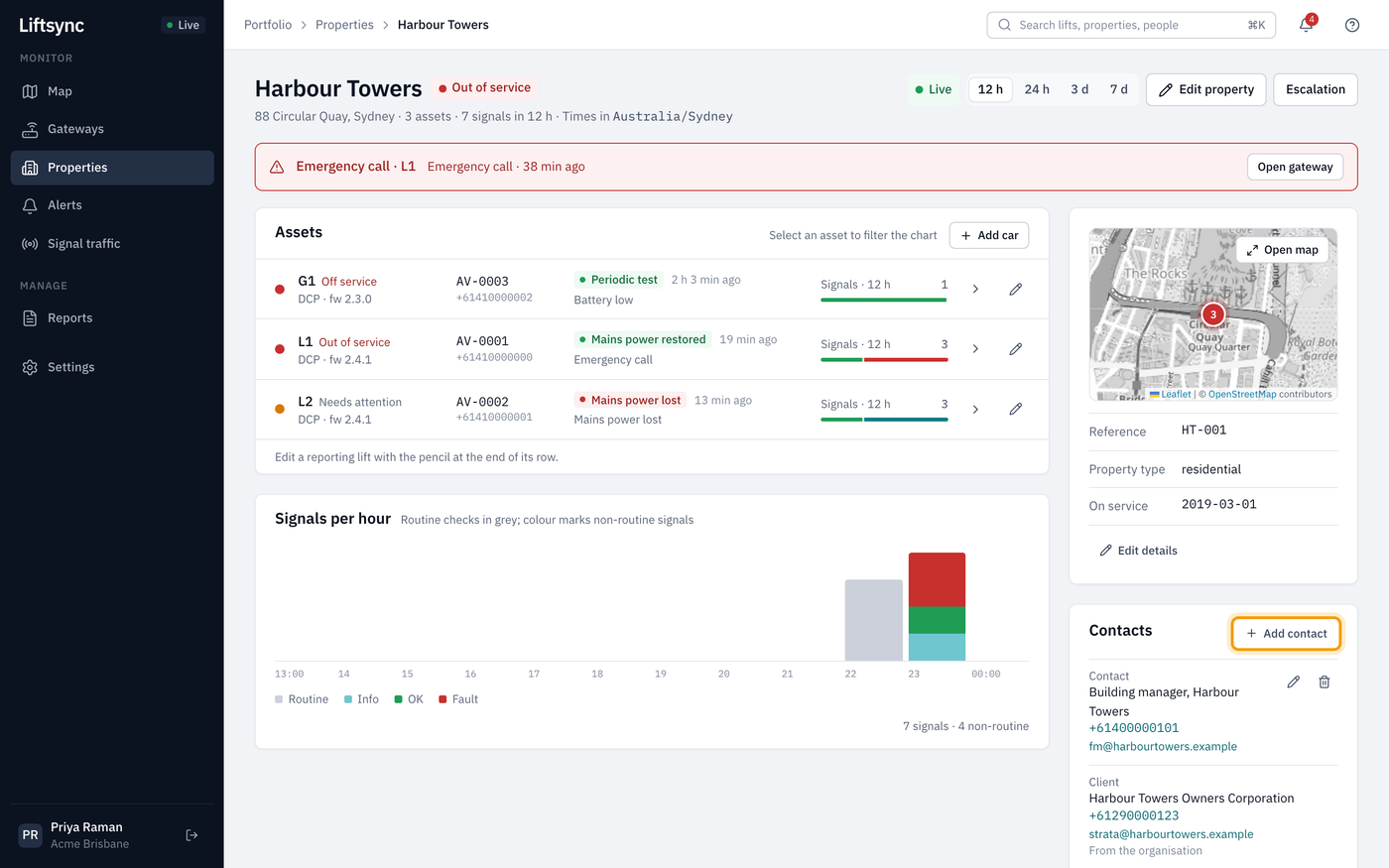
- Type the person's Name. You can include their role, for example "Sam Patel, after-hours caretaker".
- Choose a Purpose:
- Contact: someone at the property, such as the building manager or caretaker.
- Technician: whoever services the lifts.
- Add an Email, Mobile or Phone, and any Notes, such as where to find keys. These are all optional.
- Select Save changes.
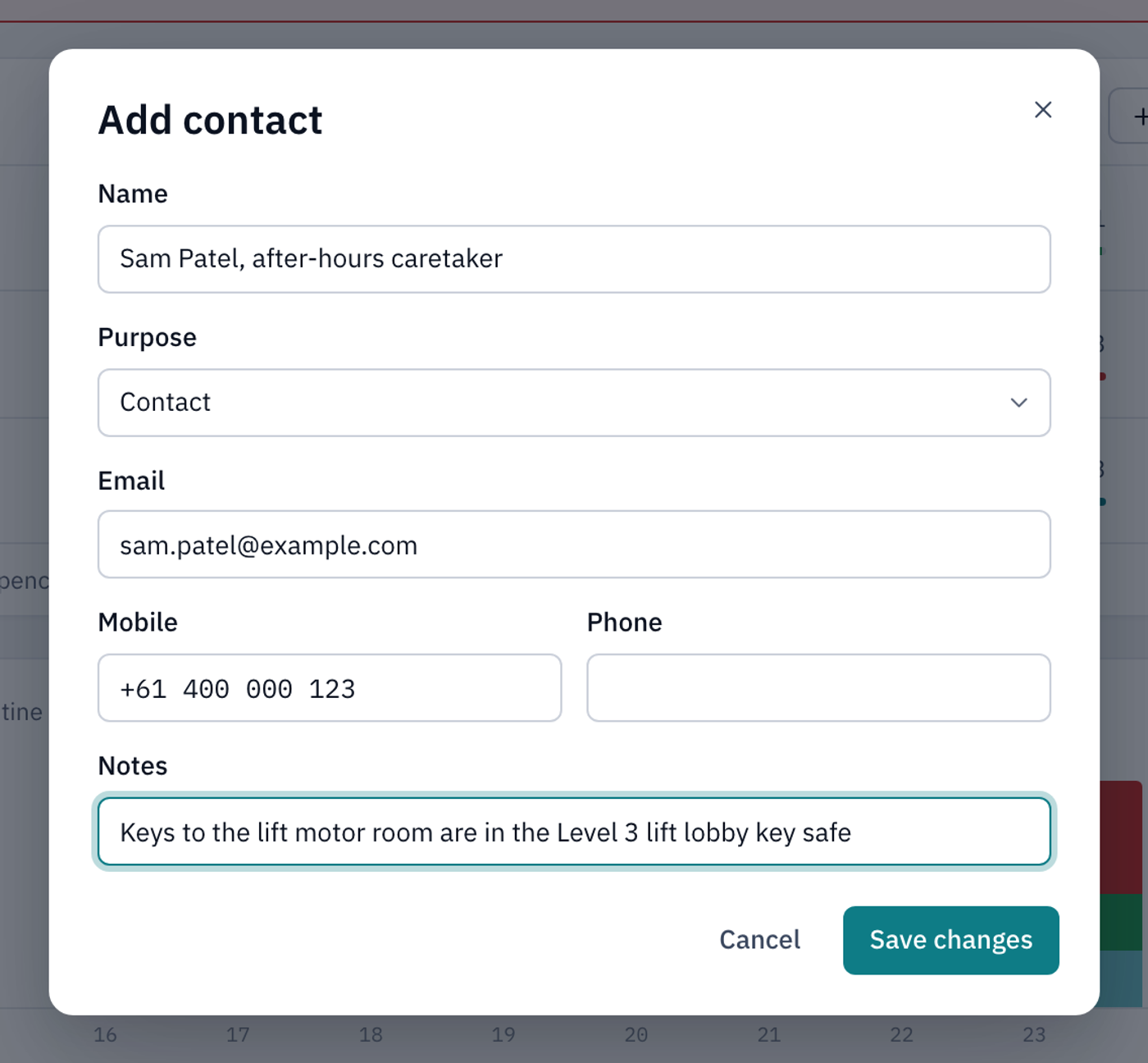
Save changes stays greyed out until the contact has a name. If the email address isn't valid, LiftSync tells you when you save.
The new contact appears in the Contacts card with their purpose, name, phone number and email address. If you entered both a phone and a mobile number, the card shows the phone number. Notes don't appear on the card. To read them, select the pencil next to the contact.
Add a contact to an organisation
Organisations have their own contacts, for things that aren't about one building.
- Select Settings in the sidebar, then select the organisation.
- In the Contacts card, select Add contact.
- Fill in the details as for a property. For an organisation, the Purpose is either:
- Client: the customer you deal with, such as a strata manager or call centre.
- Billing: who to talk to about invoices.
- Select Save changes.
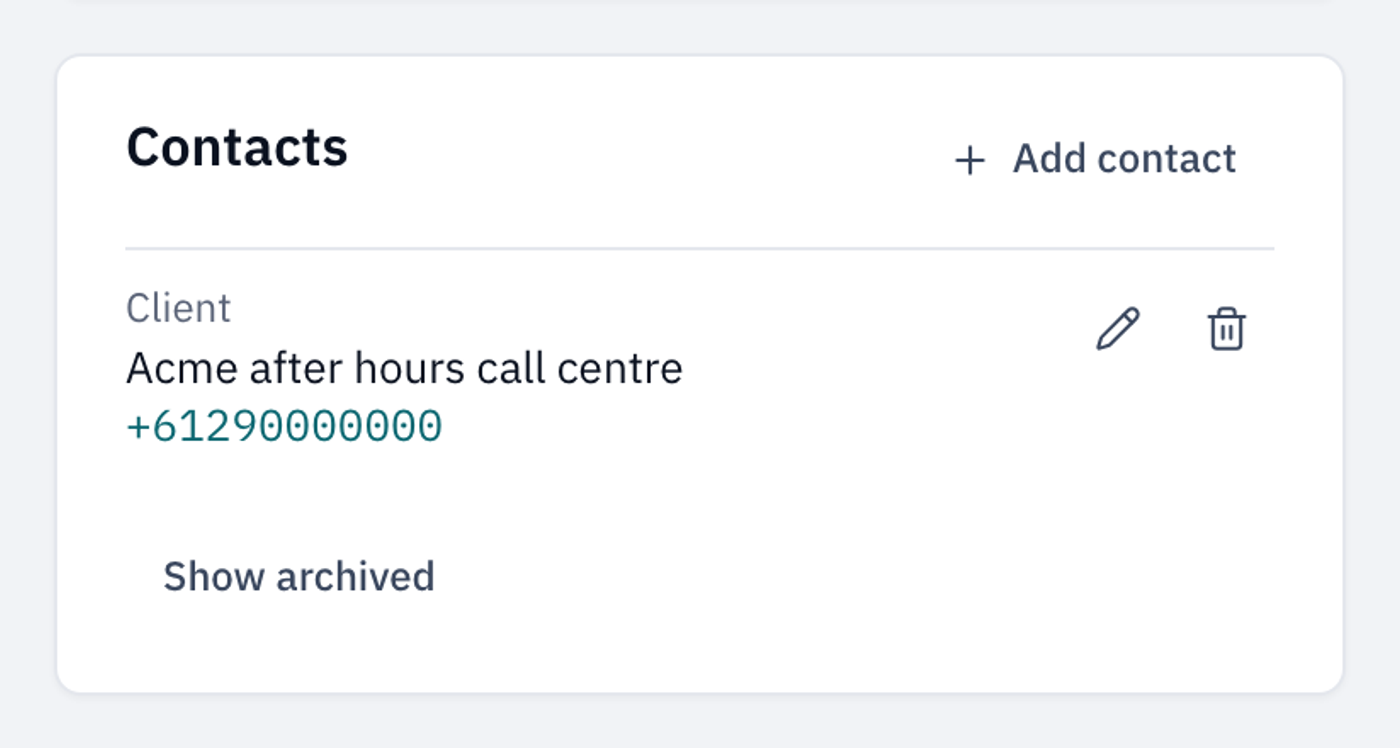
An organisation's contacts also appear on the Contacts card of each property that belongs directly to that organisation, marked From the organisation. You can't change them from the property. Edit them on the organisation's page.
Change a contact
- In the Contacts card, select the pencil next to the contact.
- Change what you need. To clear a detail, delete what's in the box.
- Select Save changes.
Remove a contact
- In the Contacts card, select the bin next to the contact.
The contact moves to the archived list.
Bring back a removed contact
- In the Contacts card, select Show archived. Removed contacts are listed under Archived.
- Select the circular arrow next to the contact to restore them.
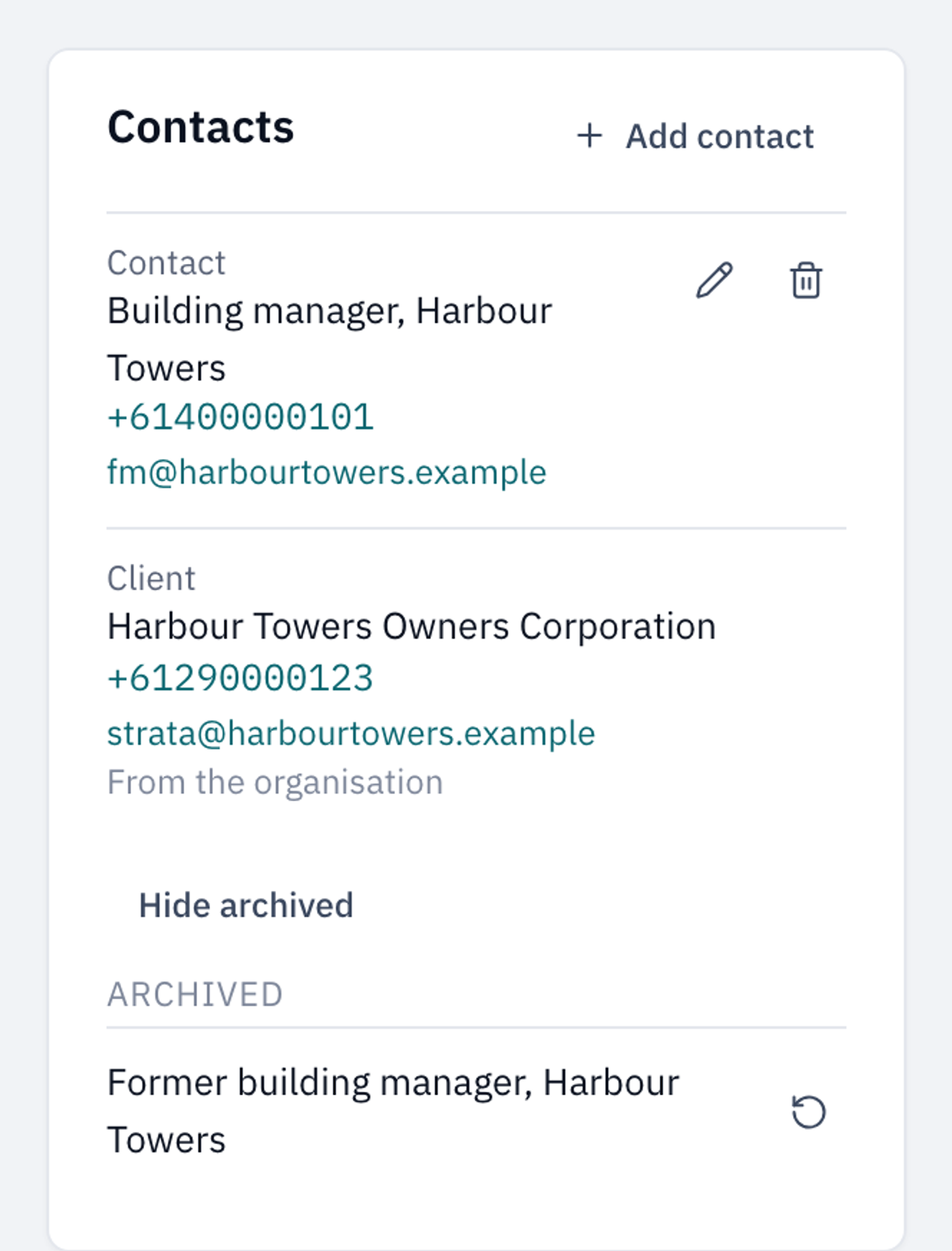
Select Hide archived to close the list.