When LiftSync raises an alert about a lift's emergency call equipment, such as a phone line fault, acknowledge it to tell everyone you're dealing with it. When the problem with the equipment is sorted, resolve it to close the alert.
Open an alert
- Select Alerts in the sidebar.
- Select the name of the alert, such as Phone line fault.
The alert's page opens. In the portal this page is called an incident. The top of the page shows the property, the gateway and when the problem started. The gateway is the device in the lift that connects the emergency call button to the call centre.
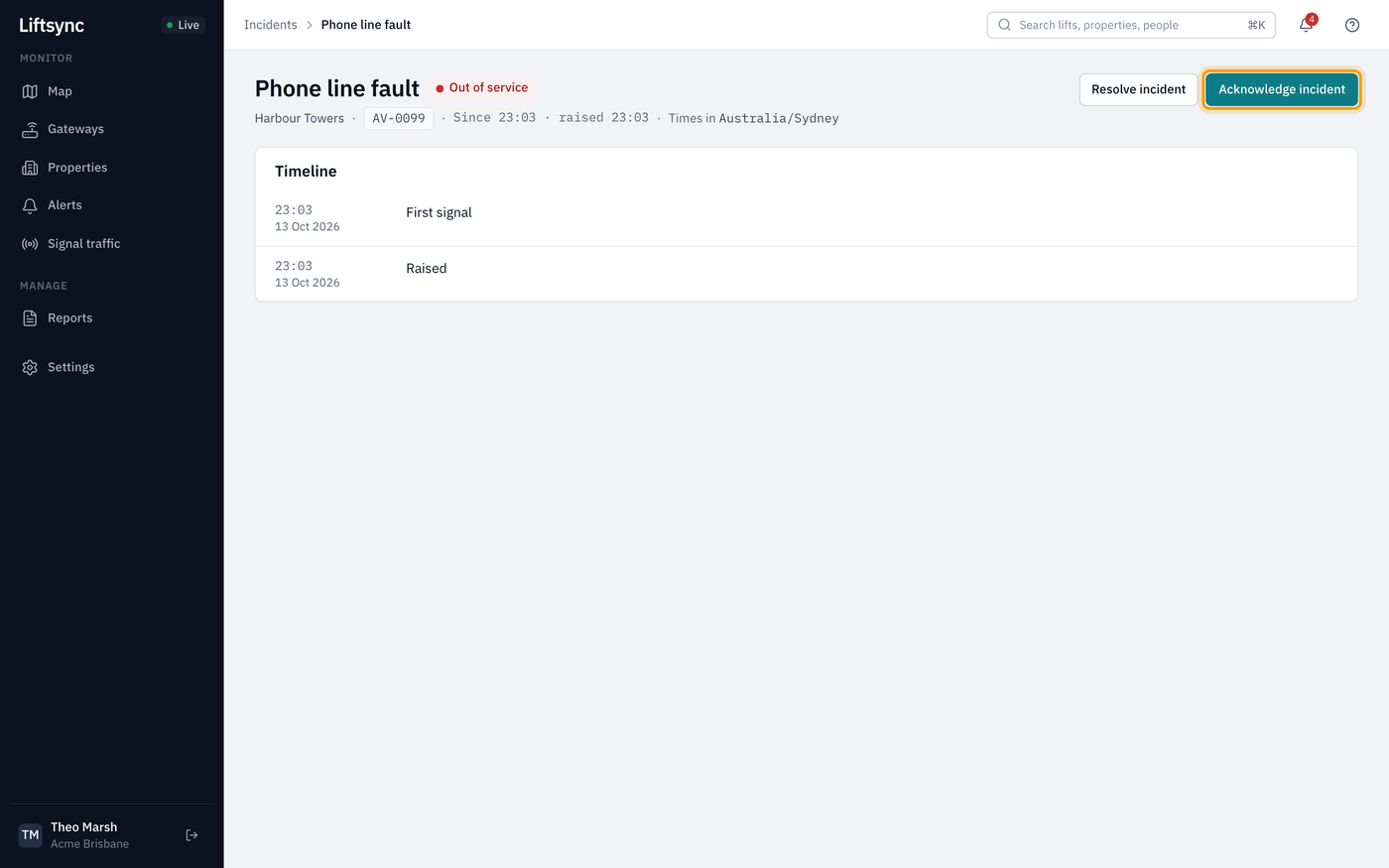
Select the property's name to open the property page, or the gateway to see everything it has reported.
Acknowledge the alert
Acknowledging tells everyone that someone is dealing with it.
- On the alert's page, select Acknowledge incident.
The alert changes to Acknowledged, and your name is added to its timeline. On the Alerts page, the alert shows Acknowledged by and your name.
Acknowledging also stops LiftSync from contacting anyone else about this alert. If LiftSync was going to move on to the next person on the escalation list, it won't. Who gets told, and in what order, is set up under escalation. See Choose who gets told when something goes wrong.
Acknowledge from a list
You don't have to open the alert first. Select Acknowledge on the alert's row on the Alerts page, or in the Needs attention list on the Signal traffic page. It's acknowledged straight away.
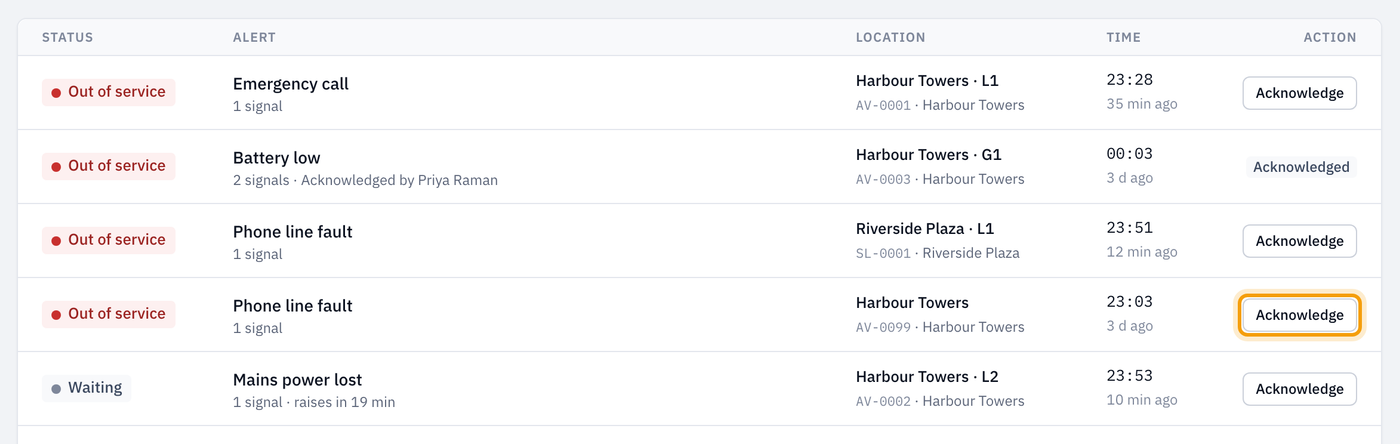
If an alert shows Waiting, it hasn't been raised yet. You can still acknowledge it. If the problem doesn't clear by itself, the alert is raised already acknowledged, and nobody is contacted about it.
If someone else acknowledged the alert a moment before you, you'll see the message This incident is not open. Nothing else needs doing.
Follow the timeline
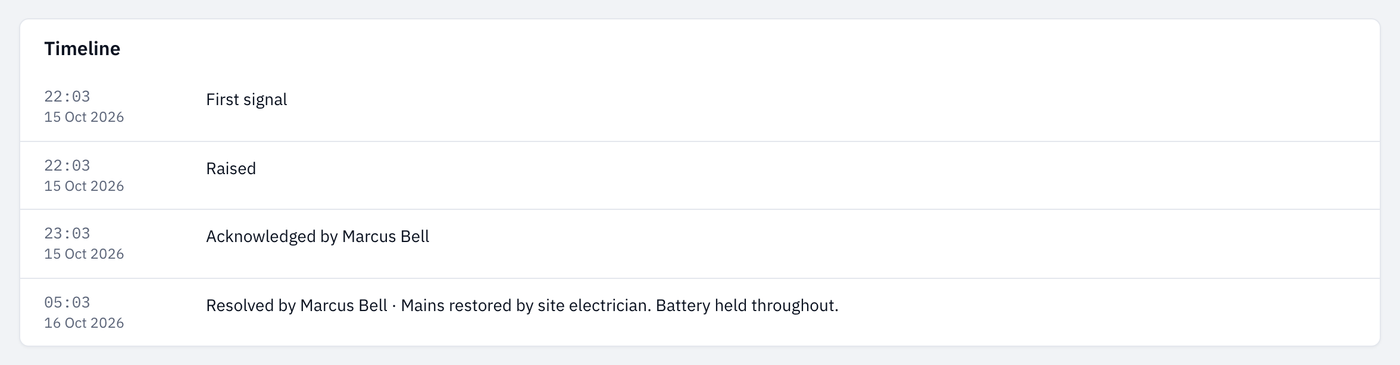
The Timeline card shows the alert's story, oldest first. For example:
- First signal: when the gateway first reported the problem
- 1 more signal: the gateway reported the same problem again
- Raised: when LiftSync turned it into an alert
- Escalation step: who LiftSync contacted, by email or text message, and whether it was delivered
- Acknowledged by: who picked it up
- Resolved by: who closed it, and their note
Resolve the alert
Resolve the alert once the problem with the emergency call equipment is sorted. For example, for a phone line fault, wait until the phone line is working again and an emergency call from the lift can get through.
- On the alert's page, select Resolve incident.
- In Resolution note, you can add what sorted it, for example "Technician replaced the battery". The note is optional, and can be up to 500 characters.
- Select Resolve incident.
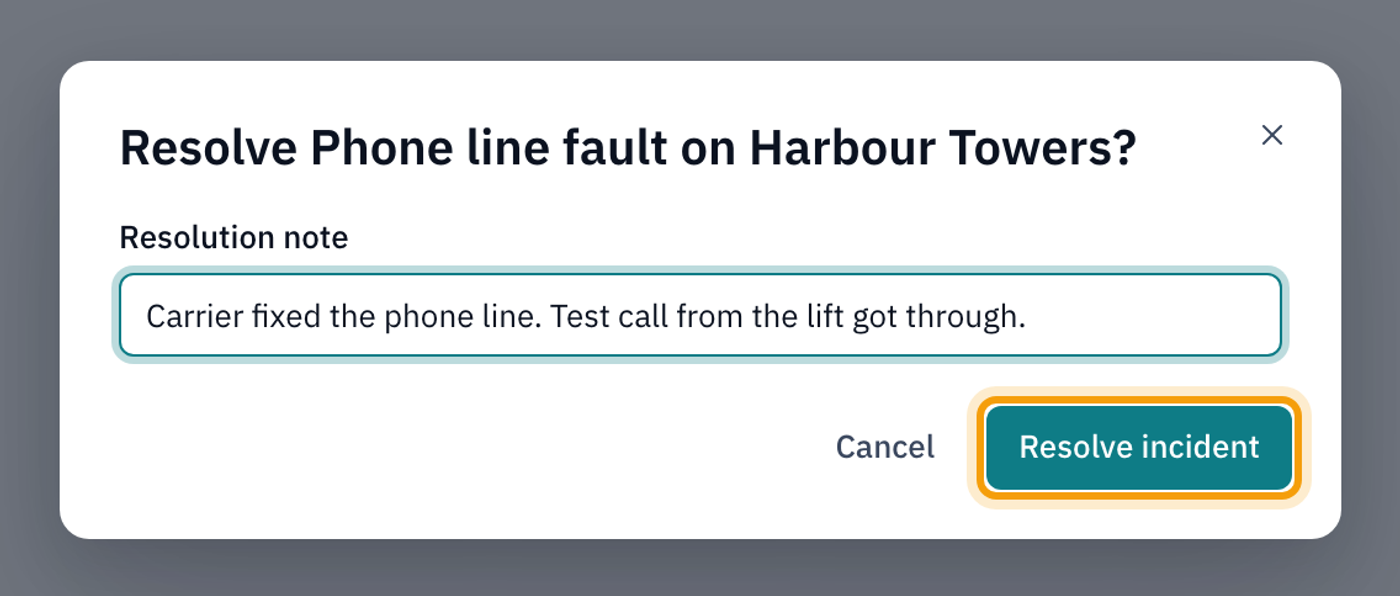
The alert moves to the Closed tab on the Alerts page, with your note and your name. Any messages LiftSync hadn't yet sent about it are cancelled. You don't have to acknowledge an alert before you resolve it.
To change your mind, select Cancel instead.
Resolving closes the alert in LiftSync. It doesn't change anything on the gateway, so only resolve an alert once the problem has actually been sorted.
Emergency call alerts
An Emergency call alert is a record that someone pressed the emergency button in a lift. The call itself goes through the gateway to the call centre, and the call centre handles it. LiftSync only records that the call happened. You don't answer or follow up the call in LiftSync.
You can acknowledge an emergency call alert so your team knows it's been seen. Resolving one closes the record. It doesn't mean anything has been fixed.