Every lift monitored by LiftSync has a gateway: the device in the lift that connects the emergency call button to help, and reports on its own health. This article shows you how to find a gateway, check that its emergency call equipment is healthy, and see everything it has reported.
Find a gateway
- Select Gateways in the sidebar.
The Installed tab lists the gateways fitted at your properties. The Stock tab lists gateways that aren't at a property yet, such as new ones waiting to be fitted.
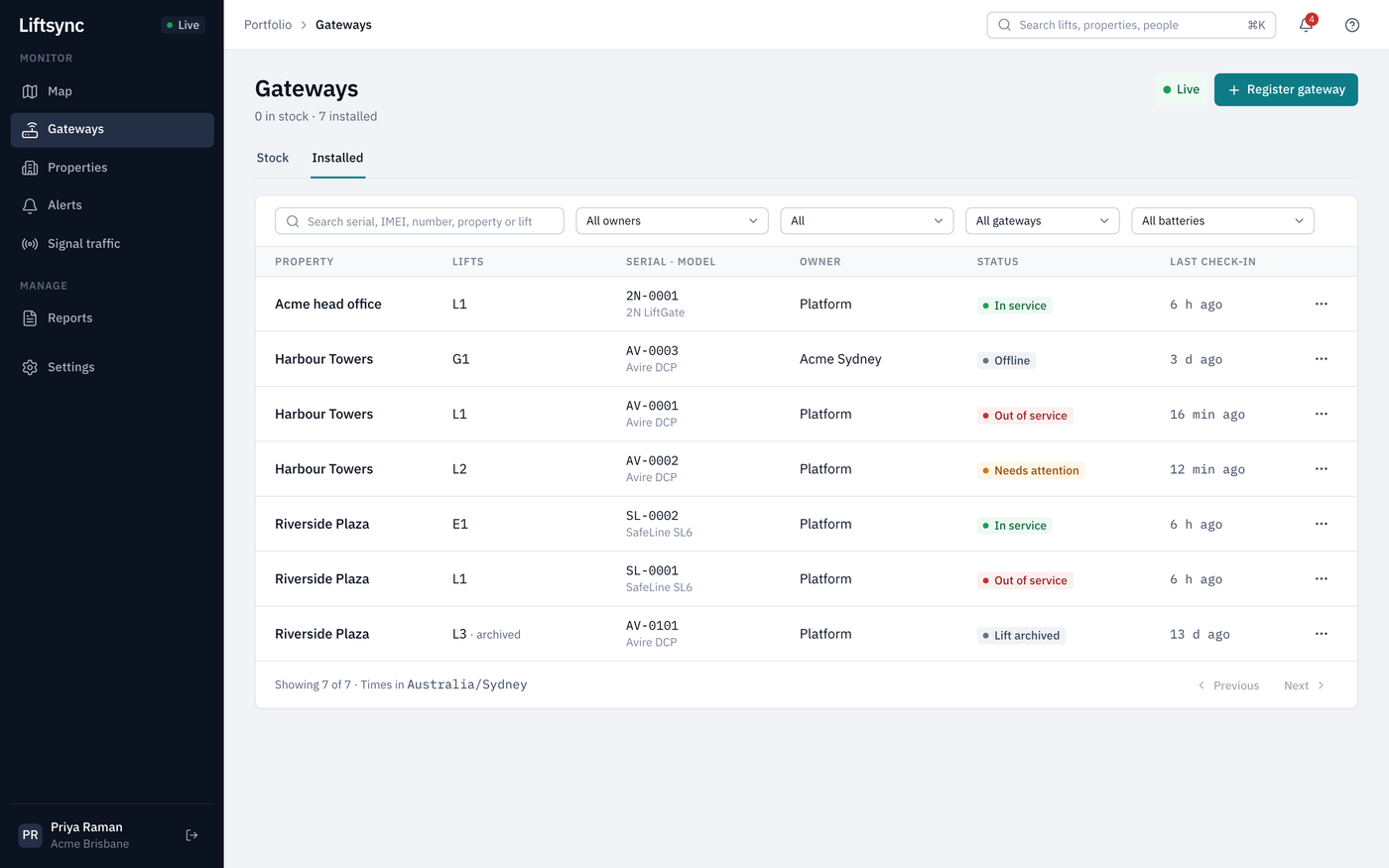
Each row shows:
| Column | What it shows |
|---|---|
| Property | Where the gateway is fitted |
| Lifts | The lift or lifts it looks after. Awaiting allocation means it's at the property but not yet linked to a lift |
| Serial · model | The serial number on the gateway's label, and its make and model |
| Owner | The organisation or lift company that owns the gateway. Platform means it belongs to LiftSync |
| Status | The status of the lift's emergency call equipment, such as In service or Needs attention. Lift archived means every lift the gateway serves has been archived, so LiftSync isn't monitoring it |
| Last check-in | When LiftSync last heard from the gateway |
A No number label under the serial means LiftSync doesn't have the gateway's phone number, so it can't tell which messages come from it. Someone who can change gateways needs to add the number. See Change a gateway's details.
Select a row to open the gateway.
Search and filter
- Search: type part of a serial number, a phone number, a property or a lift, then press Enter.
- All owners: show only gateways owned by one organisation. You only see this if you can add gateways.
- All (Installed tab only): choose Awaiting allocation to find gateways that still need linking to a lift, or Allocated for those already linked.
- All gateways: choose No number to find gateways LiftSync can't recognise yet.
- All batteries: choose Replacement due or Replacement urgent to find backup batteries that need replacing soon.
Check a gateway's health
The gateway's page is named after the property and lifts it looks after, for example Harbour Towers · L2. Its status is next to the name. If there's an open alert, a coloured bar under the name shows it. Select View alert to see it.
The Diagnostics tab opens first. Four boxes at the top give a quick summary:
- Battery: how much life the backup battery has left, and the date to replace it by. The backup battery keeps the emergency phone working if the mains power goes. No replacement date means nobody has recorded when the battery was last replaced.
- Primary signal: how strong the gateway's mobile signal is. The lower the number, the weaker the signal.
- Last check-in: when the gateway last sent its regular "I'm OK" message, and how often it's expected to.
- Signals: how many messages it sent in the time shown. Non-routine messages are anything other than a check-in, such as a power or battery report.
To look back further, select 24 h, 3 d or 7 d at the top of the page.
If the gateway's lifts are archived
A gateway shows Lift archived next to its name, and a Not monitored message under it, when every lift it serves has been archived. LiftSync keeps its messages but raises no alerts from them, and you can't send it commands. To monitor it again, restore the lift from the property's Archived lifts list, or move the gateway to another lift. See Archive a lift and Move a gateway to another property.
The Vitals card
Vitals lists the same checks in more detail. Each row compares the latest reading with what LiftSync expects, and gives it a state.
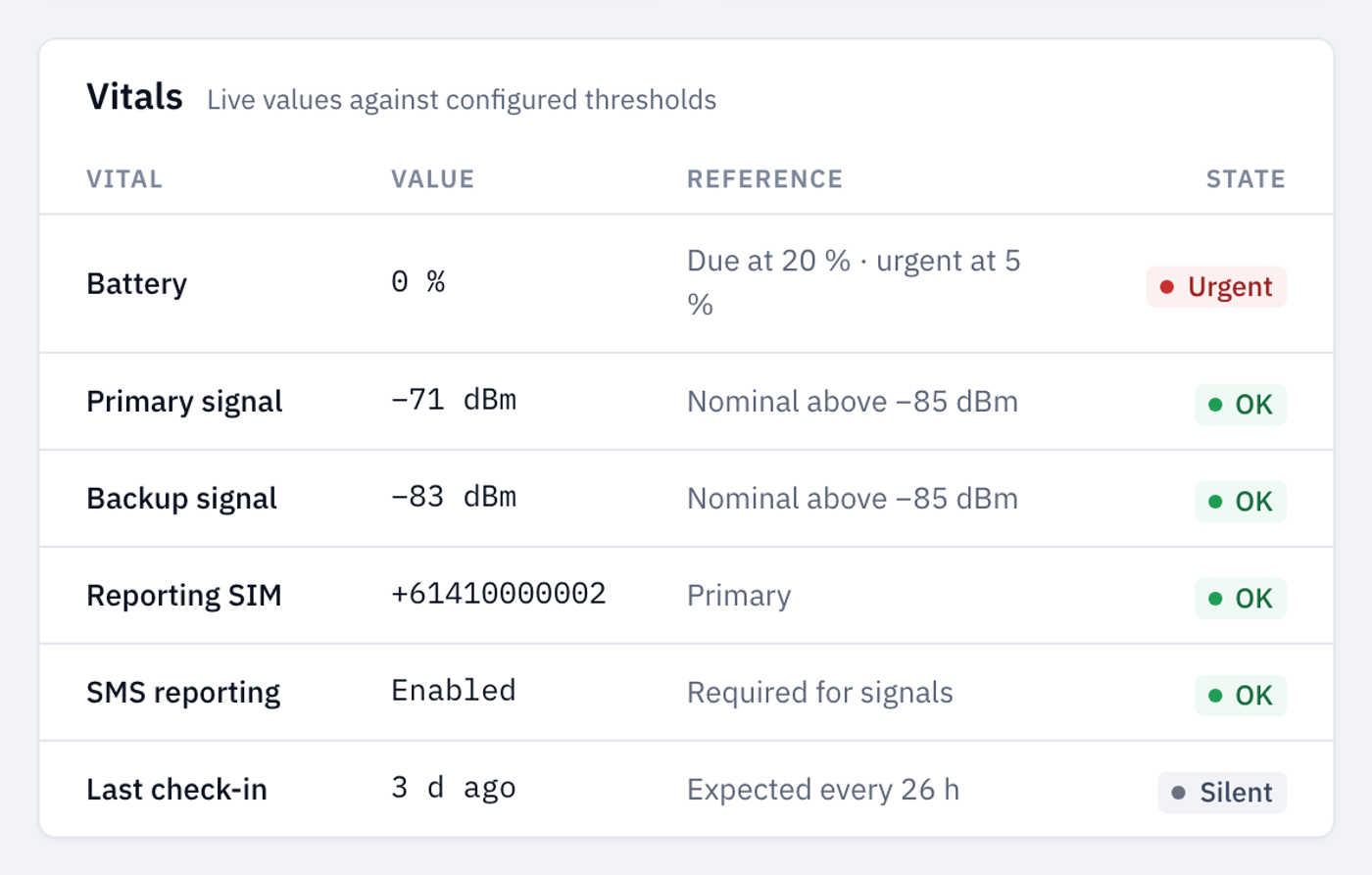
| Row | What it tells you |
|---|---|
| Battery | The backup battery's remaining life. Due means replace it soon, Urgent means replace it now |
| Primary signal, Backup signal | The strength of the gateway's mobile signal. Weak means an emergency call may not get through |
| Reporting SIM | Which of the gateway's phone numbers it's using to report. You can ignore this unless your lift company asks |
| SMS reporting | Whether the gateway is reporting to LiftSync. Disabled means it has been told to stop, so LiftSync won't hear about problems |
| Last check-in | When LiftSync last heard from it. Silent means it's overdue, and the lift shows Offline. Reporting disabled means it's quiet on purpose |
OK in the State column means that check is fine. No reading means the gateway hasn't reported it yet.
Problems with mains power, the phone line or tampering don't appear in Vitals. LiftSync raises an alert for them instead. See See what needs attention.
Signals per hour
The chart beside Vitals shows how many messages the gateway sent in each hour (or each day, for longer periods). Grey bars are routine check-ins; coloured bars are other messages, such as faults. A gateway that has gone quiet shows No signals in the last 12 h.
The Gateway card
Below the chart, the Gateway card lists the gateway's details: its model, owner, serial number, where it's fitted, the call centre number its emergency phone dials, and when its battery was last replaced. Installations shows when it was fitted to the property and to each lift, and by whom.
Other tabs
- Alerts: the gateway's open alerts. Select one to open it. See Acknowledge and resolve an alert.
- Commands: messages you can send to the gateway, such as asking for a status report. See Send a command to a lift's gateway.
- Escalation: who is told about alerts from this gateway. Only owners, admins and lift company owners see this tab. See Choose who gets told when something goes wrong.
See everything a gateway has reported
- On the gateway's Diagnostics tab, select View signal log in the chart.
A panel opens listing every message from the gateway in the time shown, newest first. Faults are shown in red.
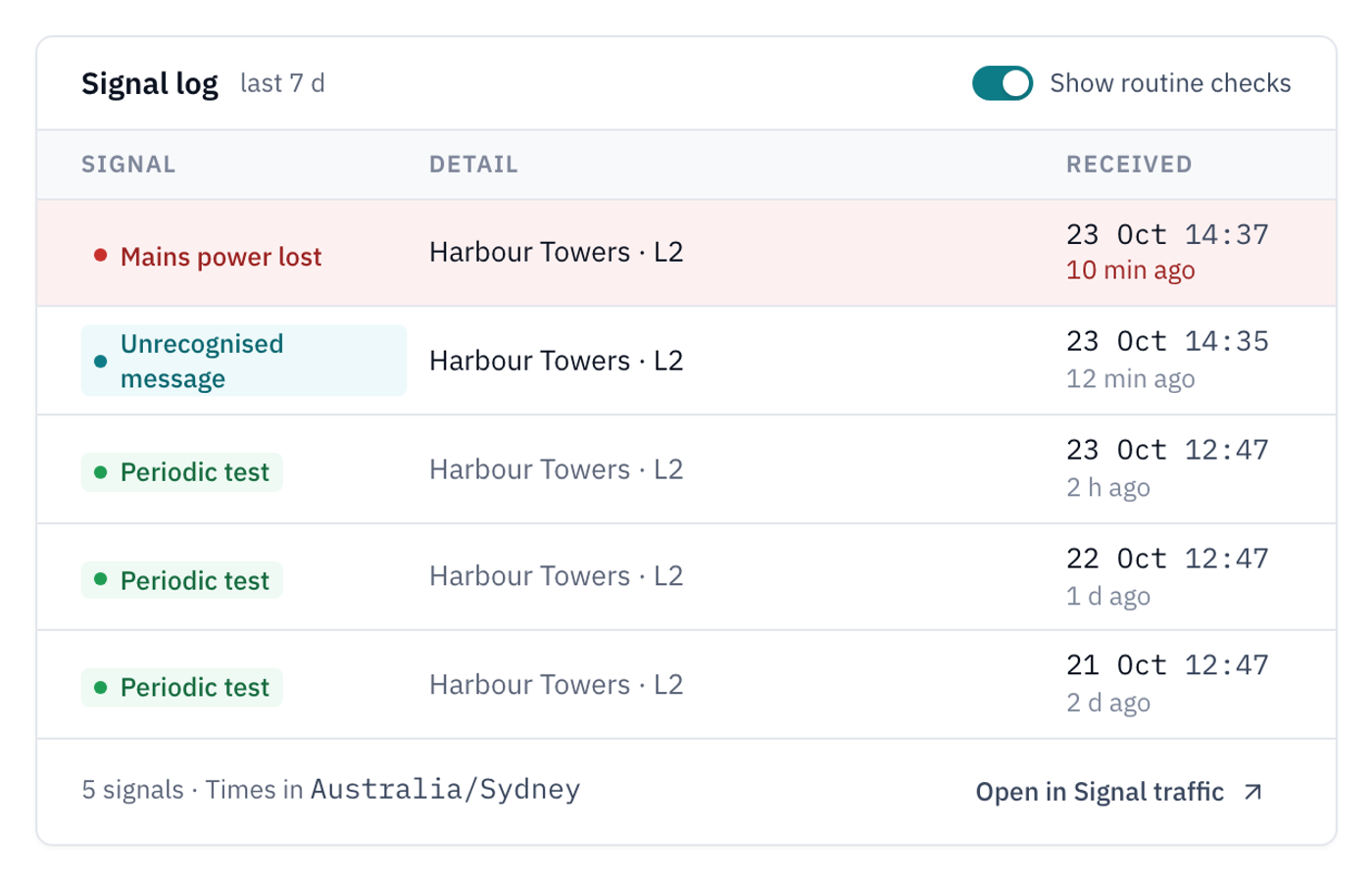
- Turn off Show routine checks to hide the daily check-ins and see only the messages that matter.
- Select Open in Signal traffic to see the same list on the Signal traffic page, where you can filter it further. See Check activity across all your lifts.
An Unrecognised message is one LiftSync received but couldn't read. One now and then is nothing to worry about.
To see a lift's history instead of its gateway's, see See a lift's history.