The map is the first page you see after signing in. It shows every property you have access to, coloured by the state of the emergency call equipment in its lifts, so you can see at a glance where something needs attention. LiftSync watches each lift's gateway (the device that connects the emergency call button to the call centre), not the lift itself.
Read the map
Select Map in the sidebar to open it. Each property is a dot on the map:
- Red means the emergency call equipment in at least one lift has a fault and may not work.
- Orange means there's a warning about a lift's emergency call equipment that isn't urgent yet, such as lost mains power.
- Green means the emergency call equipment in every lift is working as expected.
- Grey means LiftSync hasn't heard from a lift's gateway when it expected to.
A property takes the colour of whichever lift needs the most attention. Archived lifts don't appear on the map or in its search. See Archive a lift.
Where properties are close together, they're grouped into a circle with a number in it. The number is how many properties are in the group. A small red badge on the circle shows how many of them have an issue.
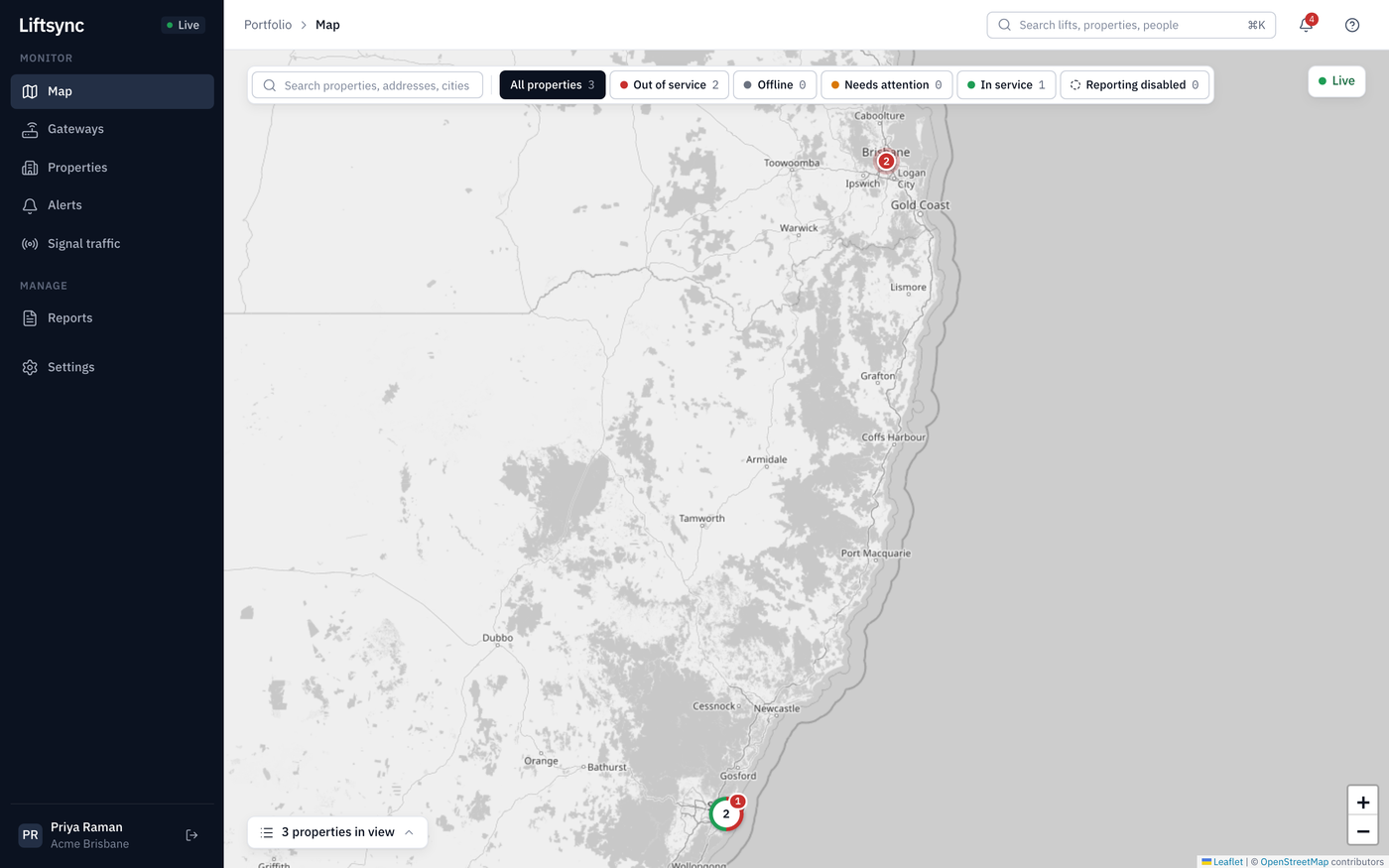
To zoom in or out, use + and − in the bottom-right corner, scroll with your mouse, or pinch on a touch screen. Drag the map to move around.
See what's in a group
Point to a group to see a summary: how many properties and lifts it contains, how many are out of service or in service, and which lifts have an alert.
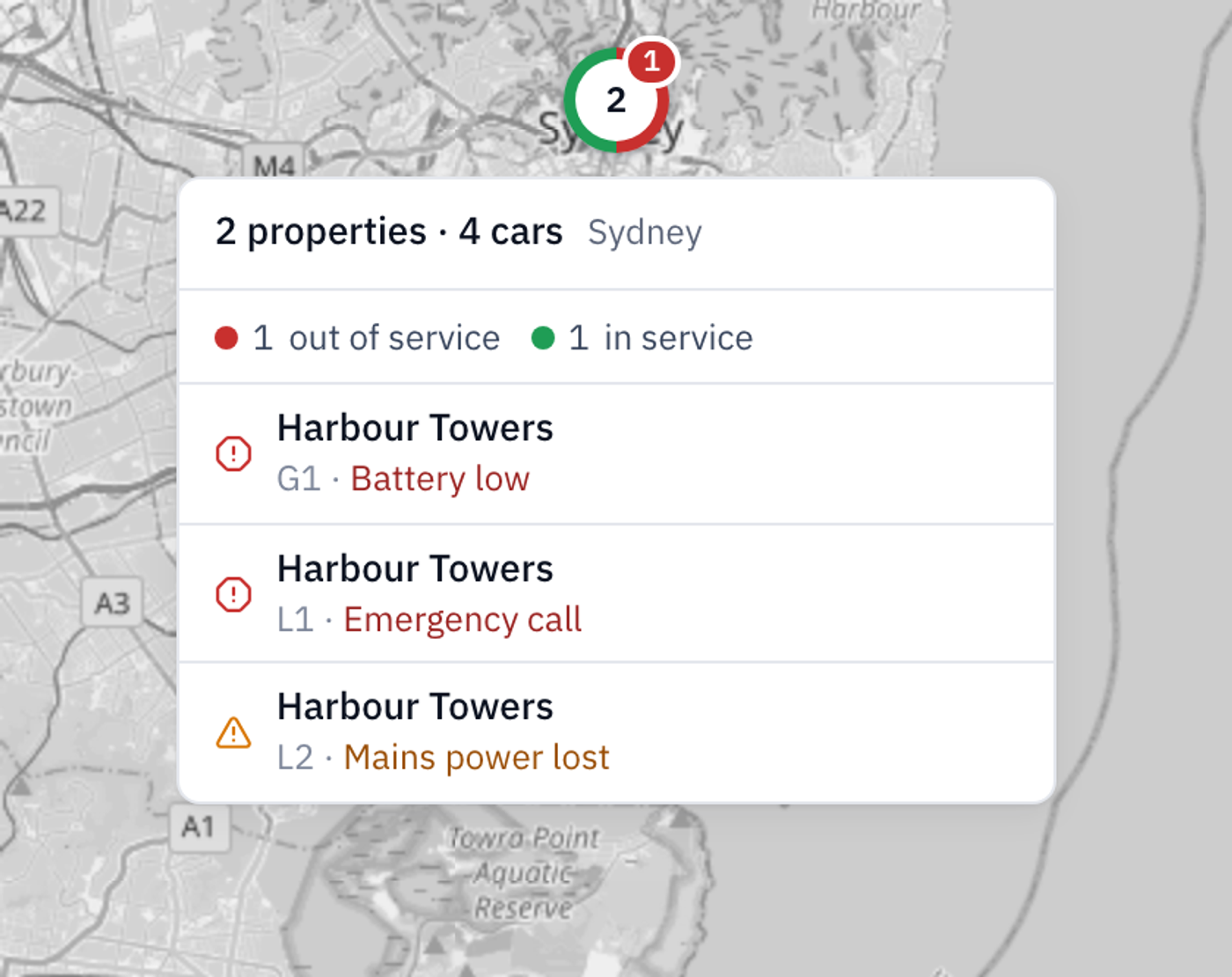
Select the group to zoom in on it.
Filter by status
The buttons along the top of the map show only the properties in one state. The number on each button is how many properties are in that state.
| Button | What it shows |
|---|---|
| All properties | Everything you have access to |
| Out of service | Properties where the emergency call equipment in at least one lift has a fault and may not work |
| Offline | Properties where LiftSync hasn't heard from a lift's gateway when it expected to |
| Needs attention | Properties with a warning about a lift's emergency call equipment that isn't urgent yet, such as lost mains power |
| In service | Properties where the emergency call equipment in every lift is working as expected |
| Reporting disabled | Properties where a lift's gateway has been told to stop reporting to LiftSync |
Select All properties to see everything again.
Find a property by name
- Select the search box at the top left of the map.
- Type part of the property's name, address or city.
- Select the property in the list.
The map moves to the property and opens its details. A property shows No location in the list if it hasn't got an address on the map yet.
Open a property
Select a property's dot to see its details. The card shows:
- the property's name, overall status and address
- a button for each lift, with a coloured dot showing its status
- a short note about each lift's alerts, such as "L2: mains power lost"
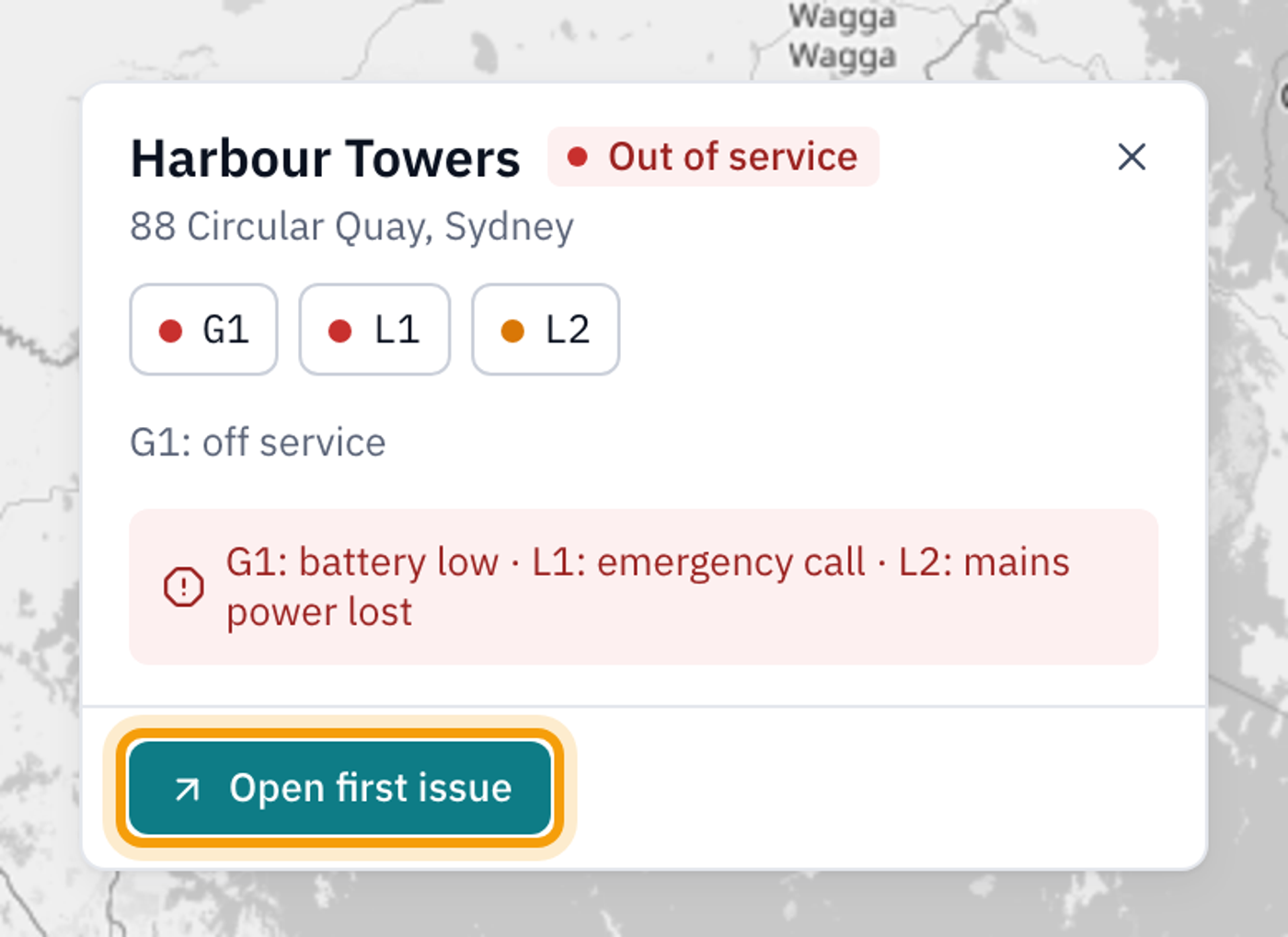
From the card you can:
- Select Open first issue to go straight to the first lift with an alert. When nothing is wrong, this button says Open building instead and opens the property.
- Select the property's name to open the property page.
- Select a lift's button to open that lift's gateway page.
- Select the × to close the card.
See a list of what's in view
Select properties in view at the bottom left of the map. The list shows every property you can currently see on the map, worst first, with how many issues each one has.
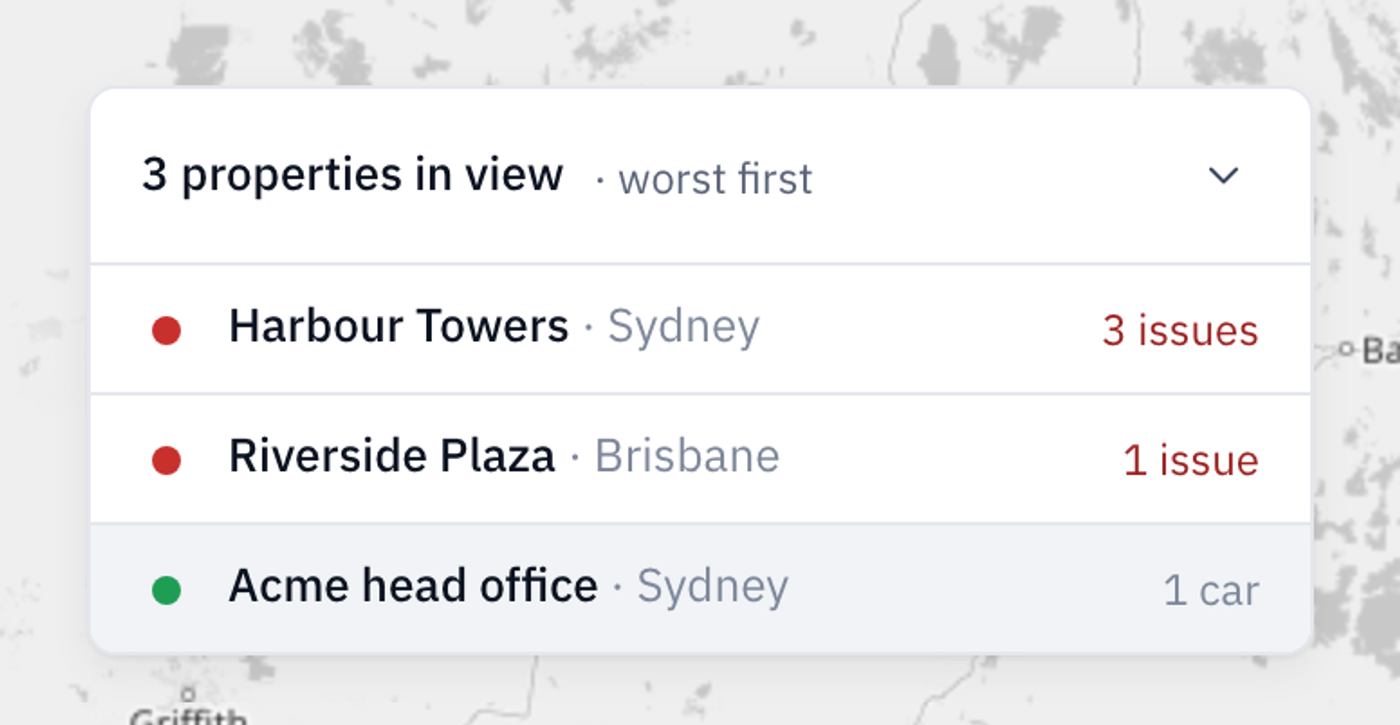
Select a property in the list to open its details card. The list updates as you move and zoom the map.