If you work at a lift company that looks after LiftSync for its customers, your lift company has its own page in LiftSync. Owners and admins use it to invite their own staff, change their role and remove them, without asking LiftSync.
Open your lift company's page
- Select Settings in the sidebar.
- Select the Reseller tab at the top of the page.
Your lift company's name is also shown under your own name at the bottom of the sidebar.
The page shows how many customer organisations, properties, gateways and staff your lift company has, then the Staff tab.
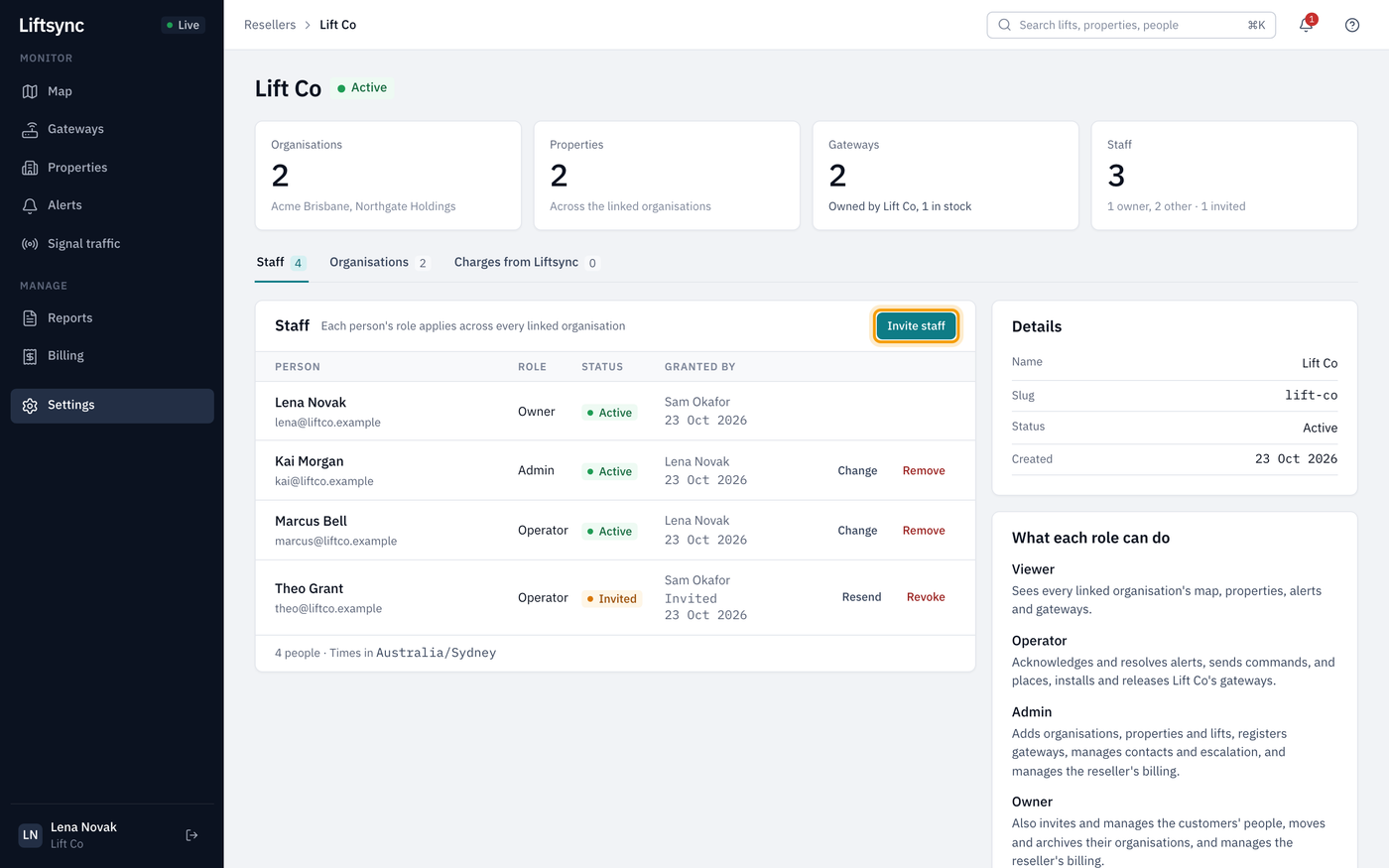
On the right:
- Details shows your lift company's name and status.
- What each role can do says what each staff role can do across your customers. See Look after your customers' organisations.
See your staff
The Staff tab lists everyone at your lift company, with their role and status, and who gave them access.
| Status | What it means |
|---|---|
| Active | They can sign in. |
| Invited | They've been invited but haven't accepted yet. Link expired under the status means the link has run out; select Resend to make a new one. |
Each person's role applies to every customer your lift company looks after, and everything under them. Your staff don't appear in your customers' Users lists.
Invite someone to your lift company
- On the Staff tab, select Invite staff.
- Type their Email address.
- Choose their Role. You can choose any role up to your own.
- Select Send invitation.
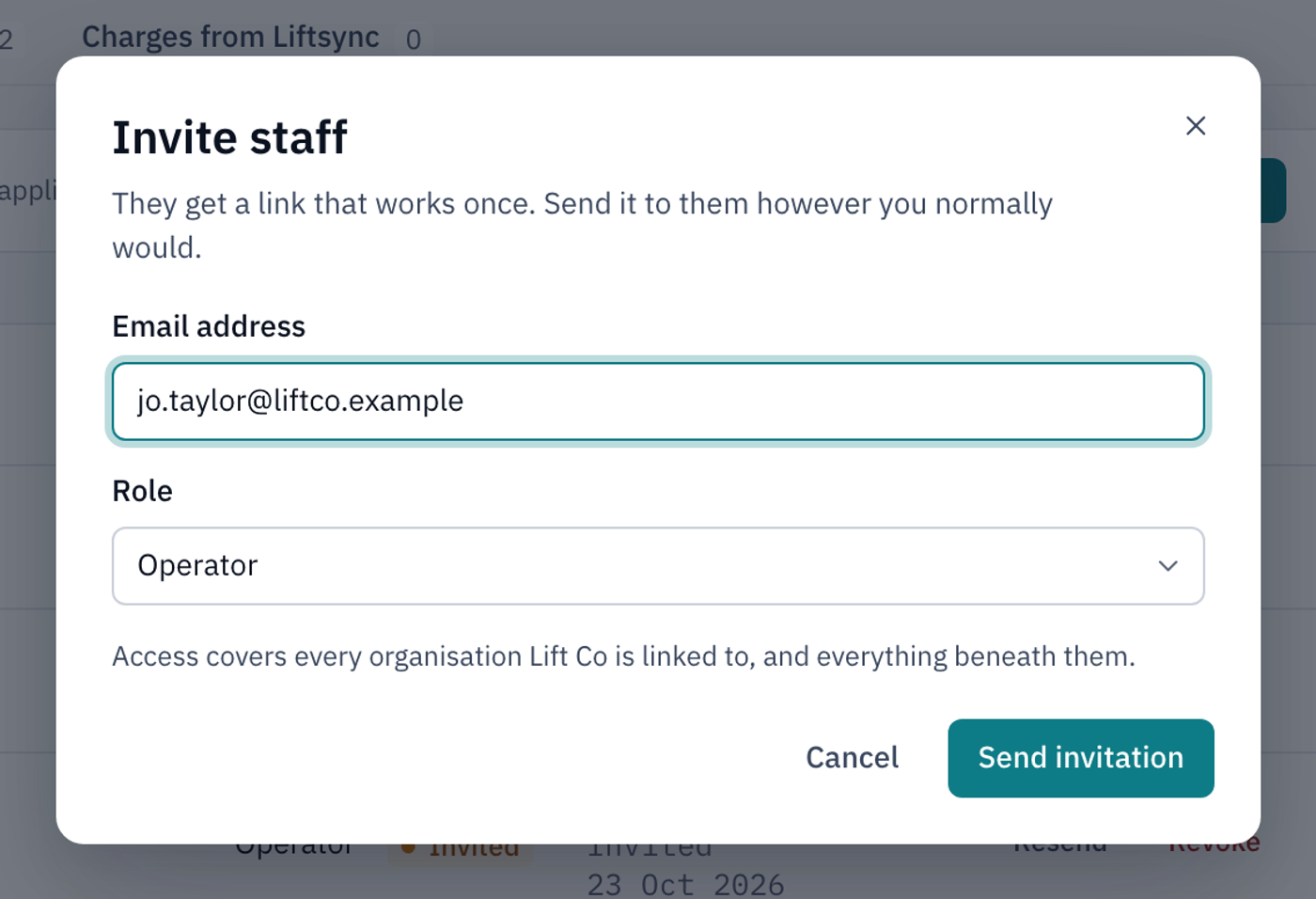
LiftSync shows the invitation link once, so you can copy it. It doesn't email the link for you.
- Copy the link and send it to the person, for example in an email from your own account.
They open the link to set up their account. If they already have a LiftSync account, they sign in first and then accept. See Accept an invitation.
Look after an invitation
A person who hasn't accepted yet shows Invited, with Resend and Revoke instead of Change and Remove.
- Resend makes a new link and shows it to you. The old link stops working, so send them the new one.
- Revoke cancels the invitation. Select Revoke invitation to confirm. The link stops working straight away and they don't get access.
Change someone's role
- On the Staff tab, select Change next to the person.
- Choose the new Role.
- Select Change role.
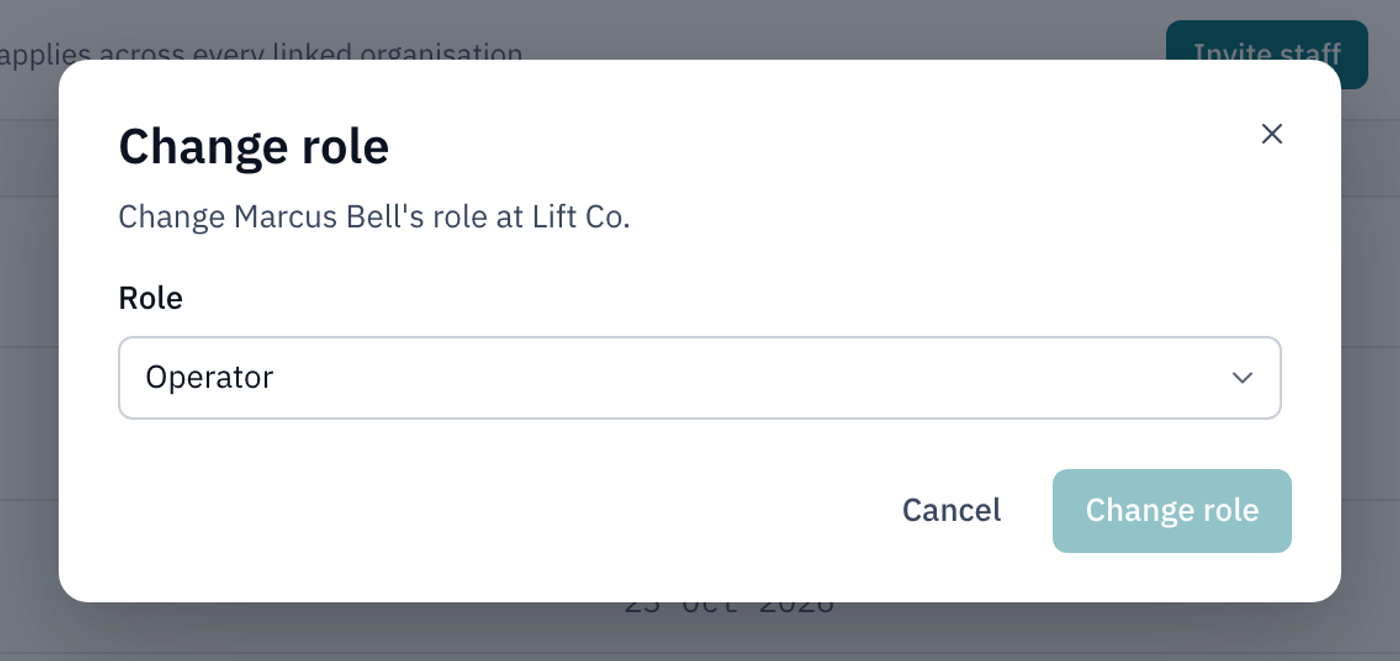
The new role applies straight away, across every customer.
Remove someone from your lift company
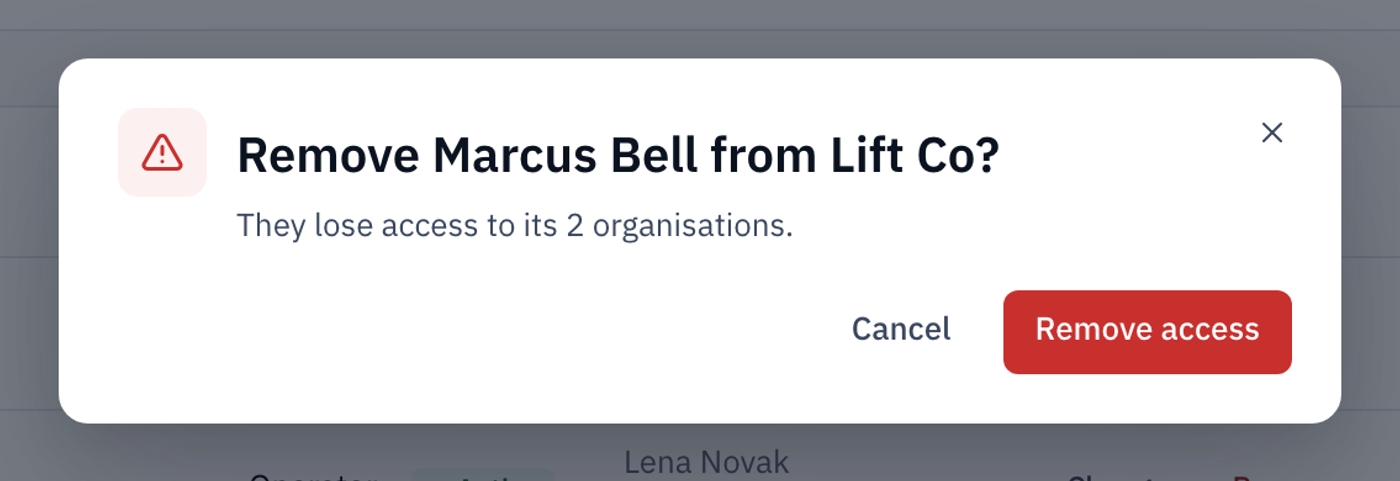
When someone leaves your lift company, remove them.
- On the Staff tab, select Remove next to the person.
- Select Remove access.
See which customers you look after
The Organisations tab lists the customer organisations linked to your lift company. Your staff can also see every organisation under each one. Select an organisation to open it.
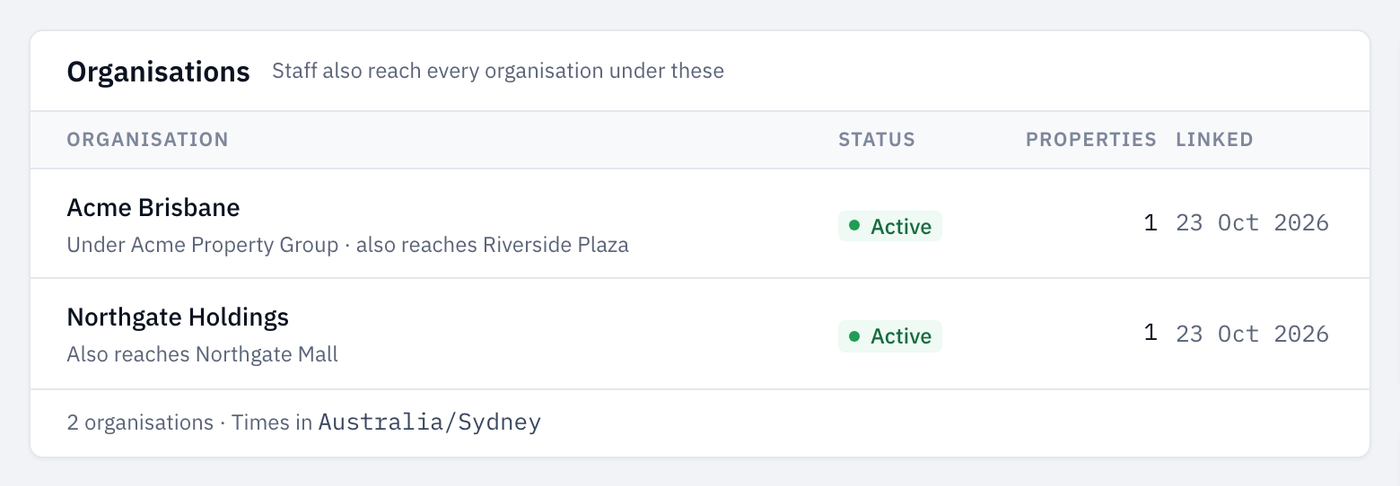
To add a new customer, see Look after your customers' organisations. To link an organisation that's already in LiftSync, or to stop looking after a customer, contact LiftSync.
Owners and admins also see a Charges from Liftsync tab, which lists what LiftSync charges your lift company.