Sign in to LiftSync with your email address and password, or with your Google or Microsoft work account. If you've been invited and don't have an account yet, start from the invitation link you were sent instead.
Sign in with your email and password
- Go to the LiftSync sign-in page.
- Type your email address in the Email box.
- Type your password in the Password box.
- Select Sign in.
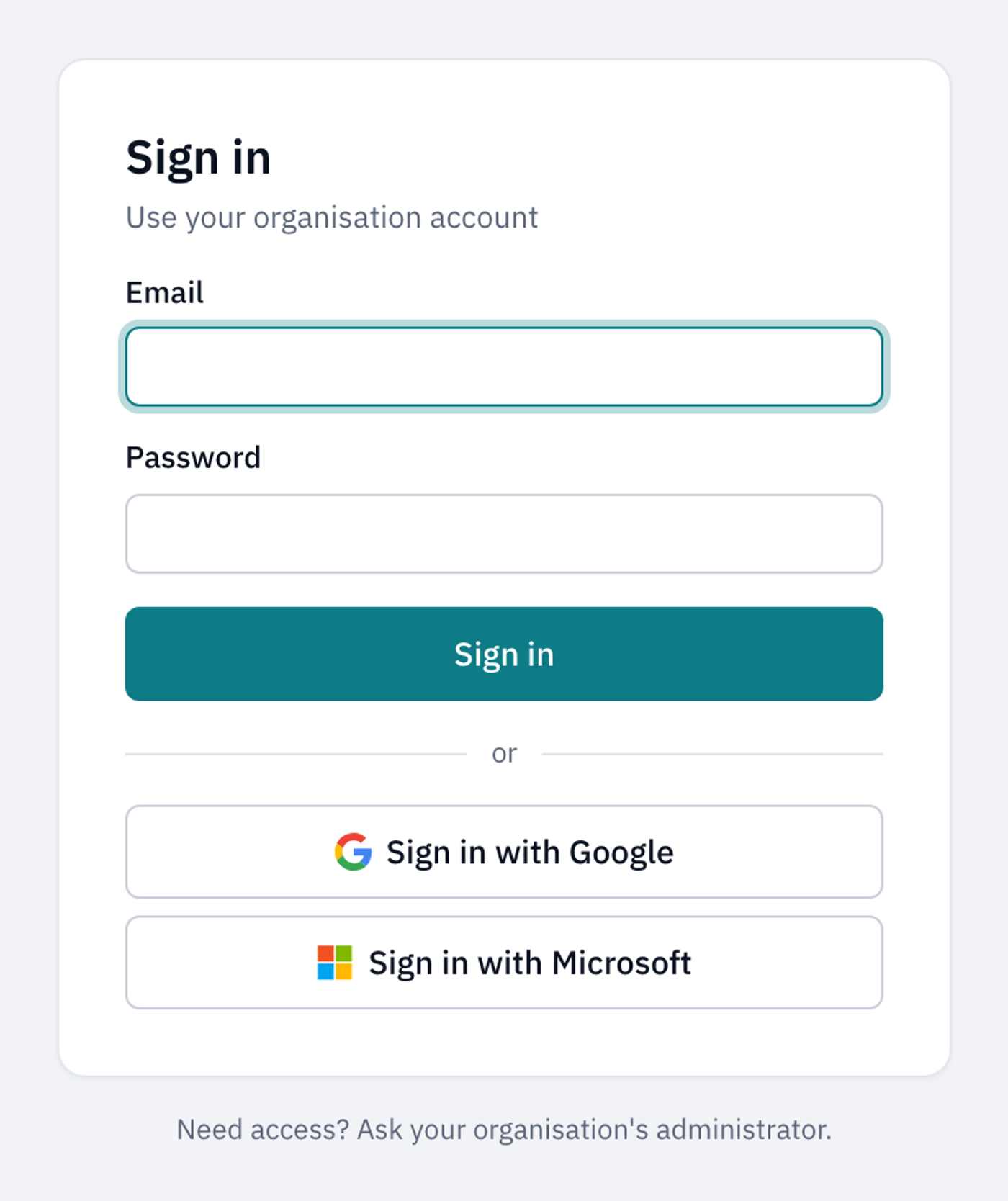
LiftSync opens the map. If you were following a link to a particular page, you go to that page instead.
Sign in with Google or Microsoft
If your organisation uses Google or Microsoft for email, you can use that account instead of a password.
- On the sign-in page, select Sign in with Google or Sign in with Microsoft.
- Choose your account on the Google or Microsoft page that opens.
You come back to LiftSync, signed in.
The "Sign in faster" suggestion
If your work email is a Google or Microsoft account that isn't connected yet, LiftSync may ask you once, straight after you sign in with your password, whether you'd like to connect it. The page is headed Sign in faster with Google (or Microsoft).
- Select Connect Google (or Connect Microsoft) to connect it now. Next time, you can use the Google or Microsoft button to sign in.
- Select Not now to carry on to LiftSync. You won't be asked again for 30 days.
Accept an invitation
If someone has invited you to LiftSync, they send you a link, usually by email. LiftSync doesn't send the invitation itself, so it comes from the person who invited you.
If you're new to LiftSync
The link sets up your account.
- Open the invitation link. The page says who invited you, to which organisation and with which role, and shows your email address.
- Type your name in the Your name box.
- Choose a password and type it in the Password box. It must be at least 8 characters. Spaces are fine.
- Type the same password again in the Confirm password box.
- Select Accept and sign in.
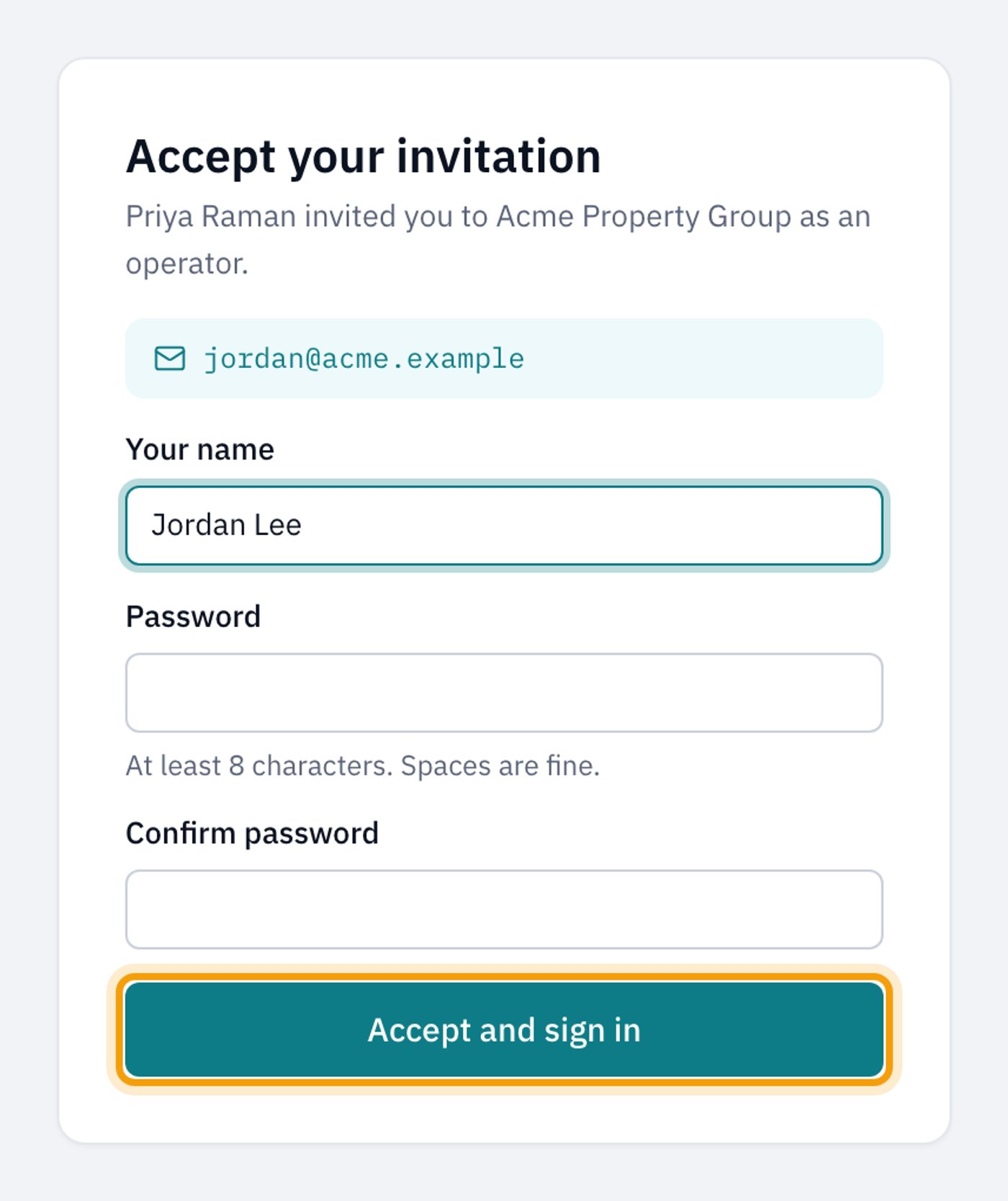
LiftSync signs you in and opens the map.
If the two passwords don't match, you see Passwords do not match under the Password box. Type them again.
If you already have a LiftSync account
You might be invited to another organisation, or to a lift company's staff, when you already use LiftSync. You use your existing account, so there's no new password to choose. You don't get the new access until you accept.
- Open the invitation link. The page says who invited you, to which organisation and with which role.
- Select Sign in to accept, then sign in as usual with the email address the invitation was sent to.
- LiftSync brings you back to the invitation. Select Accept invitation.
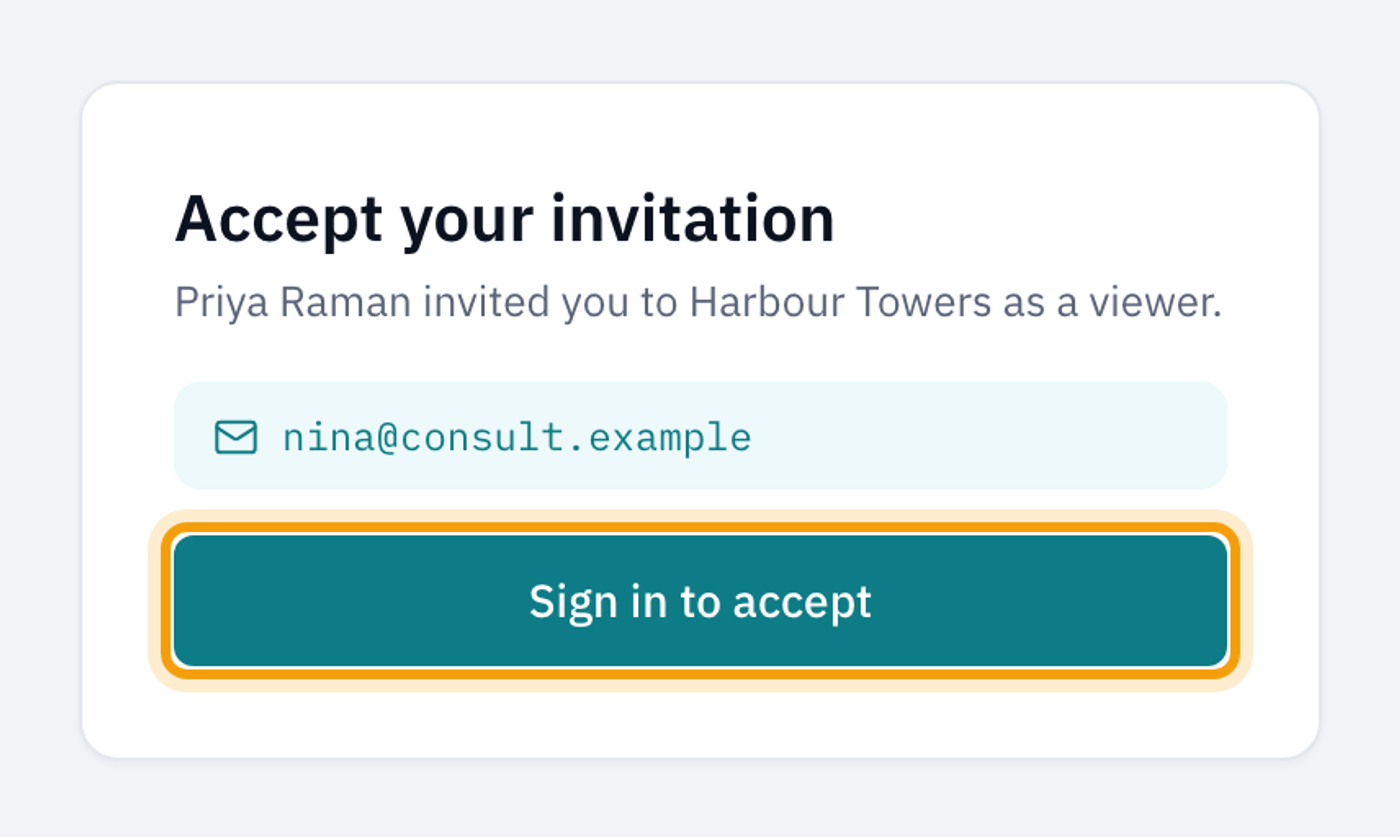
If you're already signed in, you go straight to step 3.
If you're signed in with a different account, you see This invitation is for another account. Select Sign out, then sign in with the address the invitation was sent to.
If you can't sign in
If LiftSync can't sign you in, a message appears under the Password box.
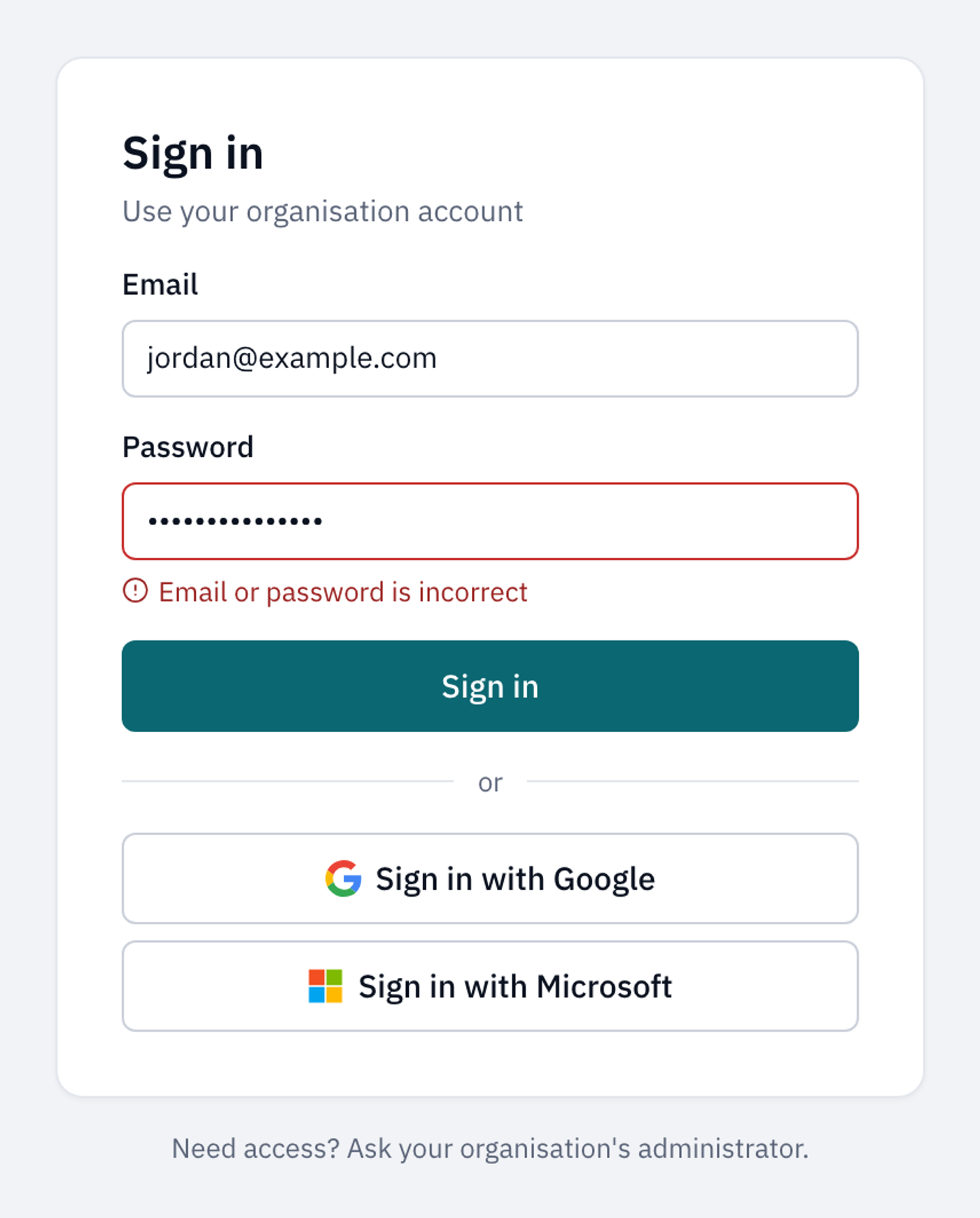
| Message | What to do |
|---|---|
| Email or password is incorrect | Check your email address for typos and type your password again. |
| This account is not active | Your access has been turned off. Ask your organisation's administrator. |
| Too many attempts. Try again later | Wait a while before trying again. |
| Your session expired. Sign in to continue. | You were signed out after a period of time. Sign in again to carry on. |
| Your sign-in took too long. Try again. | Start again from the sign-in page. |
If you've forgotten your password
The sign-in page doesn't have a "forgotten password" option. Ask your organisation's administrator for help, as the sign-in page suggests (Need access? Ask your organisation's administrator.).
If your Google or Microsoft account is connected to LiftSync, you can still sign in with that button while you sort out your password.
Sign out
Select the sign-out button next to your name at the bottom of the sidebar. LiftSync takes you back to the sign-in page.