Give people access to LiftSync by inviting them to one of your organisations, and change or remove their access when their job changes or they leave.
Choose the right role
Each person gets a role in the organisation you invite them to: Viewer, Operator, Admin or Owner. The role decides what they can change, and it applies to every organisation underneath as well. Give people the lowest role that lets them do their job. See What each role can do for the full list.
See who has access
- Select Settings in the sidebar, then Users.
- Look through the list. Each person shows their role and organisation (Access), their status and when they last used LiftSync.
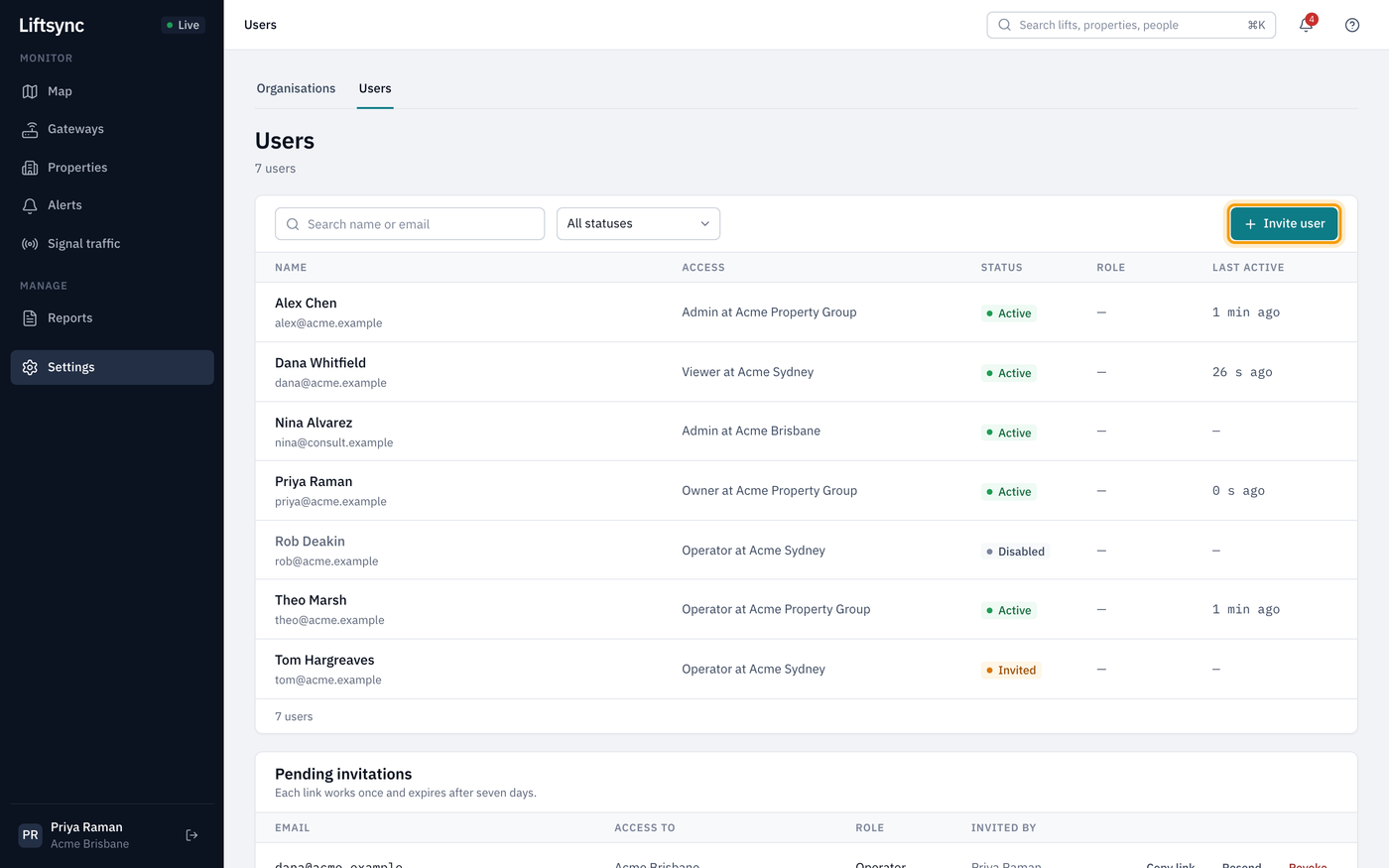
To narrow the list, type in Search name or email and press Enter, or choose a status:
| Status | What it means |
|---|---|
| Invited | They've been invited but haven't set up their account yet. |
| Active | They can sign in. |
| Disabled | Their account has been turned off and they can't sign in. |
Select a person to open their page.
Invite someone
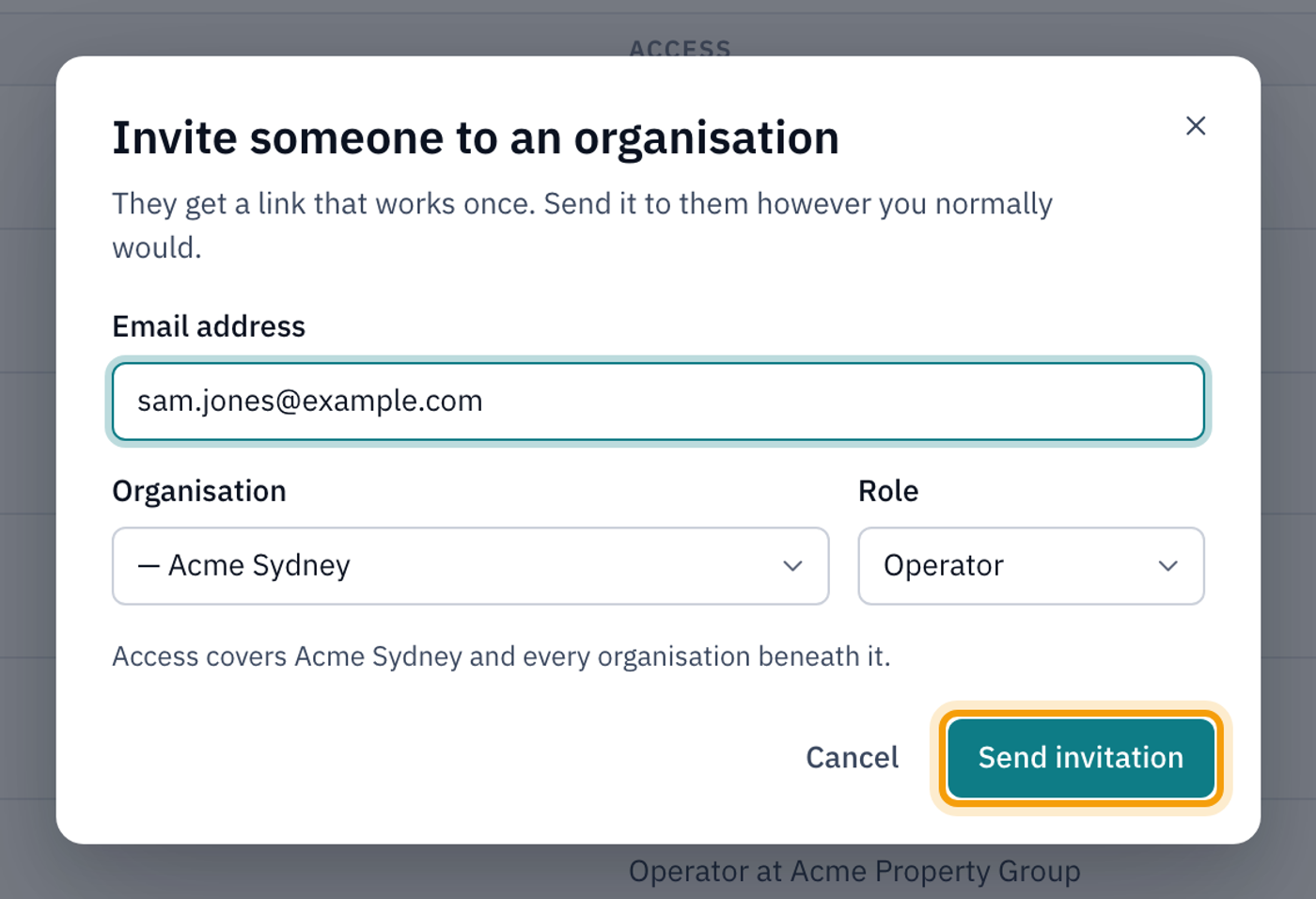
- On the Users page, select Invite user.
- Type their Email address.
- Choose the Organisation they should have access to. Access covers that organisation and every organisation under it.
- Choose their Role.
- Select Send invitation.
LiftSync shows the invitation link once, in a box headed Copy the link for…. LiftSync doesn't email it for you.
- Select Copy, then Done.
- Send the link to the person, for example in an email from your own account.
They open the link, choose a password and are signed in. See Accept an invitation. The link works once and expires after seven days.
If the person already has a LiftSync account, for example because they belong to another organisation, it works the same way: send them the link. They don't get access until they open it, sign in with their existing account and accept. See Accept an invitation.
Look after pending invitations
Invitations that haven't been used yet are listed under Pending invitations on the Users page, with the ones expiring soonest at the top. An invitation that has run out is marked Expired.
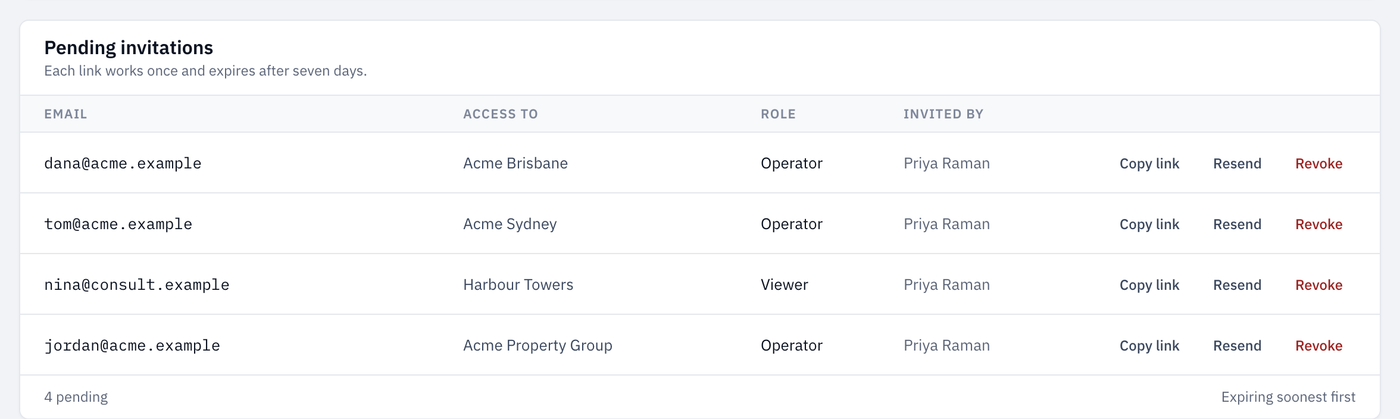
- Copy link makes a new link and copies it, ready to paste into a message.
- Resend makes a new link and shows it to you, so you can copy it.
- Revoke cancels the invitation. The link stops working straight away and the person doesn't get access.
LiftSync doesn't send anything when you select Resend. Send the new link yourself.
Change someone's role
- On the Users page, select the person.
- Under Access, find the organisation and select Change.
- Choose the new Role.
- Select Change role.
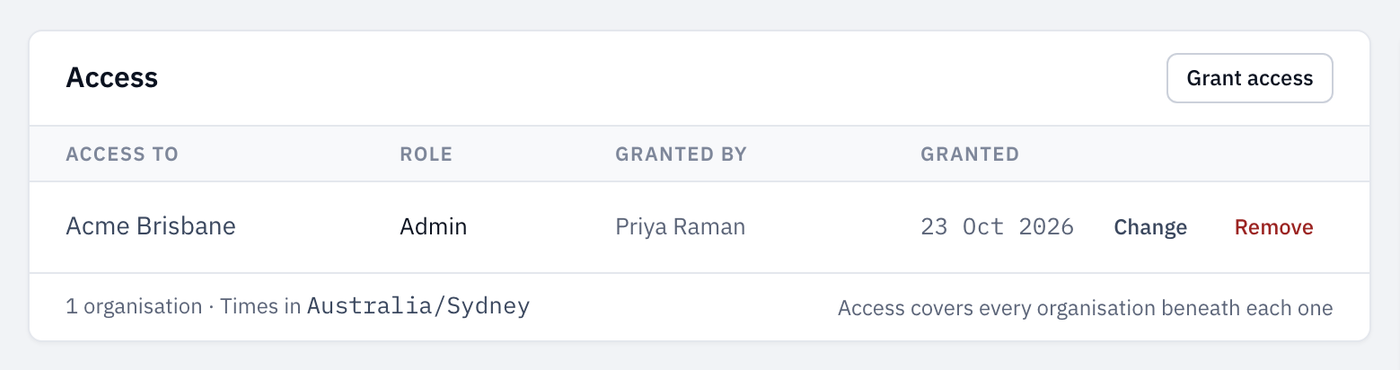
The change applies straight away.
Give someone access to another organisation
- On the person's page, select Grant access.
- Choose the Organisation and Role.
- Select Send invitation.
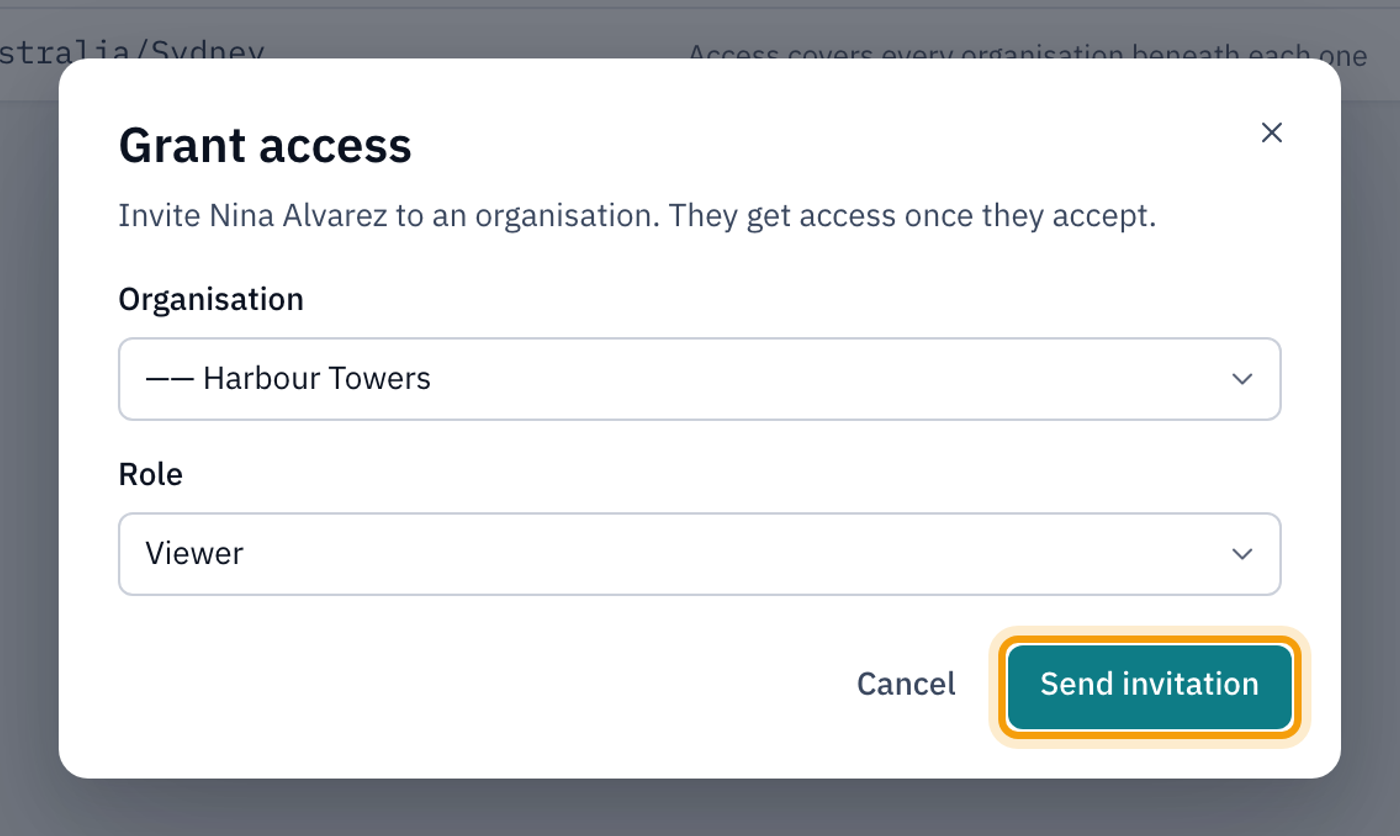
LiftSync doesn't add them straight away. It makes an invitation and shows you the link, as when you invite someone new. Copy it and send it to them. They get access once they accept it, and until then it's listed under Pending invitations.
Access that comes from above
On an organisation's Users tab, some people show via another organisation and Managed above instead of buttons. Their access comes from an organisation higher up. To change it, open that organisation's Users tab, or the person's page.
Remove someone's access
When someone leaves or no longer needs LiftSync, remove their access.
- On the Users page, select the person.
- Under Access, select Remove next to the organisation.
- Select Remove access.
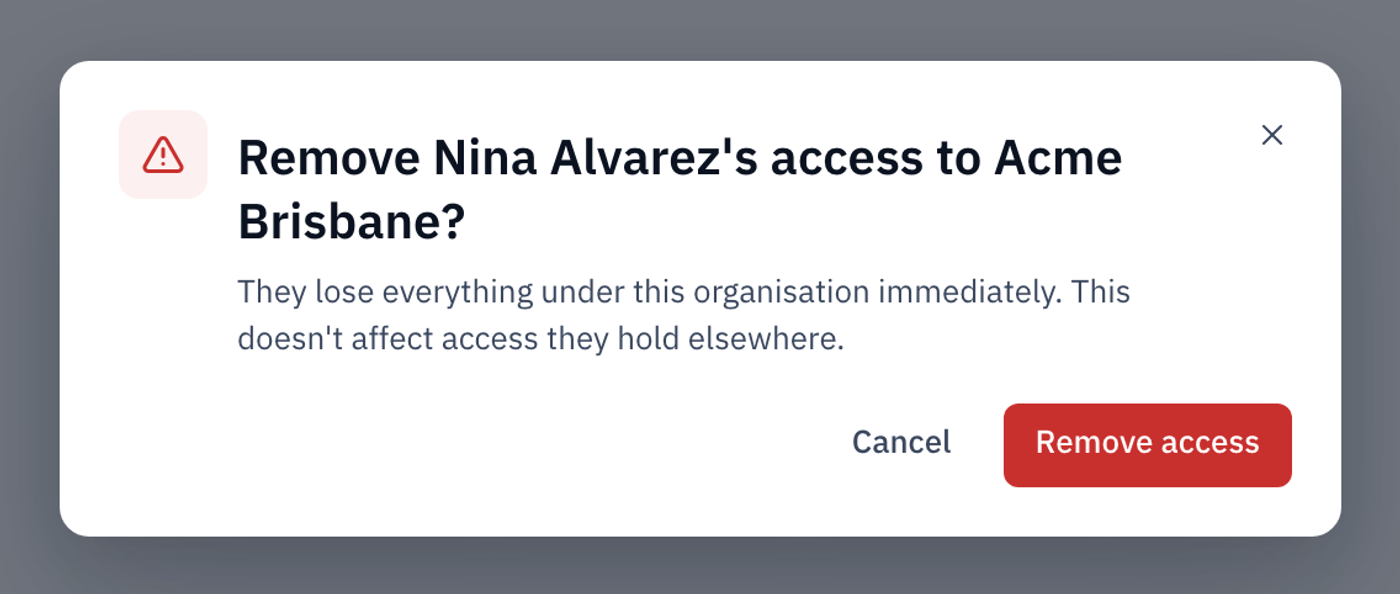
You can also do this from an organisation's Users tab.
You can't turn off a person's account yourself. If you need someone's account turned off completely, contact LiftSync.