Reports give you a summary of your lifts' gateways and what they've reported, for one organisation at a time. The gateway is the device in each lift that connects the emergency call button to the call centre. You can read a report on screen, or download it as a PDF to share or a CSV file to open in a spreadsheet such as Excel.
Everyone who can sign in to LiftSync can run reports. A report only includes what you can already see in LiftSync.
The four reports
| Report | What it shows |
|---|---|
| Signal traffic log | Every report your lifts' gateways sent in the period, newest first |
| Signal activity | How many of each kind of report every property sent in the period |
| Device status | Gateways that have never reported, or have gone quiet for longer than you choose |
| Battery levels | The backup battery in every gateway, with the ones that need replacing first |
To find out more about each one, see The signal reports and Find gateways that need attention.
Open a report
- Select Reports in the sidebar. The Signal traffic log opens first.
- To see a different report, select its name in the row of tabs at the top: Signal activity, Device status or Battery levels.
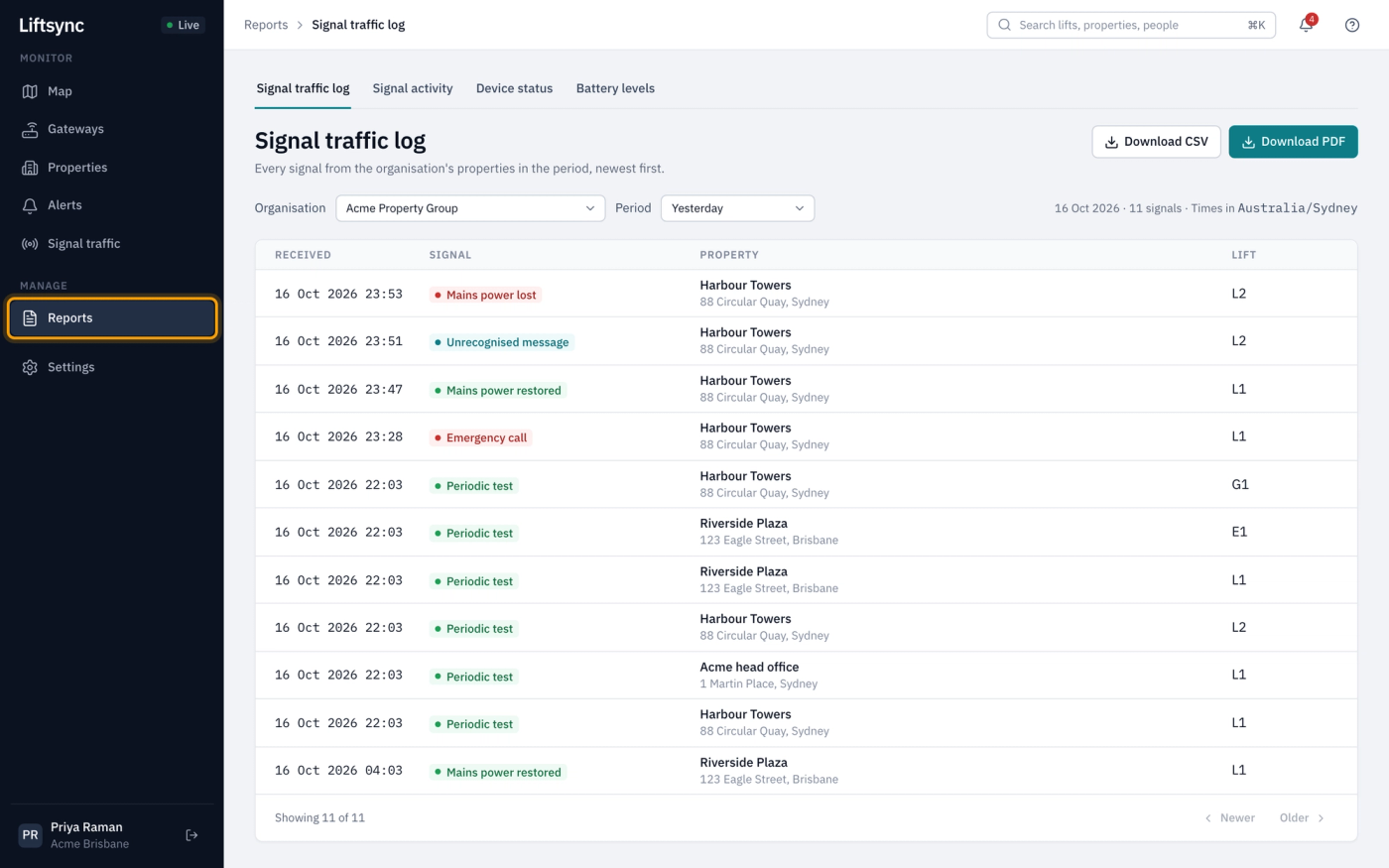
Choose the organisation
Each report covers one organisation, together with any organisations under it. For example, choosing a group includes the properties of every company in that group.
Select an organisation from the Organisation list. The report updates straight away. Organisations under another one are shown indented below it.

When you move to another report tab, your organisation and period stay the same.
Choose the period
The Signal traffic log and Signal activity cover a period of time. Select one from the Period list:
| Period | What it covers |
|---|---|
| Today | Today so far |
| Yesterday | All of yesterday. This is where the traffic log starts |
| Last 7 days | The last seven days, including today |
| Last week | Monday to Sunday of last week. This is where Signal activity starts |
| This month | From the 1st of this month to today |
| Last month | All of last month |
| Custom | Dates you choose |
Days start and end at midnight in your own time zone, which is shown at the right above the report.
Choose your own dates
- Select Custom from the Period list. Two date boxes appear.
- Enter the first day in the first box and the last day in the second box.
- Press Enter, or select somewhere else on the page. The report updates.

A Signal traffic log can cover up to 31 days, and Signal activity up to 12 months. If you choose a longer period, or an end date before the start date, the report doesn't run and LiftSync tells you what to change, for example "The start date must not be after the end date."
Download a report
Select Download PDF or Download CSV at the top right of the report. The button shows Preparing PDF… or Preparing CSV… while LiftSync builds the file, and then your browser saves it.
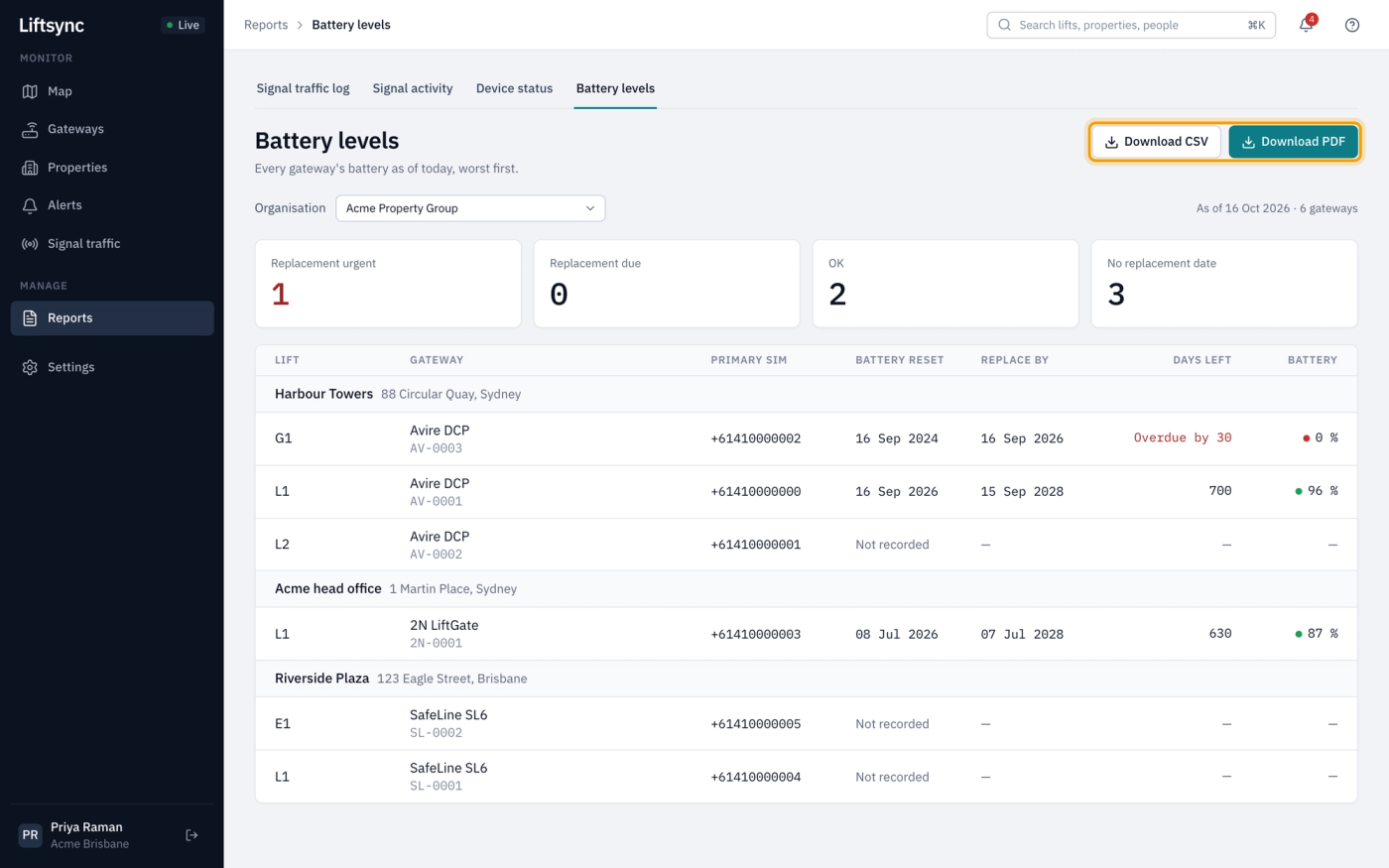
- The PDF is ready to print or email. It starts with the report's name, the organisation, the period and the totals.
- The CSV opens in a spreadsheet, so you can sort, filter or add up the figures yourself.
Both files hold the whole report, even if it runs to more than one page on screen. The file name says which report it is, the organisation and the dates, for example Battery levels - Acme Property Group - 2026-10-16.pdf.
If a download doesn't work, LiftSync shows a message such as "Couldn't build the PDF. Try again." Select the button again. If it still doesn't work, contact your LiftSync support team.